Amazon Keyword Index Checker: Is Your Listing Indexed for a Keyword?
Published
Your listing is indexed for a keyword when Amazon will show it in search results for that keyword. If it isn’t, that search can’t bring you organic sales, however good the listing is. The free checker below builds the Amazon search links that tell you, one keyword at a time, on any Amazon marketplace.
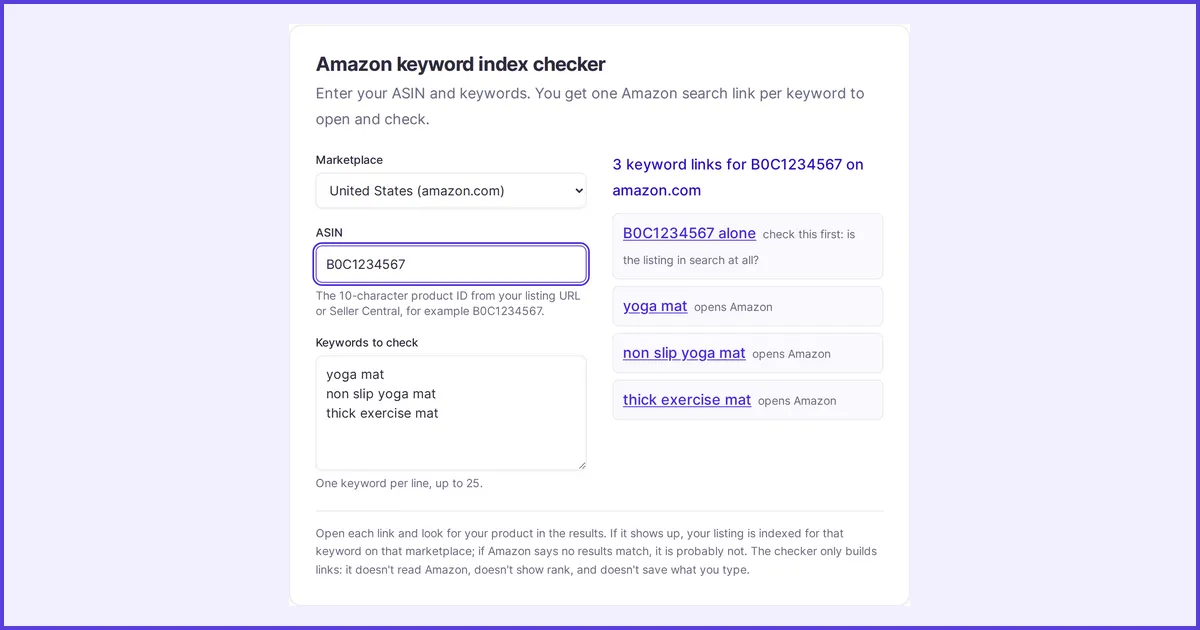
Enter your ASIN and up to 25 keywords. You get a link for your ASIN alone (is the listing in search at all?) and one link per keyword. Open each one and look for your product.
Amazon keyword index checker
Enter your ASIN and keywords. You get one Amazon search link per keyword to open and check.
The 10-character product ID from your listing URL or Seller Central, for example B0C1234567.
One keyword per line, up to 25.
—
Open each link and look for your product in the results. If it shows up, your listing is indexed for that keyword on that marketplace; if Amazon says no results match, it is probably not. The checker only builds links: it doesn't read Amazon, doesn't show rank, and doesn't save what you type.
What does “indexed” mean on Amazon?
When a shopper searches, Amazon first decides which products can appear for that search at all. It works that out largely from the words on the listing: the title, bullet points, description, backend search terms and attributes such as color or size. If your product is in that set, it is indexed for the keyword.
Where your product then appears on the results page is its rank. That’s a separate question. Indexing is the floor: a product that isn’t indexed for “non slip yoga mat” won’t show up for that search organically, whatever its reviews or price.
How to check if your listing is indexed for a keyword
- Pick the marketplace. Indexing is per marketplace. A listing indexed for a term on amazon.com may not be on amazon.co.uk or amazon.de.
- Enter your ASIN and keywords, one keyword per line.
- Open the “ASIN alone” link first. If your product doesn’t show up for its own ASIN, the problem is the listing (inactive, out of stock or suppressed), not the keywords. Fix that first.
- Open each keyword link. It searches Amazon for your ASIN together with the keyword. If your product shows up, it is indexed for that keyword. If Amazon finds no results, it most likely isn’t.
This is a quick check sellers have used for years, not an official Amazon report, so read a result as a strong hint rather than proof.
Get a clean result
- Check the marketplace where you sell, in a private window or signed out, so your own browsing doesn’t change what you see.
- Mind the delivery address. If your product doesn’t ship to the address shown at the top of the Amazon page, it may not show up.
- Check exact phrases you care about, not just single words. “Yoga mat” and “yoga mat for kids” are different searches.
Why a listing isn’t indexed for a keyword
- The words aren’t on the listing. This is the most common reason. If “thick” isn’t in your title, bullets, description or backend search terms, Amazon has little reason to match you to “thick yoga mat”.
- The listing changed recently. After you edit a listing, it can take a while before search reflects it. Check again after a few days.
- The backend search terms are too long. Keep them within the limit shown in Seller Central help for your category.
- The keyword doesn’t fit the product. Amazon may not show a product for searches it doesn’t treat as relevant to the product or its category.
- The listing isn’t live. An inactive, out-of-stock or suppressed listing won’t show up for any keyword. The “ASIN alone” link catches this.
How to fix a keyword your listing is missing
- Add the keyword where it reads naturally: in the title, a bullet point or the description. Put words that don’t fit the visible text, such as spelling variants, in the backend search terms.
- Use each word once. Repeating a word across the listing uses up space without adding new searches.
- Save, wait a few days, and run the checker again on the same marketplace.
- Pick the keywords from real searches. Your Sponsored Products search term report lists the exact shopper searches your ads got impressions, clicks and sales on. Searches that convert there are the ones worth getting indexed for.
To build the list in the first place, start with our Amazon keyword research guide and the free keyword and match-type generator.
Indexed is not ranked
Indexing tells you whether your product can show up for a search. Rank tells you where. A product can be indexed for a keyword and still sit on page seven.
To move up for a keyword, you need clicks and sales on it, and ads are the fastest way to get them on a new or weak keyword. If you’re new to that, read what Amazon PPC is and how it works, then work out your break-even bid with the free ACOS and bid calculator.
How WisePPC helps
- Search Terms report: the shopper searches your Amazon ads got impressions, clicks and sales on, so you can see which keywords are worth adding to the listing.
- Brand Analytics: if you’re brand registered, see the searches that bring shoppers to your products.
- Your own AI agent: connect it to WisePPC and ask where your products appear in Amazon’s catalog search for the terms you track.
See what WisePPC can do, see the AI integration, or compare plans and start your free trial.
Frequently asked questions
Is the keyword index checker free?
Yes. There’s no sign-up, and it runs in your browser.
Does the checker read data from Amazon?
No. It only builds the search links. You open them yourself, and nothing you type in the checker is saved.
How often should I check?
After every listing edit, and whenever sales from a keyword drop for no clear reason.
Does being indexed mean I rank for the keyword?
No. Indexed means your product can appear for the search; rank is where it appears. See indexed is not ranked above.
Can I check many keywords at once?
Yes, up to 25 per run. For a longer list, run it in batches.