Amazon Seller Central in 2026: A Hands-On Walkthrough (with Real Screenshots)
Published Updated
Amazon Seller Central is the web dashboard where every third-party seller runs their Amazon business — it is where you create listings, manage inventory, process orders, launch advertising, set prices, pull reports, and keep your account in good standing. This 2026 walkthrough shows what each of those areas actually looks like today, using real screenshots from a live Seller Central account, so you can find your way around before you ever log in. Amazon redesigned the interface in 2026, so many older guides show menus and screens that no longer match what you will see.
We run Amazon advertising for sellers as an Amazon Ads Verified Partner, so the parts we can speak to first-hand — the advertising console, the reports that actually matter, and how Account Health ties back to your ability to sell — are the ones we have weighted most heavily. Account-specific numbers in the screenshots below are blurred for privacy; the interface itself is untouched.
What is Amazon Seller Central, and what is it for?
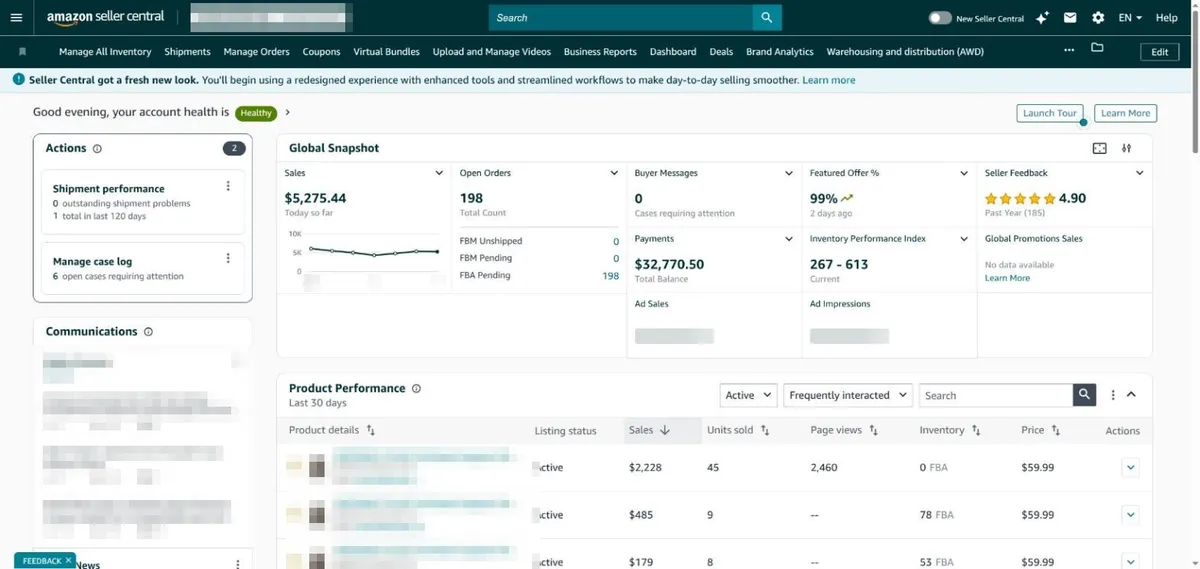
Amazon Seller Central (sellercentral.amazon.com) is the control panel for third-party sellers — the “sell it yourself” side of Amazon, as opposed to Vendor Central, where Amazon buys from you wholesale. Everything about your store lives here: product listings, inventory and shipments, orders, advertising, pricing, performance reports, customer messages, and payments. When you log in, the home dashboard gives you a Global Snapshot of sales, open orders, buyer messages, and account health at a glance.
The top of the page shows your account health and the day’s numbers; the tiles below (labeled Product Performance) show how individual listings are doing. Think of this home screen as the pulse check you run first thing every morning — new orders, unread buyer messages, and performance alerts all surface here before you go digging into any specific tool. If you are brand new to the platform, our guide to selling on Amazon covers account creation and setup end to end.
How is Seller Central organized?
Seller Central groups every tool under a single left-hand menu, opened with the ☰ icon at the top-left. In 2026 that menu holds fourteen sections: Catalog, Inventory, Pricing, Orders, Advertising, Stores, Growth, Reports, Payments, Performance, Apps and Services, B2B, Brands, and Learn. Most day-to-day work happens in five of them — Catalog and Inventory (listings and stock), Orders, Advertising, Reports, and Performance — and you visit the rest occasionally. Learning where things live in this menu is most of what “learning Seller Central” really means.
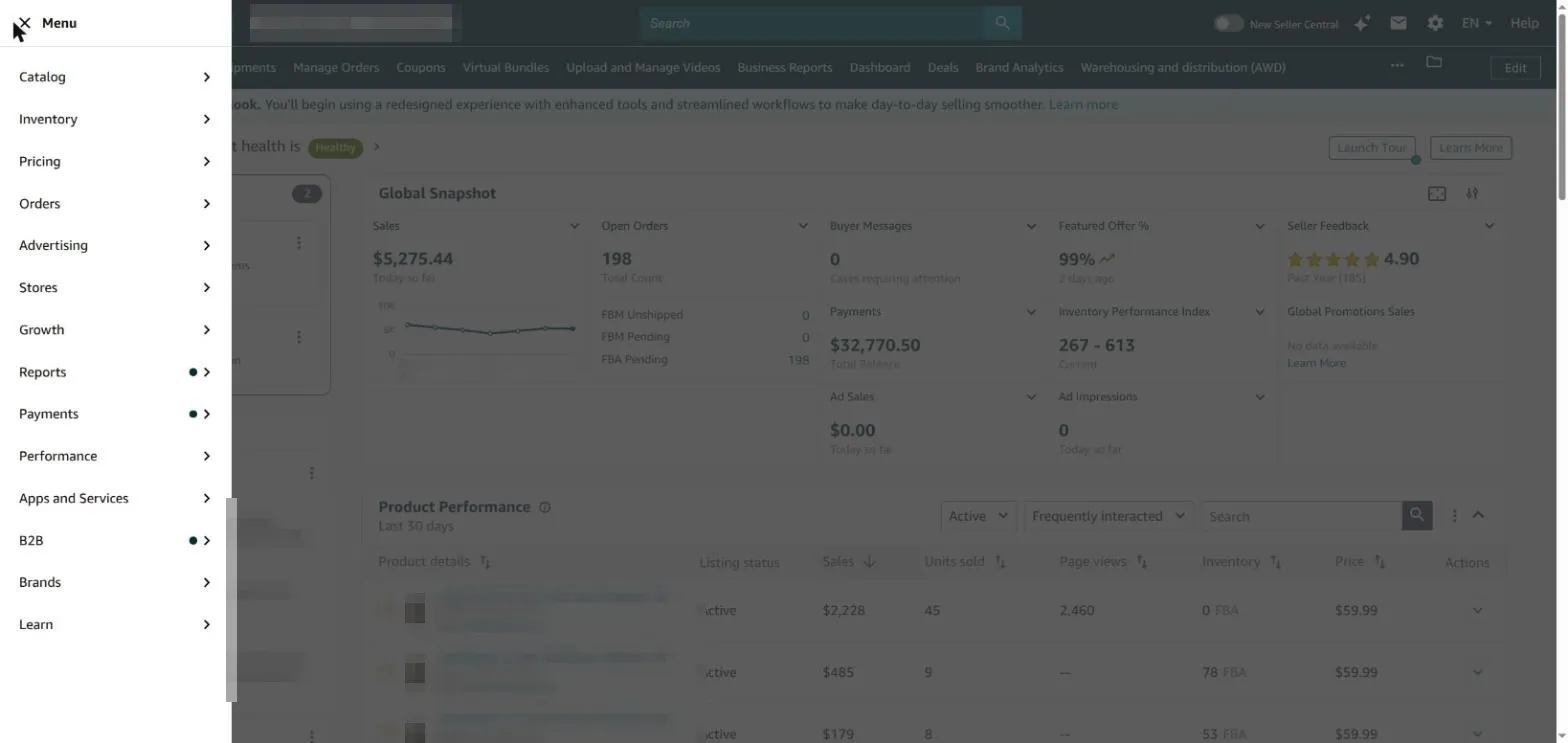
A few sections are conditional: Brands and Stores only appear if you are enrolled in Amazon Brand Registry, and B2B relates to Amazon Business selling. Alongside the menu, the top bar carries global search, your messages inbox, the settings gear (account info, notifications, tax, shipping, and user permissions), and a language switcher.
Do you need a Professional selling plan?
You can use Seller Central on either of Amazon’s two plans, and the right one comes down to volume. The Individual plan has no monthly fee but charges roughly $0.99 per item sold, and it locks you out of advertising, bulk tools, and the API. The Professional plan is $39.99 per month with no per-item fee, and it unlocks the tools most sellers actually need — Sponsored ads, bulk listing uploads, promotions, and report and API access. If you sell more than about 40 units a month, or you plan to advertise at all, Professional pays for itself.
| Individual plan | Professional plan | |
|---|---|---|
| Monthly fee | None | $39.99 |
| Per-item fee | ~$0.99 per item sold | None (referral fees still apply) |
| Best for | Under ~40 units/month, testing the water | 40+ units/month, growing sellers |
| Sponsored ads | Not available | Available |
| Bulk listing, reports and API | Not available | Available |
| Featured Offer (Buy Box) eligibility | No | Yes |
How do you add listings and manage inventory and orders?
There are two paths, depending on the product. To sell something already in Amazon’s catalog, go to Catalog > Add Products, search the ASIN or title, click “Sell this product,” and set your price, quantity, and fulfillment method. To sell your own product that is not on Amazon yet, you create a brand-new listing with a category, title, brand, a product identifier (UPC/EAN or a GTIN exemption), images, and bullet points. Large catalogs can be uploaded in bulk with flat files. Once a product is listed, everything lives under Inventory > Manage All Inventory.
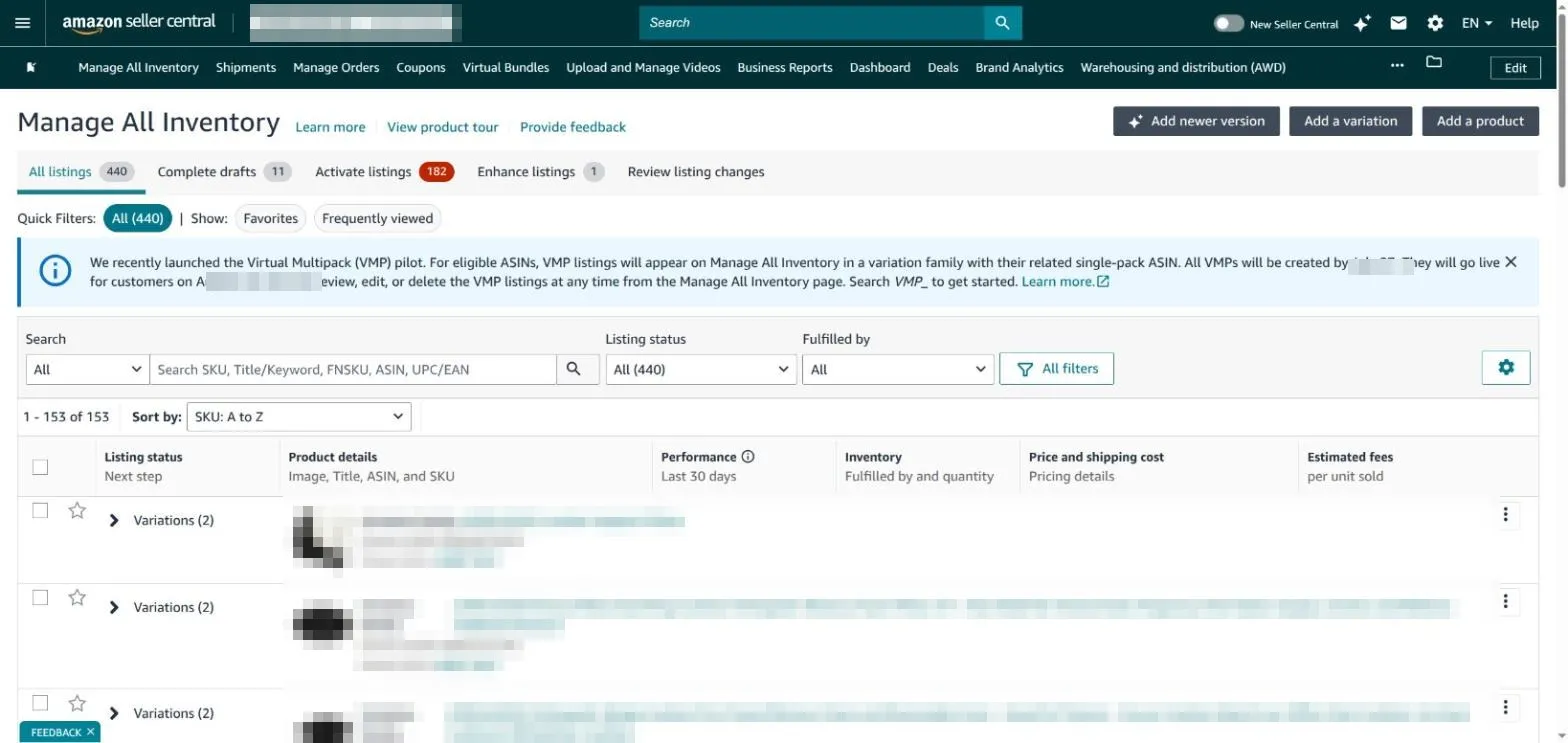
Manage All Inventory is your master list — active, inactive, and suppressed listings, stock quantities, prices, and estimated fees per unit, all filterable and searchable by SKU or ASIN. From here you also send FBA shipments (Send/Replenish Inventory) and fix listing issues that are holding a product back. Orders themselves live under Orders > Manage Orders, split into Pending, Unshipped, Canceled, and Shipped tabs; FBM sellers print shipping labels here, while FBA orders are fulfilled by Amazon automatically.
FBA or FBM — which fulfillment method should you choose?
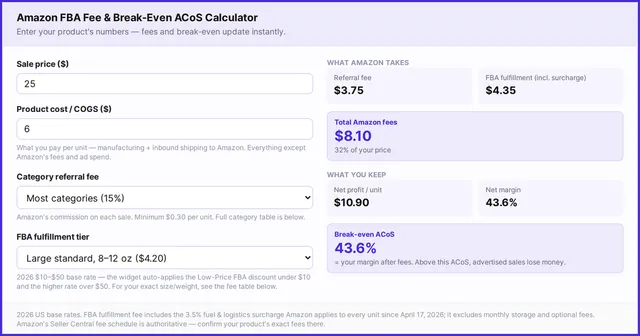
Every listing needs a fulfillment method, and Seller Central lets you mix both across your catalog. With Fulfillment by Amazon (FBA), you ship inventory to Amazon’s warehouses and Amazon handles storage, packing, shipping, returns, and customer service — your products also become Prime-eligible, which lifts conversion. With Fulfillment by Merchant (FBM), you store and ship everything yourself, keeping more margin but taking on the logistics and the shipping-performance metrics. As a rule of thumb: small, fast-moving products favor FBA; large, heavy, low-turnover, or high-margin niche products often favor FBM. Before you commit, it is worth understanding the full Amazon FBA fee structure.
| FBA (Fulfillment by Amazon) | FBM (Fulfillment by Merchant) | |
|---|---|---|
| Who stores and ships | Amazon | You |
| Prime eligibility | Automatic | Only via Seller-Fulfilled Prime |
| Customer service and returns | Handled by Amazon | Handled by you |
| Main costs | Storage + fulfillment fees | Your own shipping and labor |
| Best for | Small, fast-moving products | Large/heavy, low-turnover, or high-margin items |
How do you advertise inside Seller Central?
Advertising is where a listing goes from invisible to found. Under Advertising > Campaign Manager you can run three ad types: Sponsored Products (keyword- and product-targeted ads for individual listings — the workhorse), Sponsored Brands (headline and brand ads, for Brand-Registered sellers), and Sponsored Display (retargeting on and off Amazon). You choose a product, set a budget, pick automatic or manual targeting, and launch. Campaign Manager then reports impressions, clicks, spend, sales, ACOS, and new-to-brand metrics.
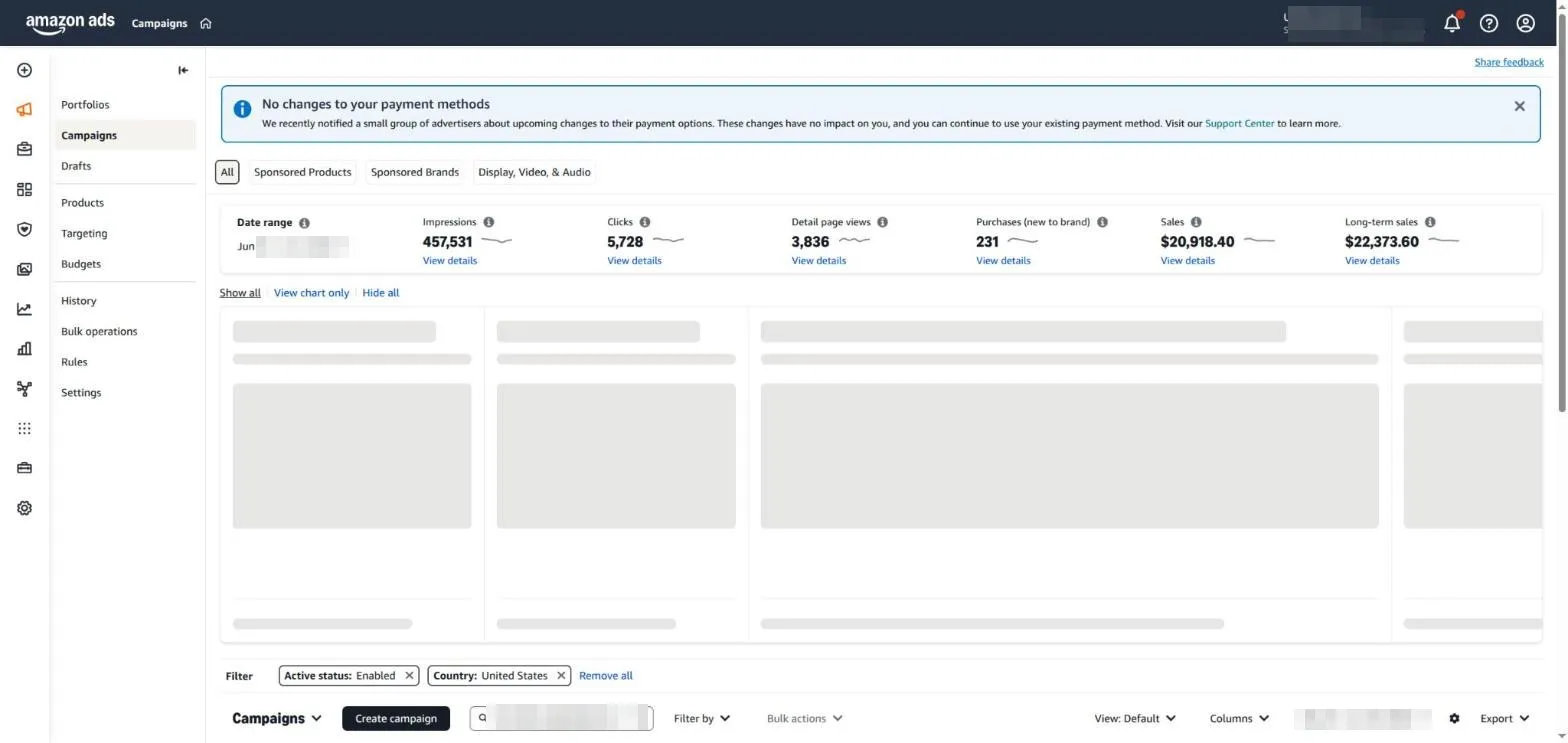
This is the screen we work in every day, and here is the honest catch: Campaign Manager is fine for launching and eyeballing a handful of campaigns, but it gets unwieldy fast once you are managing dozens of campaigns, hundreds of keywords, and bids that need adjusting on a schedule — its reporting is siloed by ad type and its bulk editing is clunky. That gap is exactly where a dedicated tool earns its keep, which we come back to at the end. You can also run coupons and promotions from Advertising > Coupons — the green “Save X%” badges that lift click-through around Prime Day and the holidays.
How do you set prices and automate repricing?
Pricing lives under the Pricing menu, which covers Pricing Health (where you are losing the Featured Offer, formerly the Buy Box), Fee Discounts, and Automate Pricing. Automated pricing lets you set rules that adjust prices across your catalog without manual work — for example, “match the Featured Offer price” or “stay 2% below my standard price for business buyers.” You pick a rule type, set a floor and ceiling so you never sell below your margin, assign SKUs, and Amazon adjusts prices for you within those guardrails.
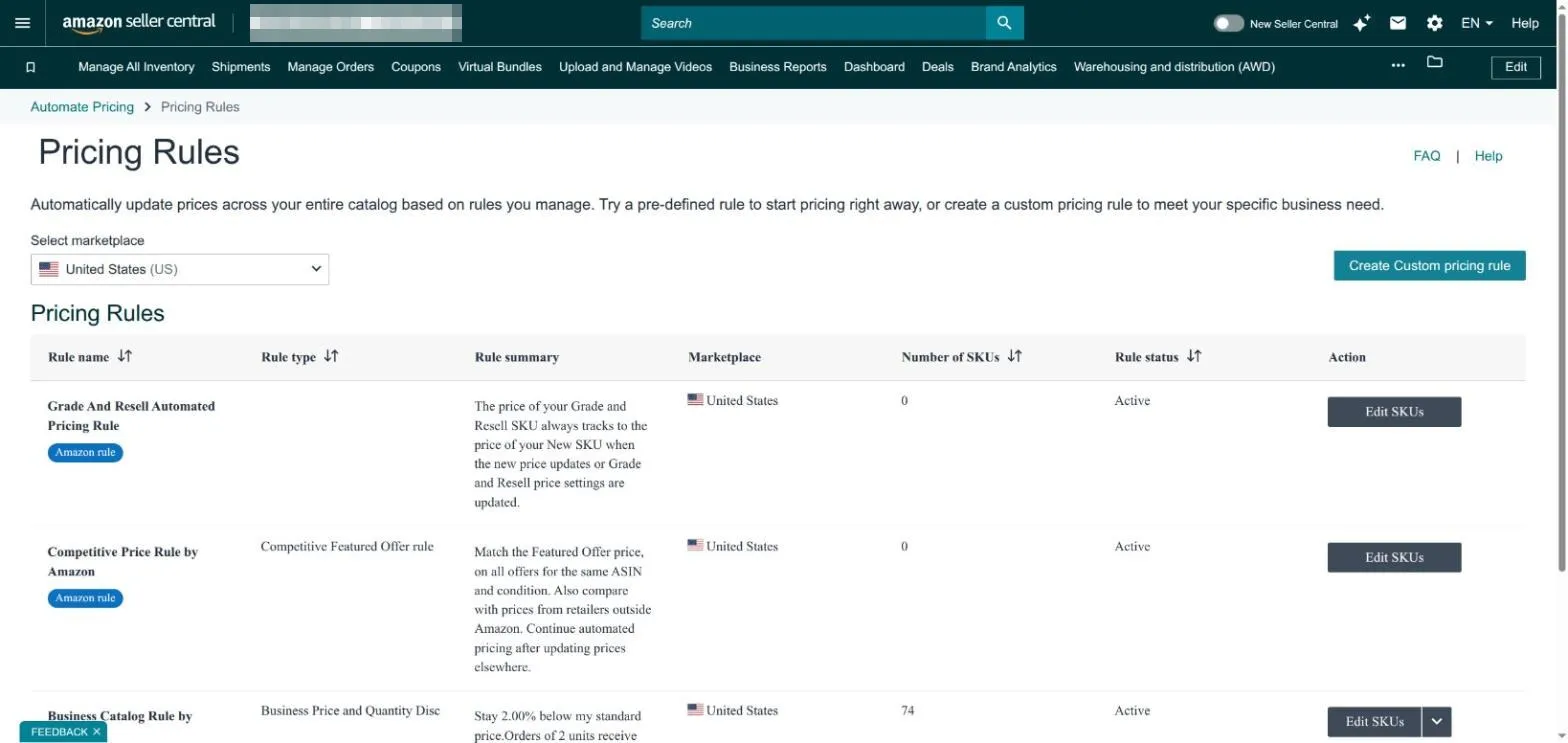
Amazon provides pre-built rules (like the Competitive Featured Offer rule) and lets you create custom ones. Repricing is one of the highest-leverage habits for sellers competing on shared listings — but always set a price floor, or a race-to-the-bottom rule can quietly erode your margins. When Amazon’s native rules are not flexible enough, that is one of the most common reasons sellers add a third-party repricer; we compare the options in our guide to the cheapest Amazon repricers.
How do you track performance and reports?
Under Reports > Business Reports you will find the Sales Dashboard and the detail reports that tell you whether your business is actually growing: sales and traffic by ASIN, sessions, page views, unit session percentage (Amazon’s term for conversion rate), and Featured Offer percentage. The Sales Dashboard even flags products with declining sales or traffic week over week. FBA sellers get an additional Fulfillment Reports section for storage fees, removals, and restock recommendations.
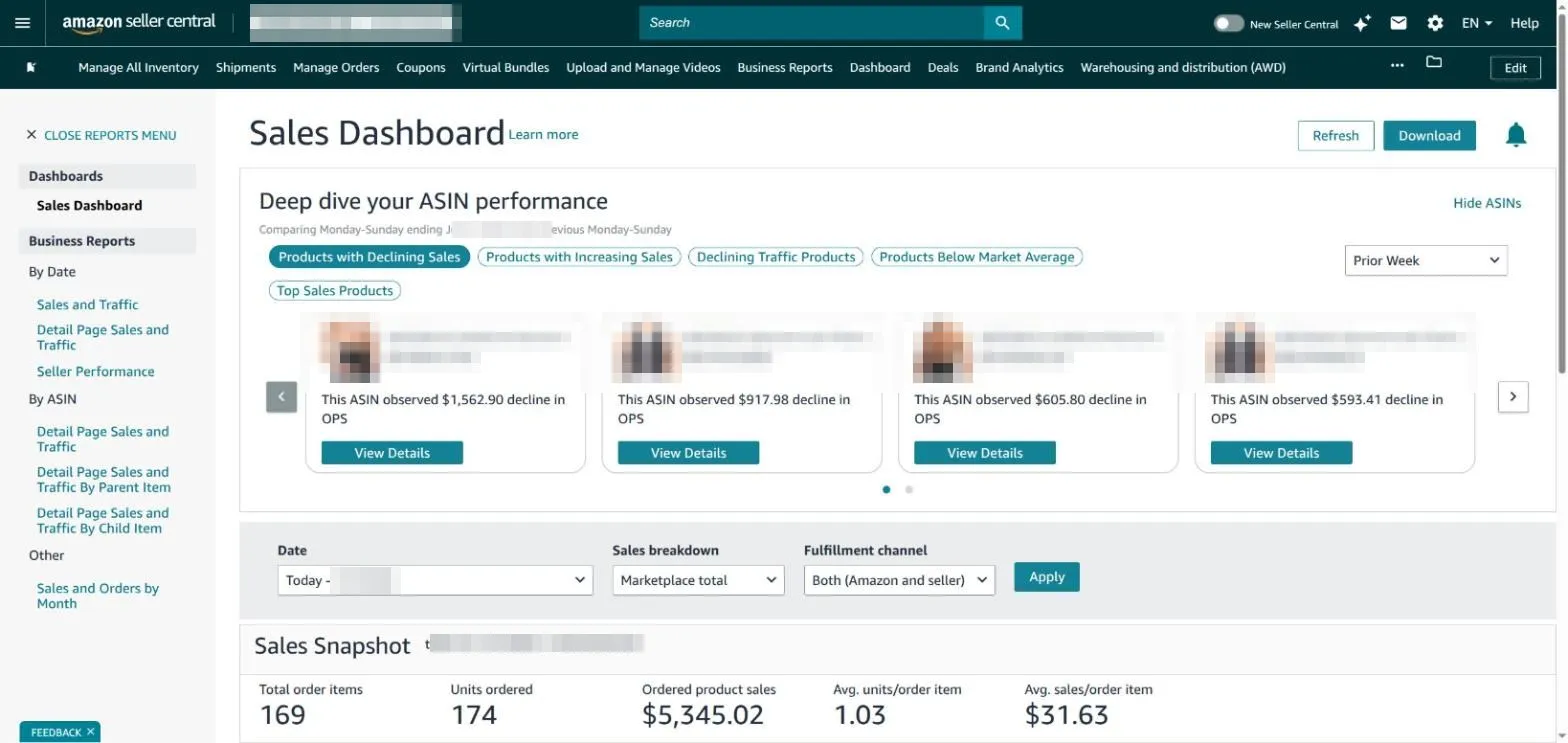
The metrics worth checking weekly: units and revenue, unit session percentage (conversion), advertising ACOS and TACOS, inventory age (Amazon charges aged-inventory surcharges on slow FBA stock), and your Account Health Rating. Brand-registered sellers also get Brand Analytics — search-query performance, a customer-journey funnel, and repeat-purchase data — which is some of the richest first-party data Amazon exposes. The one real limitation of native reports: they are snapshots, and advertising data sits in a separate silo from sales data, so joining “which ad drove which sale” takes manual work.
How do you keep your Amazon account healthy?
Under Performance > Account Health, Amazon shows how close you are to violating its selling policies, scored as an Account Health Rating (AHR) from 0 to 1,000 — higher is better, and a healthy account sits comfortably above the danger zone. The page breaks down three areas: Customer Service Performance (order defect rate, target under 1%), Policy Compliance (intellectual-property and product-authenticity issues), and Shipping Performance (late-shipment and valid-tracking rates for FBM).
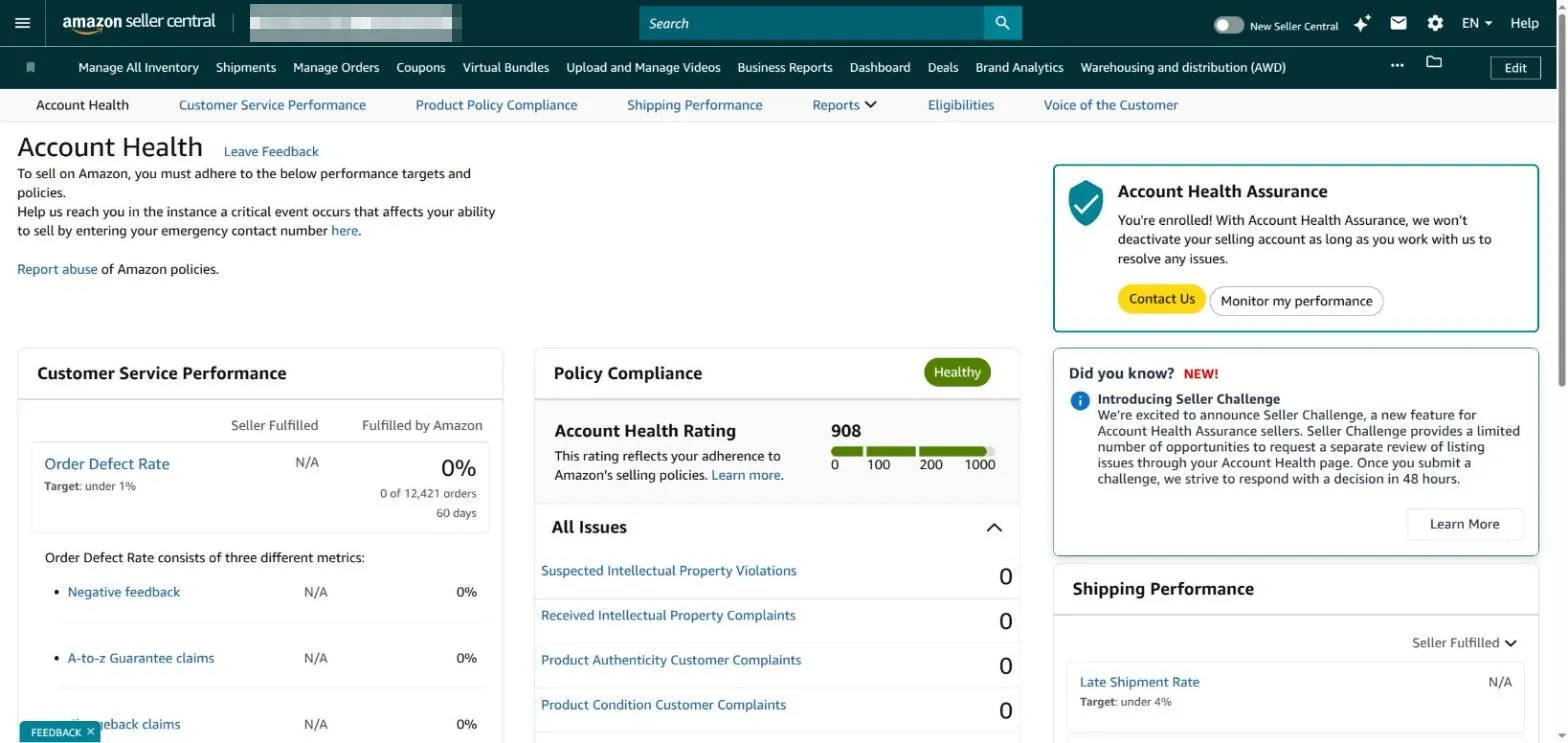
Watch this page closely. A red or falling AHR is the single most common path to account suspension, and Amazon rewards sellers who fix issues fast. Respond to policy warnings the same day, keep your order defect rate under 1%, and answer buyer messages within 24 hours. If you are ever deactivated, our guide to Amazon account suspension and reinstatement walks through the appeal process step by step.
What growth tools are built into Seller Central?
Once the basics run smoothly, Seller Central’s Growth menu surfaces tools most sellers overlook. Growth Opportunities (Product Recommendations) is Amazon’s own recommendation engine — it ranks specific actions by estimated sales impact, from fixing listing quality to adding a deal or ads to a given ASIN. Product Opportunity Explorer shows demand trends and category gaps for new-product research, and the Brand Dashboard (for Brand-Registered sellers) tracks brand health and A+ content.
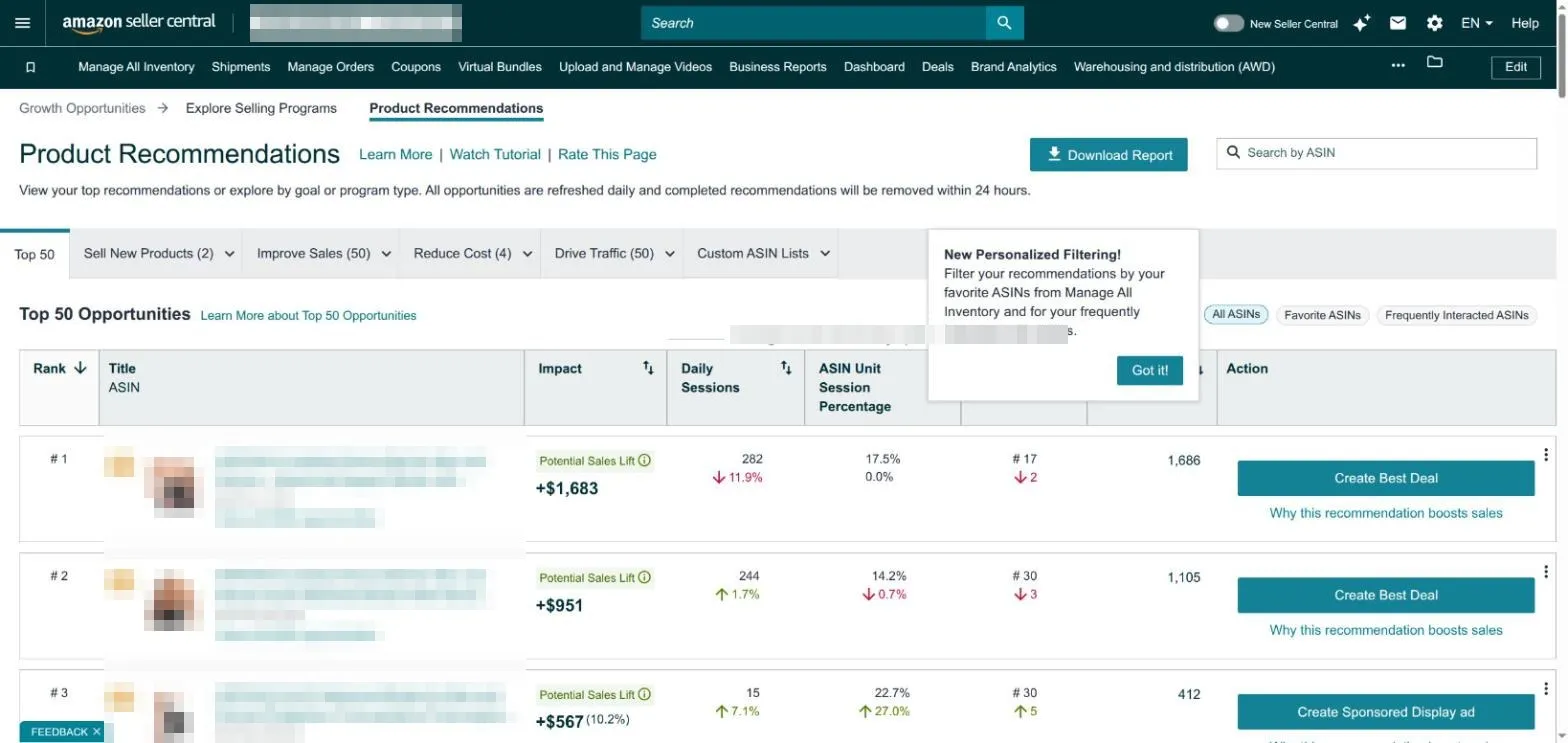
Treat these recommendations as a prioritized to-do list, not gospel — Amazon’s suggested actions naturally lean toward “spend more on ads” and “enroll in more programs.” But the impact estimates are a useful way to decide what to work on next when you have limited hours. Also worth exploring: Seller University (free training videos) under Learn, and the Selling Partner Appstore under Apps and Services, where you connect approved third-party tools.
Where WisePPC picks up where Seller Central stops
Seller Central is built to run all of Amazon; it is not built to run Amazon advertising deeply. Once you are past a handful of campaigns, Campaign Manager’s siloed reporting and clunky bulk editing become the bottleneck — and that is the gap we built WisePPC to close. As an Amazon Ads Verified Partner, WisePPC connects to your advertising account and brings Sponsored Products, Brands, and Display into one place: 30+ performance metrics, bulk editing across campaigns, ad groups, keywords, and bids, and 24 months of history backfilled when you connect your Amazon Ads account.
The centerpiece is our Unified Report, which brings ad, target, placement, and search-term data into a single view — the “which ad drove which sale” picture that Seller Central’s native reports keep siloed. It is Amazon-only and focused, with transparent, usage-based pricing and a free 30-day trial (no credit card). If you want deeper analytics and faster campaign management layered on top of the Seller Central workflow above, see what WisePPC does.
Frequently Asked Questions
What is Amazon Seller Central used for?
Amazon Seller Central is the dashboard where third-party sellers manage their Amazon business. You use it to create and edit listings, track inventory and shipments, process orders, run Sponsored ads, set prices, pull sales and traffic reports, message buyers, and monitor Account Health — all from one place.
Is Amazon Seller Central free to use?
The platform itself is free, but selling requires a plan. The Individual plan has no monthly fee and charges about $0.99 per item sold; the Professional plan is $39.99 per month with no per-item fee and unlocks advertising, bulk tools, and reports. Amazon referral fees (and FBA fees, if you use it) apply to both.
What is the difference between Seller Central and Vendor Central?
In Seller Central you sell directly to shoppers as a third-party seller and control your own pricing and inventory. In Vendor Central you sell wholesale to Amazon, which then resells your products as a first-party retailer. Vendor Central is invitation-only; most sellers use Seller Central.
How do I add a product in Seller Central?
Go to Catalog > Add Products. To sell an item already on Amazon, search its ASIN, click “Sell this product,” and set your price, quantity, and fulfillment method. To list a new product, choose the category and add a title, brand, identifier (UPC/EAN or GTIN exemption), images, and bullet points. Large catalogs can be uploaded in bulk with flat files.
What is a good Account Health Rating?
The Account Health Rating (AHR) runs from 0 to 1,000, and higher is better. Amazon considers accounts healthy when the score stays well above the at-risk threshold, with an order defect rate under 1%. A falling or red AHR is the most common warning sign before a suspension, so check the Account Health page regularly and resolve issues quickly.
Can I manage Amazon ads from Seller Central?
Yes — Advertising > Campaign Manager lets you create and manage Sponsored Products, Sponsored Brands, and Sponsored Display campaigns (a Professional plan is required). Campaign Manager is enough to launch and monitor a few campaigns; at larger scale, sellers often add a tool like WisePPC for deeper cross-campaign reporting and faster bulk editing.
Fees, plan pricing, and interface details are current as of July 2026 and reflect Amazon’s US marketplace; Seller Central is always the authoritative source — confirm current pricing and requirements there before you commit. Screenshots are from a live Seller Central account with account-specific data blurred for privacy. WisePPC is an Amazon Ads management and analytics platform serving the US, UK, DE, and JP marketplaces.