Amazon Negative Keywords: Stop Paying for Clicks That Don't Convert
Published

Negative keywords tell Amazon which searches should never trigger your ad. They are the single fastest lever for cutting wasted spend: every irrelevant click you block is budget redirected toward searches that actually convert. Most accounts leaking money aren’t bidding too high — they’re paying for clicks that were never going to turn into sales.
This guide covers what negative keywords are, the match types Amazon actually offers, where to apply them, how to mine candidates from your search-term report, and how to build a negation routine that steadily lowers ACOS without strangling your good traffic.
What negative keywords are (and the problem they solve)
A keyword tells Amazon when to show your ad. A negative keyword tells Amazon when not to: when a shopper’s search matches one of your negatives, your ad is suppressed for that query — no impression, no click, no spend.
The problem they solve is the gap between the keywords you target and the searches you actually match. Broad and phrase targeting — and auto campaigns especially — cast a wide net, so your ad surfaces on searches you never intended: wrong use case, wrong audience, research-only intent, the wrong product entirely. Each of those clicks costs money and almost never converts. Negative keywords close that gap. Three things happen when you use them well:
- You stop the bleed. Spend that was going to dead-end searches is freed up for terms that sell.
- You protect ACOS. Cutting clicks that produce no orders lowers your cost of sales directly — fewer wasted dollars over the same revenue. (If ACOS is new to you, start with what a good ACOS on Amazon looks like.)
- You sharpen relevance. A campaign that only matches on-target searches earns a higher click-through and conversion rate, which Amazon rewards with better placement over time.
The negative match types Amazon actually offers
Be precise here, because most guides aren’t. For keyword negatives, Amazon gives you exactly two match types — and only two:
| Negative match type | What it blocks | Reach |
|---|---|---|
| Negative phrase | Any search term that contains your phrase as a contiguous sequence, in that order (plus close variants like plurals) | Broader — one negative covers many searches |
| Negative exact | Only the exact term you specify (and its close variants) | Narrow — one term, nothing else |
Note what is not on that list: there is no negative broad on Amazon. Positive targeting has broad, phrase, and exact — negatives only have phrase and exact. Don’t carry the broad match type over by reflex.
The practical difference comes down to blast radius. Say the search term burning your budget is cheap running shoes. A negative exact on that term blocks only that exact query — anyone searching cheap running shoes for men still triggers your ad. A negative phrase on cheap running shoes blocks every search that contains those three words in order: cheap running shoes for men, cheap running shoes women, best cheap running shoes, and so on. One negative phrase can wipe out a whole family of unprofitable variants — which is powerful and also exactly how people accidentally negate winners.
A simple rule of thumb: use negative exact when one specific term is the problem and the surrounding variants might still convert. Use negative phrase when a word or short phrase signals irrelevance no matter what surrounds it — the classic example is a modifier like free, used, or a competitor’s brand name.
Negative keywords vs. negative product (ASIN) targeting
There’s a second kind of negative that’s easy to confuse with negative keywords but is genuinely different. In Sponsored Products, you can also add negative product targets — blocking your ad from showing on specific product detail pages or for specific ASINs. This is product targeting, not keyword targeting: instead of “don’t show for this search,” it says “don’t show on this product’s page.”
Negative ASIN targeting is how you stop your ad from appearing next to a competitor whose price or reviews crush you, or on irrelevant product pages where browsers never convert. Keep the two straight: negative keywords filter searches; negative product targets filter placements on detail pages. Both cut wasted spend, but the negatives a campaign allows can vary by campaign type — so confirm what’s permitted where before you build a routine around it.
Where to apply negatives: campaign vs. ad-group level
Negative keywords can live at two levels, and choosing the right one matters:
- Campaign level. The negative applies to every ad group in that campaign. Use this for terms that are wrong for the whole campaign — irrelevant intent, off-category searches, or a competitor brand you never want to pay for anywhere in that campaign.
- Ad-group level. The negative applies only to that single ad group. Use this when a term belongs in one ad group but not another. The most common case is funneling: you negate a converting term at the ad-group level in your broad/auto “discovery” campaign so it stops competing there, then target it as exact in a dedicated ad group built to convert it.
If you’re not sure, default to the narrowest level that solves the problem. A campaign-level negative is a blunt instrument — fast, but it can quietly suppress a term across ad groups where it was actually working.
How to find negative-keyword candidates
Almost every good negative comes from one place: your search-term report. It shows the actual queries shoppers typed before clicking your ad, alongside clicks, spend, orders, sales, and ACOS for each. That’s your hunting ground. (For a deeper workflow, see our guide to search-term report optimization.)
Pull the report over a meaningful window and look for these patterns:
- Spend with nothing to show for it. Terms with real clicks and zero orders. This is the highest-confidence category — you’re paying and getting no sales.
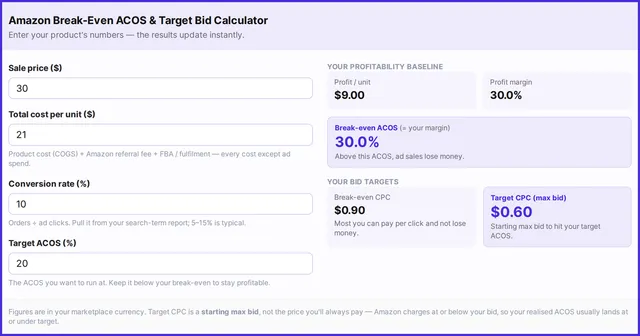
- ACOS well above break-even. Terms that do convert occasionally but at an ACOS far above the point where you make money. (Don’t know your line? Our break-even ACOS and bid calculator works it out.)
- Wrong intent. Searches that reveal a mismatch — wrong use case, wrong audience, accessories when you sell the main unit, or research-only queries like how to and what is that signal someone not ready to buy.
- Competitor and off-category terms. Brand names you can’t profitably compete against, or categories adjacent to yours that pull the wrong shoppers.
- Terms you already own organically. For an established product, searches where you rank well organically can be paying twice for a sale you’d capture anyway. Negate (or at least bid down) selectively and watch total sales, not just ad sales.
For the first category, a concrete decision rule helps you act instead of agonizing. A common starting point:
| What you see in the search-term report | A reasonable starting action |
|---|---|
| Clicks roughly equal to (or above) your average clicks-to-order, with 0 orders | Strong negate candidate |
| Several orders but ACOS far above break-even, no sign of improving | Negate, or pull the bid down hard first |
| Clearly irrelevant term, even with few clicks | Negate now — it will only keep spending |
| A few clicks, 0 orders, but the term is on-target | Wait — too little data to judge yet |
Treat the thresholds as starting points, not gospel. The right click count before you call a term dead scales with your conversion rate: a product that converts 1 in 10 clicks needs far more clicks to judge a term than one that converts 1 in 3. The cheaper your product and the lower your margin, the faster you should cut a non-converter. Let your own numbers set the bar.
Building a negation routine
Negation isn’t a one-time cleanup; it’s maintenance. New search terms surface constantly, especially in auto and broad campaigns, so wasted spend regenerates if you stop looking. A simple routine keeps it under control:
- Set a cadence. Weekly is a good default for active accounts; biweekly is fine for lower-volume ones. The point is consistency — a recurring slot beats a heroic quarterly purge.
- Scale your thresholds to traffic. High-volume campaigns generate enough data to judge terms quickly; thin campaigns need a longer look-back before you trust a zero-order verdict.
- Review before you negate. Ask whether the term is truly irrelevant or just under-optimized. A relevant term converting poorly might be a listing or bid problem, not a negation candidate.
- Document why. Keep a note of what you negated and the reason. Weeks later, when you can’t remember whether a term was a competitor brand or a slow performer, that note saves you from re-litigating the decision — or accidentally re-adding it.
Negation is the defensive half of a loop whose offensive half is keyword harvesting: you promote winning search terms into their own targeted campaigns and negate the losers from discovery. Run both together and your account steadily concentrates spend on what works. Our guide to how to do Amazon keyword research walks through the harvesting side in detail.
Common negation mistakes
The damage from bad negation is quiet — you don’t see the sales you stopped getting. Watch for these:
- Over-negating, or negating too broadly. A negative phrase that’s wider than you realized can starve good terms. Negate cheap shoes as a phrase and you might also block cheap shoes that last, which could be a buyer. Always know the full reach of a phrase negative before you apply it.
- Negating an actual winner. A term with high spend can look like waste until you notice the orders attached to it. Check conversions, not just spend, before you cut.
- Negating the same thing twice — or losing track. Without visibility into what’s already negated, you re-add duplicates, contradict yourself, or can’t tell which terms a campaign is currently excluding.
- Set-and-forget. A negation list built once and never revisited goes stale as your catalog, prices, and competition change. Yesterday’s irrelevant term can become tomorrow’s opportunity.
- Negating in auto campaigns without the harvest flow. If you negate a converting term in your auto campaign but never give it a home as an exact-match target elsewhere, you’ve thrown away a winner instead of relocating it. Negate from auto only after the term has a dedicated place to convert.
Negation, made proactive: managing negatives in WisePPC
Most of the mistakes above come from acting without visibility — negating blind, then discovering the blast radius after the damage. WisePPC is built to flip that: it makes negation a deliberate, fully-previewed move instead of guesswork. It’s an Amazon-only tool that reads straight from Amazon’s official advertising API, and here’s what it gives you for negation specifically.
- A phrase-match negative preview (the standout). When you choose to negate a search term as a phrase match, WisePPC shows you every existing matching search term it would cover, with each one’s metrics — so you see the full blast radius before you apply it. That single preview is what stops you from negating cheap shoes and silently killing cheap shoes that last; the winners are right there in front of you first.
- Negate straight from the report. Add a keyword negative individually or in bulk directly from the search-term grid — no exporting, no jumping to a separate screen, no leaving your analytics.
- An ASIN negative preview. When you negate an ASIN, WisePPC shows every ASIN in that product’s variation family, with their metrics — so you can negate the whole variation deliberately in one move instead of missing siblings.
- Negation visibility built into the grid. Already-negated search terms are flagged, every entity shows a count of how many of its search terms are already negated, and you can group active vs. negated terms separately — so duplicates and contradictions stop happening.
- Filter all your analytics by negation status. See performance from only your currently-active terms, or measure exactly what your negation strategy is excluding — so you can prove the negatives are working, not just assume it.
- History that outlasts Amazon’s. Amazon’s search-term report only retains about 60 days. WisePPC keeps up to 24 months, so chronic wasted-spend terms a 60-day window hides become obvious.
- A dedicated Management page. It lists every campaign, ad group, and target — including paused and zero-traffic ones — where you can add negative keywords and ASINs at the campaign or ad-group level, so you manage the whole account, not just the active slice.
- Optional AI help, on your terms. Connect your own AI assistant — Claude, ChatGPT, or any MCP-compatible agent — to your WisePPC data and ask, in plain English, which terms look like negation candidates. It proposes; you approve every change inside WisePPC. The intelligence surfaces candidates and shows the blast radius — you stay the one who decides and applies.
The result is negation with the lights on: you act fast, but always see what you’re about to block first. And because negatives are one of the most reliable levers for lowering ACOS, this is also one of the highest-leverage habits you can build — see what a good ACOS looks like for where it fits in the bigger picture.
Explore the WisePPC tools, see the AI integration, or compare plans and pricing and start a free 30-day trial.
Keep learning
- Search-term report optimization — where every good negative comes from.
- How to do Amazon keyword research — the harvesting half of the loop.
- What is a good ACOS on Amazon? — the number negatives help you lower.
- Sponsored Products vs. Sponsored Brands — where your negatives apply differs by campaign type.
- How to use AI agents for Amazon PPC — let your own assistant surface candidates, then approve them yourself.
The bottom line
Negative keywords are the cheapest improvement most Amazon advertisers can make: no new budget, no new campaigns, just less money going to searches that were never going to convert. Learn the two keyword match types (phrase and exact — there is no negative broad), mine candidates from your search-term report on a regular cadence, always check the blast radius before you negate, and treat it as ongoing maintenance rather than a one-time cleanup. Do that and your spend keeps concentrating on the searches that actually sell.
See how WisePPC previews every negative before you apply it, see the AI integration, or compare plans and start your free 30-day trial today.