
 EN
EN  ES
ES  FR
FR  DE
DE  IT
IT  KO
KO  JA
JA  ZH
ZH  AR
AR  PT
PT  TR
TR PL
PL
Every seller has been there: staring at a spreadsheet at 2 a.m., trying to figure out if a product is worth selling or if Amazon’s fees will eat the whole margin. The good news? Amazon built a free tool that does most of the math for you. It’s called the FBA Revenue Calculator, and once you know the three little tricks most people miss, it becomes stupidly accurate. Here’s the real way to use it in 2025 – no fluff, no outdated screenshots, just what actually works right now.
What Is the FBA Revenue Calculator, Really?
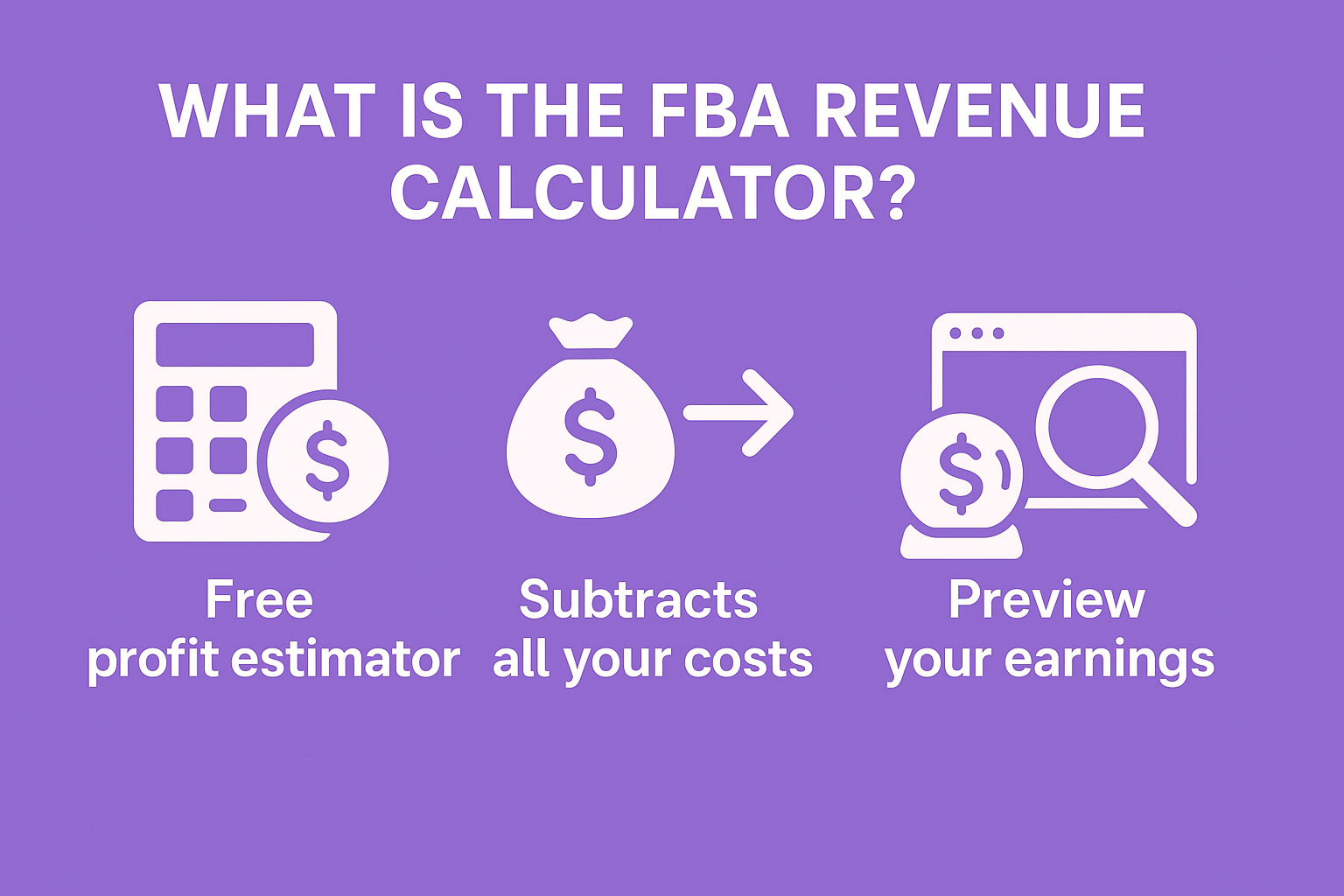
It’s Amazon’s free profit simulator that shows you exactly what you’ll take home after they skim their cut. Think of it as the one place where Amazon admits how much they charge for everything instead of making you hunt through twenty different help pages.
At its core, the tool does one job: it takes the price a customer pays and subtracts every fee Amazon can dream up (referral fee, fulfillment fee, storage fee, the weird variable closing fee on media) then spits out what actually lands in your bank account. It also lets you compare that to doing everything yourself so you can see if FBA is worth it or if you’re better off stuffing boxes in your garage.
Amazon launched it years ago, but the 2024-2025 refresh made it way smarter. It now pulls the latest fee tables automatically (including the new size tiers that started January 2025), factors in peak storage surcharges without you doing the math seasonally, and even adjusts for the lower FBA fees they rolled out for the lowest-price items. You don’t have to update anything; the numbers stay current.
Anyone can use it. You don’t need a seller account for the public version. That means you can (and should) run numbers while you’re still drinking coffee in your pajamas deciding if selling on Amazon is even worth the hassle.
In plain English: it’s the closest thing Amazon gives you to a crystal ball. Use it before you buy inventory, before you set a price, before you send a single box to a warehouse. Ignore it and you’re basically gambling.
Where to Find the Calculator in 2025
Two ways, both free.
- Public version (no account needed): google “Amazon FBA Revenue Calculator” – first result takes you straight there. Works fine for quick checks.
- Inside Seller Central: hover over the top menu Pricing > Revenue Calculator. This one pulls your real cost of goods if you already have the ASIN in your inventory, which saves time.
Use the Seller Central version once you have an account. The public one is perfect for scouting before you even register.
Walking Through the Calculator: The Exact Inputs That Matter
Choose Your Marketplace First (Don’t Skip This)
Top right corner there’s a tiny flag. Click it and choose the store you actually plan to sell in – US, Canada, UK, Japan, whatever. Fees are different everywhere. A product that makes $9 profit in the US might break even in Germany because referral jumps to 15% on some categories. Change the flag early or you’ll get excited about fake numbers.
Fill the Amazon Fulfillment Column First
This is the FBA side. Here’s what I put in every single time:
- Product sales price: whatever Keepa or CamelCamelCamel says the current street price is. Don’t guess high.
- Cost of goods: include shipping to your house or 3PL, duties, everything. Be brutal here.
- Prep cost: labels, polybags, bundling – usually $0.50 to $1.50 per unit for me.
- Monthly units sold: start conservative. I use 100 the first time just to see margins, then play with 300, 500, 1000 later.
- Avg units stored per month: same number as units sold unless you’re slow turning.
Leave the “Ship to Amazon” box at default unless you already know your exact inbound cost per unit.
Hit Calculate and watch the magic.
Fill Your Fulfillment Column (FBM Numbers)
This is where you see if doing it yourself actually saves money. Most of the time it doesn’t once you get past 200-300 sales a month, but run the numbers anyway.
- Sales price: same as FBA side (or lower if you plan to discount to move volume)
- Shipping charge to customer: what you’ll actually collect (usually the free shipping threshold)
- Pick & pack cost: honest hourly rate divided by how many orders you can pack per hour
- Outbound shipping: use pirateship.com rates or your carrier account
- Storage: rent divided by cubic feet divided by how many units fit
The calculator spits out net profit and margin for both sides. Green means FBA wins, red means you keep control and maybe save a few bucks if you’re tiny.
Common Mistakes That Will Make You Broke
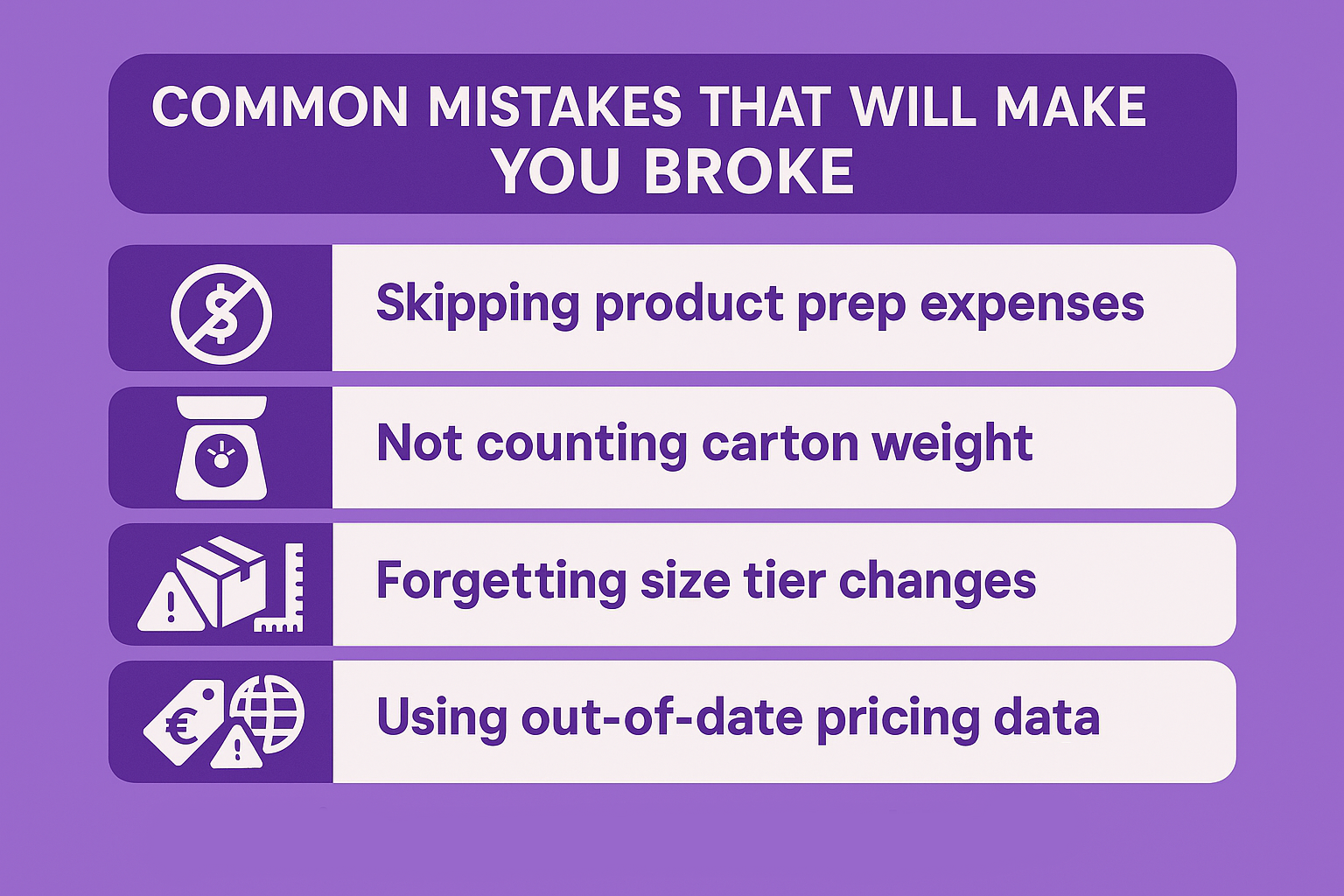
Putting zero in prep cost. Amazon will charge you for missing labels anyway, might as well plan for it.
Using the weight on the manufacturer box. Add your master carton, dunnage, tape. I add 0.5-1 lb every time.
Forgetting the 2025 size tier changes. Anything over 12x9x4 is probably jumping to Large Standard or Oversize now. Double check.
Running numbers at Buy Box price today without checking if it’s been $19 half the year. Look at Keepa 180-day average.
Only running US numbers when Europe might be wide open. German gadget store paid me an extra €92k last year on the same ASIN.
Is the FBA Revenue Calculator Actually Free?
Yes, 100% free. No catch, no credit card, no “pro version” lurking behind a paywall.
You can use the public link right now, no login, and run as many products as you want. I’ve had days where I crunched 80 different ASINs before lunch just to map out a new niche. Amazon never cut me off or asked for a dime.
Once you have a seller account (even the $0.99-per-item Individual plan), the exact same calculator lives inside Seller Central under the Pricing menu. Still free. The only difference is it can pull your real cost of goods from inventory you already have listed, which saves about 15 seconds per run.
Amazon makes their money when you actually sell, not when you’re sitting there playing with hypothetical margins. That’s why they’re happy to let you use the tool until your eyes bleed. They know if the numbers look good, you’ll eventually send inventory and pay fulfillment fees anyway.
So treat it like the unlimited free sample it is. The more you use it, the less likely you are to lose money later.

WisePPC – The Tools We Built
We’re the team behind WisePPC, a small crew who got tired of juggling tabs and stale reports. So we built the analytics platform we always wished existed: clean, fast, and brutally honest about what’s actually making money.
We’re an official Amazon Ads Verified Partner (you can check our profile here), which means we play by the rules, use direct APIs, and actually know what we’re doing.
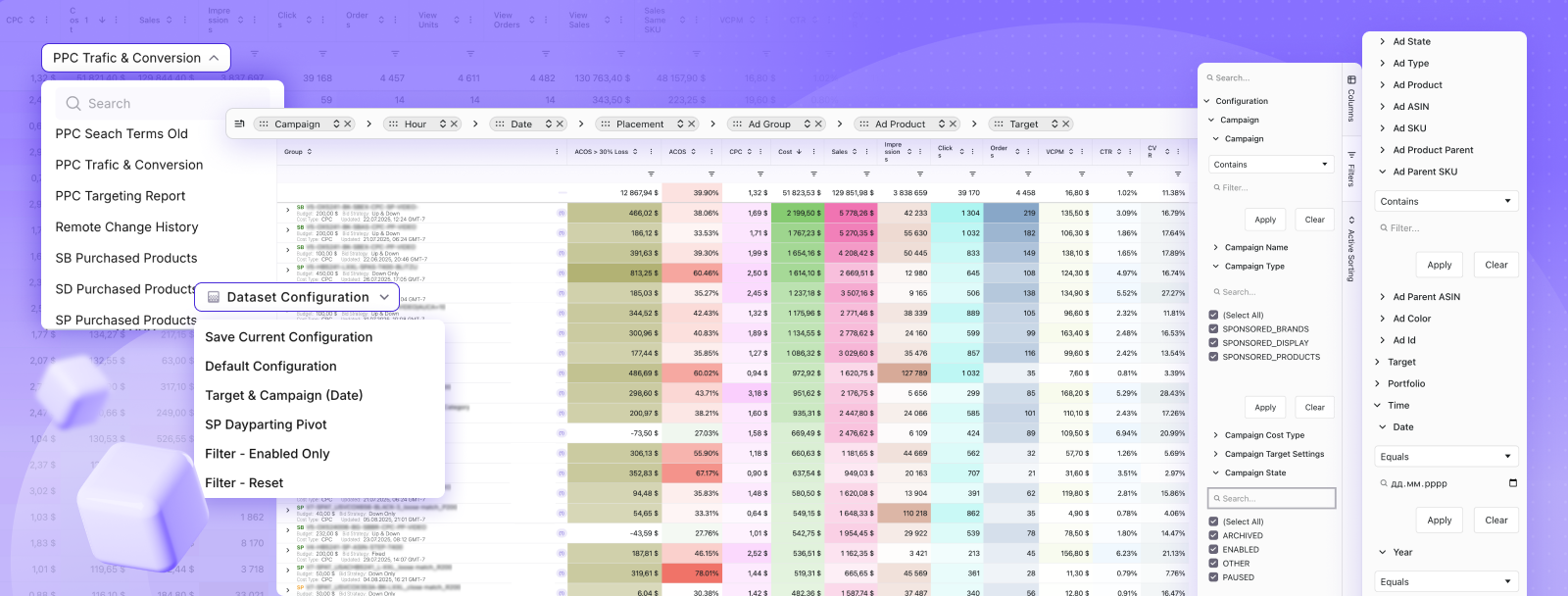
In a nutshell, WisePPC gives you:
- 30+ advanced metrics with hourly granularity (Amazon only keeps 60-90 days; we keep everything forever, even on the cheapest plan)
- Bulk actions on 10,000+ campaigns/keywords in one click
- Real-time charts that let you stack 6 metrics at once
- Gradient heat-maps so bad keywords scream at you in red
- One dashboard that finally shows the true split between ad sales and organic sales
- Inline editing, placement breakdowns, ASP trends, and a million little time-savers
Users typically cut wasted spend by 20% and drop ACOS 10-15 points in the first 30 days, simply because they can finally see what’s going on.
Right now you can start with a free 30-day trial: no card needed. If you live in Sponsored Products, Brands, or Display and want clearer data tomorrow morning, come test-drive it at wiseppc.com.
Final Thought
The FBA calculator isn’t fancy, but it’s honest. Treat it like a lie detector for product ideas. Every time I’ve ignored it and “felt” something would work, I lost money. Every time I listened, I printed money.
Open it right now, throw in whatever you’re thinking about sourcing, and let the cold hard numbers tell you what to do. Your bank account will thank you.
Frequently Asked Questions
Do I need a Professional seller account to use the FBA Revenue Calculator?
No. The public version works for anyone with an internet connection. You don’t even have to be registered as a seller. Once you do have an account (Individual or Professional), the exact same calculator appears inside Seller Central and can pull your real cost-of-goods numbers automatically.
Why do my numbers look different from my friend’s when we search the same ASIN?
Most common reasons: one of you forgot to change the marketplace flag (US vs UK vs Japan), someone used the manufacturer weight instead of shipped weight, or one person added prep/inbound/misc costs and the other left those boxes at zero. Even a 0.5 lb difference or forgetting $1 in prep can swing profit by $2-4 per unit.
Can the calculator tell me exactly how much I’ll make next month?
It gives extremely accurate estimates if your inputs are honest, but it can’t predict Buy Box percentage, competitor price wars, or lightning deals. Treat it as the best-case baseline, then knock 10-20% off the profit for real-world surprises.
Is it worth running FBA vs FBM calculations for every single product?
Yes, every time. I’ve flipped from FBM to FBA (and back) on the same ASIN six months later just because sales velocity changed. Takes two minutes and has saved me tens of thousands in fees over the years. Make it muscle memory.
 No credit card required