
 EN
EN  ES
ES  FR
FR  DE
DE  IT
IT  KO
KO  JA
JA  ZH
ZH  AR
AR  PT
PT  TR
TR PL
PL
Publishing a book used to mean chasing literary agents, printing endless query letters, and waiting months for a maybe. Now, with Amazon’s Kindle Direct Publishing (KDP), the process is a lot more accessible and a lot less mysterious.
But let’s be real: “easy” doesn’t mean effortless. Self-publishing on Amazon is absolutely doable, but there are some key things you need to get right. This guide walks you through the entire process – from prepping your manuscript to seeing your book live in the Kindle store. No fluff. Just the steps that matter, laid out in plain English.

Before Anything Else: Write a Solid Book
Sounds obvious, right? But you’d be surprised how many people rush to upload a messy first draft. The truth is, no amount of formatting or marketing will save a book that hasn’t been carefully written and revised.
So before you even think about publishing:
- Finish your manuscript. Fully. No placeholders, no half-written chapters.
- Get outside feedback. A trusted beta reader, a professional editor, or both.
- Go through rounds of edits. Start with structure (developmental editing), then move to grammar, style, and typos (line editing and proofreading).
Writing a great book takes time. Give it the care it deserves before jumping into publishing.
From Manuscript to Marketplace: Setting Up Your Book on Amazon
So you’ve written the book, or you’re dangerously close to the finish line. Now comes the part that trips up a lot of new authors – actually getting the thing published. The good news? You don’t need to hire a team or spend months figuring it out. You just need to follow a clear process. This section walks you through the entire KDP setup, from creating your account to hitting “publish.” One step at a time.
Step 1. Start with Your KDP Account
First things first: head to kdp.amazon.com. You can use your regular Amazon login, or create a fresh account just for publishing—it’s up to you. Once you’re in, you’ll be prompted to fill out some basic information:
- Your name or business name.
- Country of residence.
- Payment details for royalties.
- A short tax interview (don’t worry – it’s quick).
You can’t move forward until this part is complete, so knock it out early.
Step 2. Pick the Format(s) for Your Book
Amazon gives you three publishing options:
- Kindle eBook
- Paperback
- Hardcover
Each has slightly different requirements, but the upload process is similar. If you’re starting from scratch, the Kindle eBook format is the easiest to manage and most flexible in terms of pricing and updates. Once you choose your format, you’ll begin a new title project in your KDP dashboard.
Step 3. Fill In the Details That Actually Matter
This is where your book starts to take shape in the Amazon ecosystem. Here’s what you’ll need to input:
- Title and subtitle.
- Series information (if applicable).
- Your author name (pen names are allowed).
- Other contributors like editors or illustrators.
- A product description (aka your book blurb).
- Keywords and categories.
- Age/reading level (for kids and young adult books).
A few things to keep in mind:
- Keep your title/subtitle clean and easy to understand at a glance.
- For your book description, don’t just summarize – sell it. Hook readers in the first line. Break things into short, readable chunks. Use bullets if it helps.
- Keywords should reflect what people would actually type into the search bar – niche, descriptive, and reader-focused.
- Choose one general category (like Nonfiction) and one more specific one (like Mindfulness or DIY Crafts). You can always tweak them later.
This step influences how discoverable your book is, so give it your full attention.
Step 4. Format and Upload Your Manuscript
This is where things get real. You’ll need to upload your manuscript in a format that works with Amazon’s system. Your options:
- Hire a professional formatter (ideal for polished results).
- Use Amazon’s Kindle Create tool (simple and free).
File types that work: EPUB is best for eBooks, while print versions often use PDF. Whatever you choose, make sure to preview it using Amazon’s built-in tool. Formatting glitches make your book look amateur and can cost you reviews.
Step 5. Design and Upload Your Cover
Your book’s cover is its first impression – don’t treat it as an afterthought. You’ve got two options:
- Upload a professionally designed cover (recommended).
- Use Amazon’s Cover Creator (basic, but functional).
Technical requirements:
- JPG or TIFF file.
- Recommended eBook dimensions: 2,560 x 1,600 pixels.
- Print books require a full wrap: front, spine, and back.
If you’re publishing print editions, be extra careful with sizing and margins. And if design isn’t your thing, this is a great place to hire someone who knows what they’re doing.
Step 6. Set Your Price and Royalties
Pricing your book isn’t just about guessing what feels right. KDP gives you two main royalty options for Kindle eBooks:
- 70% royalty if your book is priced between $2.99 and $9.99.
- 35% royalty for anything outside that range.
For paperbacks and hardcovers, royalties range between 40% and 60%, but Amazon deducts printing costs first.
Here’s what else to think about:
- Prices ending in .99 tend to convert better.
- Compare your price to similar books in your genre.
- You can let Amazon auto-adjust pricing in other countries, or set it manually for more control.
You’ll also see your estimated earnings per sale before publishing, which helps with decision-making.
Step 7. Preview and Hit Publish
Almost there. Amazon gives you a preview tool to see exactly how your book looks on different devices. Use this time to:
- Double-check formatting.
- Make sure your cover looks right.
- Catch any lingering typos or weird line breaks.
Once everything checks out, click “Publish Your Kindle eBook” (or paperback/hardcover). It usually takes up to 72 hours to appear on Amazon. For some regions, it might be a bit longer.
Just like that – you’re published.
Step 8. Monitor Your Book After It Goes Live
Publishing is just the beginning. Your KDP dashboard becomes your command center once your book is live. Here you can track:
- Sales (daily, weekly, monthly).
- Page reads (if you’re in Kindle Unlimited).
- Royalties earned.
- Book rankings and customer reviews.
This is where you’ll see what’s working – and what needs adjusting. You can update pricing, change keywords, or even swap out your description down the line. Most changes take effect within a day or two.
Optional but Smart: Create Your Amazon Author Page
Amazon Author Central is a separate tool where you can:
- Build an author profile.
- Link all your books under one page.
- Add editorial reviews, blog feeds, and media mentions.
- Track customer reviews and engagement.
It’s free, easy to set up, and helps you look more legit to readers.
Common Mistakes to Avoid
Even though KDP is user-friendly, a few rookie errors can derail your launch. Watch out for:
- Rushing through formatting without previewing.
- Choosing vague categories or irrelevant keywords.
- Uploading a low-quality cover.
- Underpricing (or wildly overpricing) your book.
- Skipping editing to “save money”.
Publishing is a process. Each step matters.
Need Help Promoting Your Book? WisePPC Got You Covered
At WisePPC, we know publishing your book is just the beginning. Once your title goes live on Amazon, the next challenge is getting people to actually find it. That’s where we come in. We’re a data-powered platform built to help sellers and authors like you make smarter advertising decisions on Amazon – faster and with more clarity.
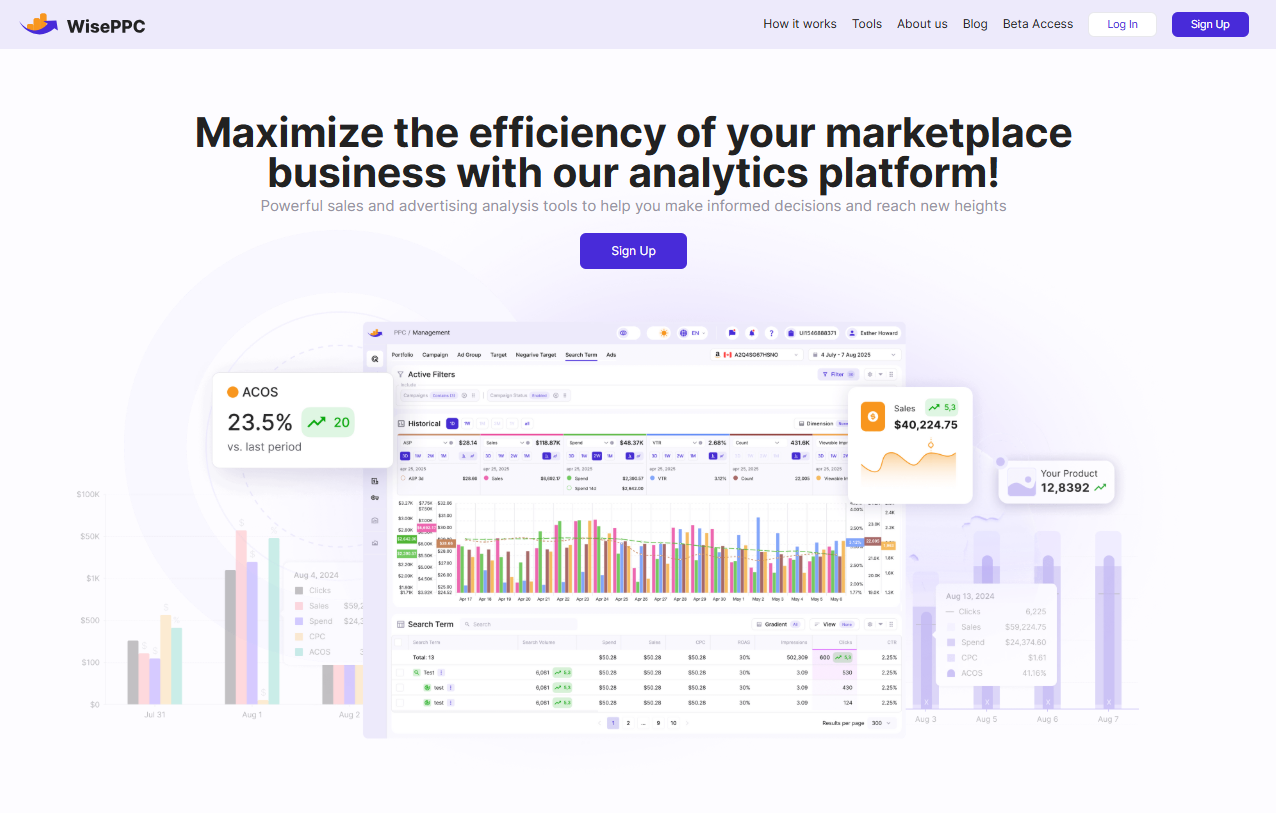
We provide real-time analytics, automated bid optimization, and performance tools that go beyond what Amazon’s basic dashboards show. Whether you’re running a single campaign or managing a growing catalog, we help you track what’s working and adjust what’s not. With us, you’re not just throwing money at ads – you’re making decisions rooted in real data. If you’re serious about reaching readers and scaling your presence, we at WisePPC are here to help you grow strategically, not just blindly spend.
Final Thoughts
Publishing on Amazon KDP isn’t just for professional writers anymore. If you’ve got a story to tell or knowledge to share, the tools are there – you just need to use them well.
Take your time, focus on quality, and don’t be afraid to ask for help. Whether your goal is to reach thousands of readers or just hold your finished book in your hands, self-publishing is a journey worth taking.
And hey, the hardest part – writing the book – is already behind you.
FAQ
1. Do I need an ISBN to publish on Amazon?
Not for eBooks, Amazon will assign one for free. For paperbacks and hardcovers, you can either use the free ISBN KDP provides or buy your own if you want to control the publisher name. If you’re planning to publish on other platforms too, owning your ISBN might make more sense long-term. But if you’re keeping things simple and sticking with Amazon, the free option is totally fine.
2. How long does it take for my book to go live after I hit publish?
Usually around 72 hours, though sometimes it’s quicker. Kindle eBooks often show up faster than print versions. Just remember – once it’s submitted, you can’t make changes until it’s approved. So double-check everything before you click that button.
3. Can I publish under a pen name?
Yep. You can use any author name you want, as long as it doesn’t impersonate someone else or violate any trademarks. Plenty of writers use pseudonyms for privacy or to separate genres. Just enter the pen name during the book setup process in KDP, and that’s what will appear on your listing.
4. What’s the best price for a new author to set?
There’s no one-size-fits-all answer, but most Kindle eBooks perform well in the $2.99 to $4.99 range. That also qualifies you for the 70% royalty rate. Going lower might help boost visibility, but don’t go so cheap that it undercuts your work. Pricing is something you can tweak later based on how your book performs.
5. Can I update my book after it’s published?
Yes, and you probably will. Whether it’s fixing a typo, adjusting the description, or uploading a new cover, you can make changes anytime. Just log into your KDP dashboard, make the edits, and re-submit. Updates usually go live within 24 to 48 hours.
6. Do I need to copyright my book before publishing?
Technically, your work is copyrighted the moment you create it, but registering the copyright with your country’s intellectual property office adds an extra layer of protection. It’s not required for publishing on Amazon, but it’s worth considering if you’re worried about your content being copied or if you plan to license or expand it later.
7. Can I publish the same book elsewhere, or am I stuck with Amazon?
It depends. If you enroll in KDP Select, your eBook must be exclusive to Amazon for 90 days. If you skip that option, you can sell it on other platforms like Apple Books or Kobo. Print books are never exclusive, so you can distribute those wherever you like, no matter what. Just be strategic with where you publish based on your goals.
 No credit card required