
 EN
EN  ES
ES  FR
FR  DE
DE  IT
IT  KO
KO  JA
JA  ZH
ZH  AR
AR  PT
PT  TR
TR PL
PL
If you’re selling on Amazon, you know the difference between guessing and knowing comes down to one thing: data. Not vague trends or rough estimates, but actual numbers tied to sales, pricing, demand, and competition. That’s where the Helium 10 Chrome Extension – specifically the Xray tool – earns its place.
This isn’t another flashy plugin that promises the moon and gives you noise. Xray is more like a microscope for Amazon listings. It’s not perfect, but when used right, it gives you a clear, focused view of what’s really going on in the marketplace.
In this article, I’ll break down exactly what Helium 10’s Xray does, how to use it effectively, what to watch out for, and the kinds of insights it can unlock for your business. If you’re here to make smarter, faster, more grounded product decisions on Amazon, you’re in the right place.
What Is Helium 10 Xray and Why It Matters
At its core, Xray is a product research tool built into the Helium 10 Chrome Extension. When you install it, it sits quietly in your browser, waiting to help you dissect any Amazon (or Walmart) search results page or product listing. Click a button, and suddenly you’ve got access to things like:
- Monthly sales estimates.
- Total revenue.
- Best Seller Rank (BSR).
- Fulfillment type (FBA vs. FBM).
- Number of active sellers.
- Review count and velocity.
- Estimated Amazon fees.
- Keyword suggestions and demand data.
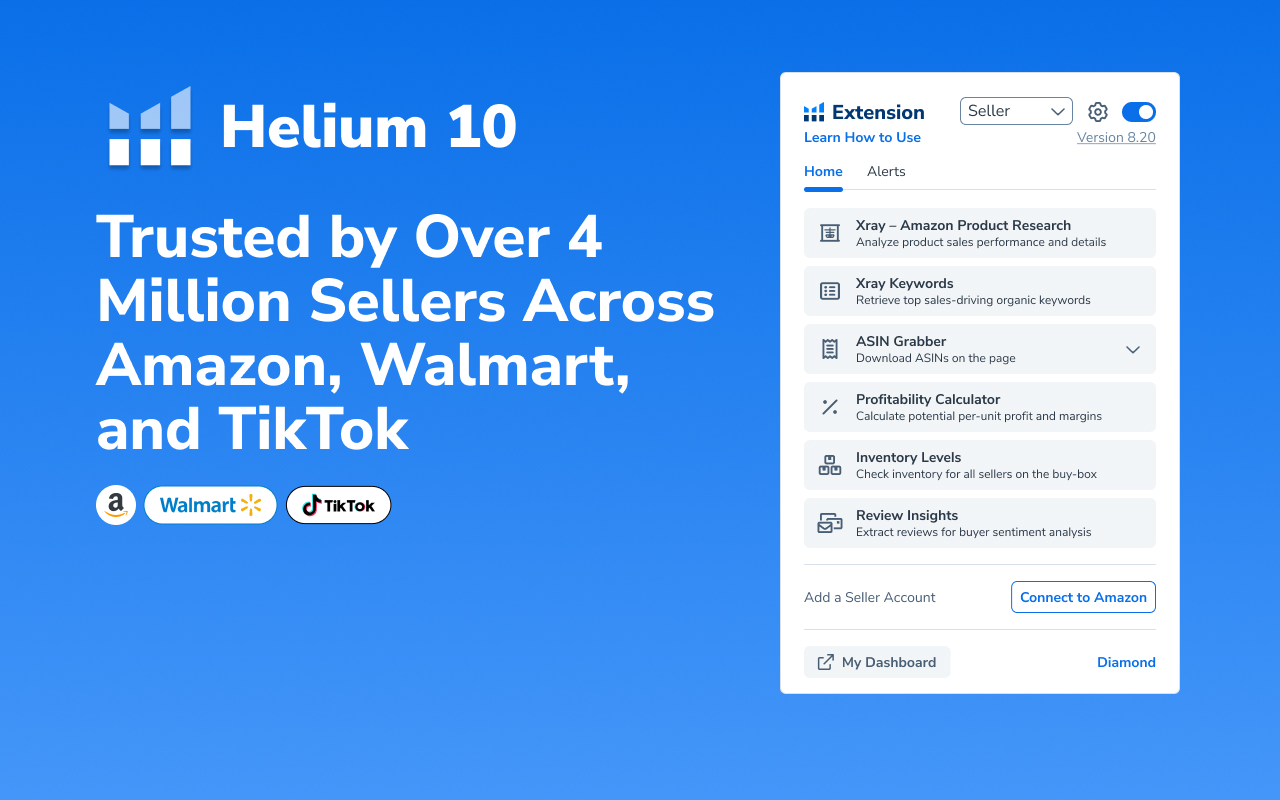
That’s a lot of firepower in a browser tab. And it’s not just about seeing numbers – it’s about context. Is a product high-revenue but hyper-competitive? Is it selling well year-round or just spiking for holidays? Xray helps you figure that out without bouncing between multiple dashboards.
How to Get Started: Installing Xray in a Few Steps
Getting access to Xray doesn’t require a paid plan upfront, which is one of the reasons sellers often try it first before diving deeper into the Helium 10 ecosystem. Here’s how to get rolling:
- Go to the Chrome Web Store and search for “Helium 10 Chrome Extension.”
- Click “Add to Chrome” and confirm the install.
- Create a Helium 10 account if you don’t already have one.
- Log in through the extension.
- Open Amazon in your browser and start exploring products.
Once installed, the Helium 10 icon will appear in your toolbar. From there, you’ll be able to open the extension on any Amazon product or search results page and activate Xray with a click.
A Closer Look at the Xray Tool Itself
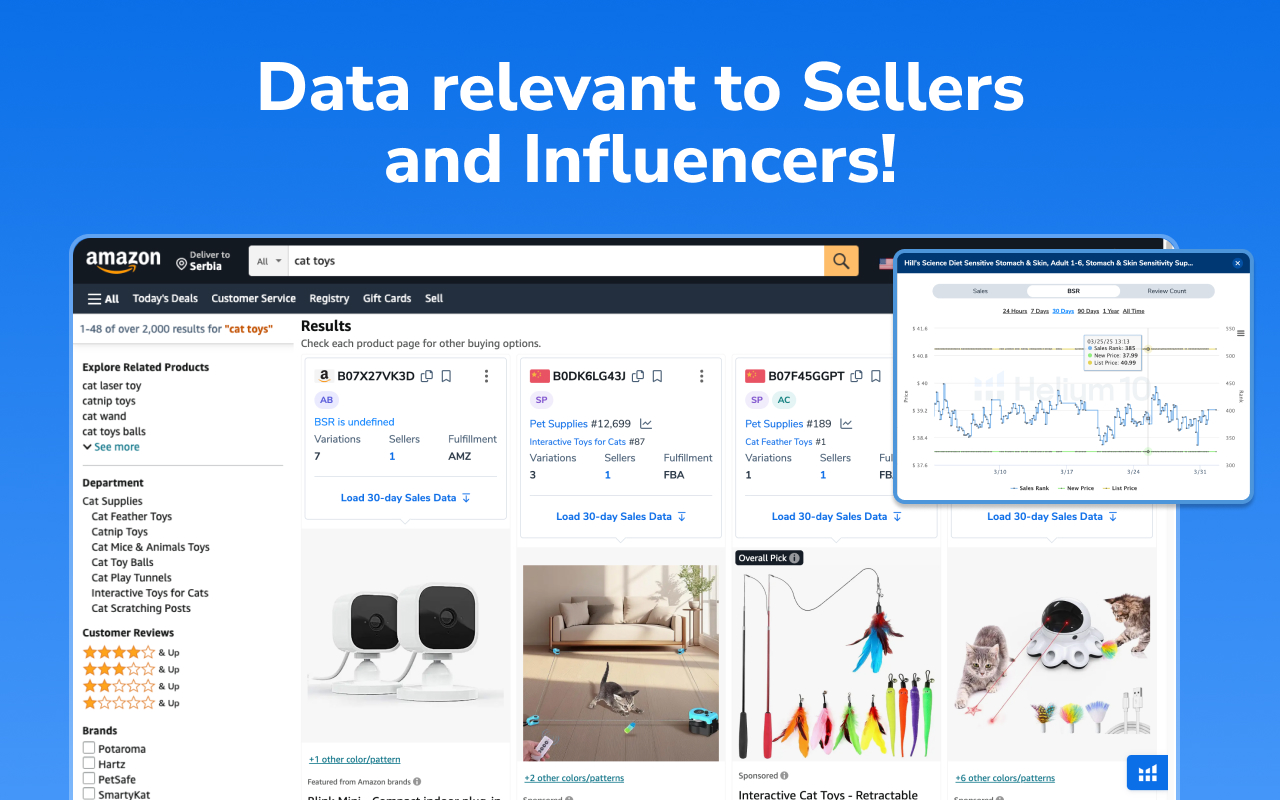
Let’s pause for a second and zoom in on what Xray actually delivers once it’s up and running. This isn’t a vague spreadsheet full of generic stats – it’s a live, in-browser analytics layer that makes Amazon listings easier to evaluate at a glance. Whether you’re browsing a category page or looking at a specific product, Xray pulls back the curtain and shows what’s really happening behind the Buy Box.
Real-Time Product Analysis
Once you activate Xray, it overlays a complete data table over the product listings you’re viewing. You get a full breakdown for each product, line by line. Here’s a snapshot of the most useful metrics you’ll be working with:
- Price: The current retail price on Amazon, giving you a sense of the product’s market value and pricing dynamics.
- Monthly Sales: Estimated unit sales over the past 30 days. This gives you a quick gut-check on demand and whether a listing is actually moving inventory.
- Revenue: The estimated gross income generated per product per month. Helpful for spotting cash-generators in crowded categories.
- FBA Fees: Projected fulfillment costs if you choose to sell that item via Fulfilled by Amazon. It’s not always obvious how much these eat into margins, so seeing it upfront matters.
- Ratings and Reviews: The star rating and total review count, plus how fast reviews are being added. This is where you start to get a sense of social proof and customer satisfaction.
- BSR (Best Seller Rank): A category-specific ranking that gives you context on how well a product performs relative to others in its niche. Lower is better here.
It’s not just about staring at numbers either. You can sort, filter, and customize these columns to focus on what actually matters to you. Sourcing a low-competition, mid-volume product? Filter for review counts under 200 and sales over 300. Targeting high-ticket items? Sort by price and revenue. The tool flexes to fit your strategy.
You can also click into any ASIN to go deeper. From there, you’ll see more details, often including historical sales trends, customer feedback, and supplier options.
Review Velocity
One feature that deserves more attention than it gets is review velocity. It shows you how many reviews a listing has gained or lost over the past month. Why is this important? Because review growth often reflects momentum. A product that’s quietly picking up 20 to 30 reviews per month without running aggressive ads may indicate steady sales and customer satisfaction. On the flip side, stagnant or declining review activity can signal a cooling market or fading relevance.
It’s a smart way to track competitor traction – or lack of it – without guessing.
Sales Graph
Xray also includes a visual sales history graph for most listings. It’s a simple chart, but incredibly useful. You’ll see estimated monthly sales plotted over time, making it easier to spot:
- Seasonality (e.g., sudden Q4 spikes).
- Long-term growth or decline.
- Short-term surges (possibly due to promotions or trending interest).
When you combine this with search volume data or keyword insights, you start to get a fuller picture of what the market actually looks like, not just what the current numbers say.
So if you’re looking at a product that seems great on the surface, decent sales, solid reviews, but the sales graph looks like a ski slope heading down? That’s probably a red flag.
Feature Highlights Worth Knowing
Xray doesn’t just dump data into a table and call it a day. It packs in some genuinely useful tools that can shave hours off your research time and help you move from product idea to sourcing and validation without losing momentum. These aren’t gimmicky add-ons – they’re practical shortcuts for anyone who’s tired of bouncing between spreadsheets, supplier directories, and keyword tools.
Let’s walk through a few standout features that tend to fly under the radar but can really make your workflow smoother.
Supplier Finder (via Alibaba)
Xray integrates directly with Alibaba to help you source products once you’ve found a good candidate. On any Amazon product page, you can click “Find Suppliers on Alibaba” and get matched with manufacturers offering similar goods. You can filter results by:
- Supplier country.
- Years in business.
- Rating and verification.
- MOQ and pricing.
It’s not perfect – the UI can feel a bit cramped – but it saves time and helps you compare options without tab-hopping.
Demand Analyzer
This is especially useful when you’re browsing Alibaba and wondering if the product you’re looking at has any traction on Amazon. From the Helium 10 extension, you can run a quick demand check. You’ll see search volume, related keywords, and product performance indicators right there – no separate tab needed.
Bulk Export and Filtering
Need to crunch numbers elsewhere? Xray lets you export results as CSV or Excel files. You can also use the camera tool to grab a snapshot of your filtered results (with sensitive data blurred, which is nice if you’re sharing it with a team).
Use filters to slice by:
- Price range.
- Monthly sales.
- Review count.
- Ratings.
- Fulfillment method.
You can even delete sponsored products or irrelevant results, which helps clean up your averages and success scores.
Two Flavors of Success Score
Xray offers two types of success scores when you run it on a search results page:
1. Multi-Factor Success Score
- Based on top 10 listings.
- Considers average revenue, market maturity, pricing consistency.
- Tells you how tough the market is, not your chances of winning.
2. Two-Factor Success Score
- Based on filters you set for revenue and review count.
- Gives you a quick feel for market potential.
- More seller-specific, depending on your tolerance for competition.
You can switch between the two in the extension settings. Just note that refreshing and reloading counts against your monthly search limit if you’re on a free or basic plan.
Finding Keywords with Xray
Keyword research isn’t always about going deep. Sometimes, you just want a fast snapshot of what buyers are searching for. Xray lets you:
- Run keyword analysis for a single product (from the product page).
- Compare related keywords for multiple listings at once (from the search results page).
- Access metrics like search volume, competition, and relevancy score.
You won’t get the full Magnet or Cerebro experience here, but it’s a solid head start, especially when validating ideas quickly.
Tracking Product Variations (a Known Weak Spot)
Here’s one area where Xray doesn’t shine: product variations. If an item comes in multiple sizes, colors, or packs, Xray tends to lump everything together. You’ll see total sales and revenue, but not per-variation breakdowns.
There is a workaround: click into each variation’s ASIN manually and run Xray again. You’ll get a closer look, but it’s not the most efficient process. Hopefully, future updates will fix this.
Practical Tips for Smarter Use
Xray gives you the data, but what you do with it is what actually moves the needle. If you want to avoid spinning your wheels or drowning in metrics, here are a few tips that come from using the tool in real-world product research, not just demo videos. Small tweaks to your workflow can make a big difference in what you see (and what you miss).
- Filter ruthlessly: Use filters to focus only on the kind of products you can realistically compete with.
- Don’t ignore review velocity: A slow-and-steady gain is often a sign of a strong, consistent seller.
- Use graphs to spot fads: Avoid products that spike and crash unless you’re doing short-term seasonal plays.
- Clean up the clutter: Delete irrelevant or sponsored listings before drawing conclusions.
- Look for gaps: If the top listings have thousands of reviews but the fifth or sixth has under 200, that could be your entry point.
Pricing and Access
You don’t need to dive straight into a premium plan to try Xray. Helium 10 includes it across all subscription tiers, including the free version – though with some limitations. For casual research or early-stage sellers, that might be more than enough to start testing ideas.
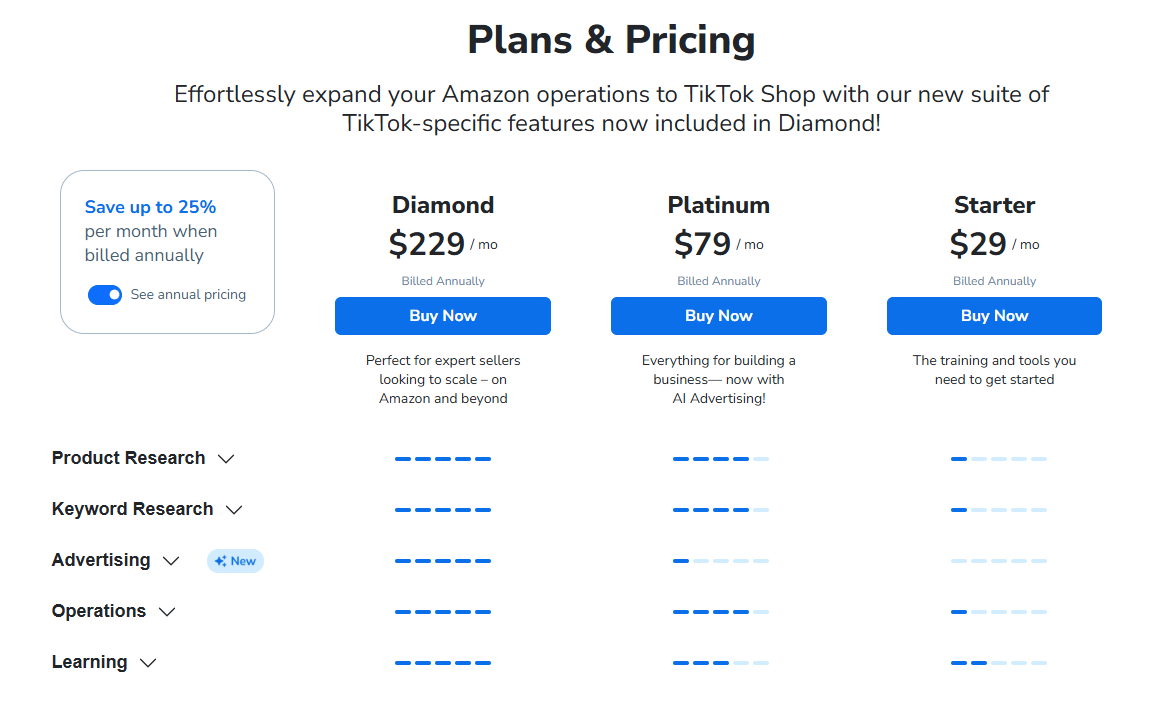
Here’s how access to Xray breaks down by plan:
- Free Plan: You get 10 Amazon searches per month. That’s limited, but still useful if you’re dipping your toes into product research.
- Starter Plan ($29/mo, billed annually): Unlocks unlimited Amazon Xray searches and up to 50 for Walmart. A good fit for sellers just getting started.
- Platinum Plan ($79/mo): Includes unlimited access for both Amazon and Walmart, plus additional tools like AI-powered advertising features.
- Diamond Plan ($229/mo): Designed for sellers ready to scale across platforms – Amazon, Walmart, and now even TikTok Shop. You’ll get full access to advanced features, influencer tools, and cross-channel insights.
Honestly, for what it offers, even the free version is worth trying if you’ve never used it before.
Pros and Cons of Using Helium 10 Xray
Xray is one of those tools that makes you wonder how you managed without it, until you bump into its limits. It’s efficient, data-packed, and genuinely helpful, but like any software, it has its rough edges. Here’s a realistic look at where it excels and where it still leaves room to improve.
Where Xray Delivers
It Seriously Cuts Down on Time
Instead of jumping between tabs, spreadsheets, and rough guesses, Xray gives you a full snapshot of key product data with one click. For anyone doing daily research, this alone can be a game changer.
You Get Real, Actionable Marketplace Data
Xray pulls a wide range of Amazon and Walmart metrics into one place – sales estimates, BSR, fulfillment method, pricing, FBA fees, and more. It’s particularly good for identifying patterns across search results or drilling into one product’s performance.
Filters and Exports Actually Work the Way They Should
You can sort listings by revenue, review count, fulfillment type, or price range, and export everything into a clean spreadsheet. It’s fast, functional, and easy to customize.
Sourcing Is Baked in
With the Alibaba integration, finding suppliers becomes part of the same workflow, no more switching platforms just to get basic sourcing info. It’s not flawless, but it’s convenient and gets the job done for most users.
Review Velocity and Sales Trends Help Tell the Full Story
Static numbers don’t give context. Xray’s ability to show review growth and sales over time gives you a better sense of momentum, not just volume.
Where It Falls Short
The Free Version Hits Its Ceiling Fast
With just 15 searches per month on the free plan, you’ll run out quickly if you’re actively validating products. It’s fine for testing the waters, but not sustainable for serious use.
Variation Data Is Lumped Together
If a listing has multiple versions, like different colors or sizes, you won’t get individual performance breakdowns. You can check variations manually, but it’s time-consuming and clunky.
Some UI Elements Feel Tight and Cramped
Pop-up windows (especially in tools like Supplier Finder or Demand Analyzer) can feel squeezed, especially if you’re working on a smaller screen or laptop. It’s workable, but not ideal for heavy research sessions.
Estimates Aren’t Always Spot on
Like any Amazon data tool, Xray works with estimates based on available data – not direct sales numbers. It’s generally accurate enough to guide decisions, but newer products or volatile categories might show some noise. Cross-referencing with other tools or your own test listings is a smart move.
Where Xray Fits in a Larger Workflow
Xray is great at surfacing products, validating ideas, and giving you a data-first lens into Amazon. But it’s just one part of the bigger Helium 10 toolset. If you need to go deeper into keyword analysis, listing optimization, or market tracking, you’ll eventually find yourself using tools like Magnet, Cerebro, or the Listing Analyzer.
That said, for product research at the moment – right there on the search results page – Xray is hard to beat.

How WisePPC Helps Sellers Go Deeper with the Data
At WisePPC, we build tools that go beyond surface-level snapshots. While platforms like Helium 10 Xray are great for identifying opportunities, we pick up where they leave off, helping sellers make sense of long-term trends, ad performance, and marketplace dynamics in one place. Whether you’re launching a new product or scaling an entire portfolio, our system gives you the visibility and control to act on what really moves the needle.
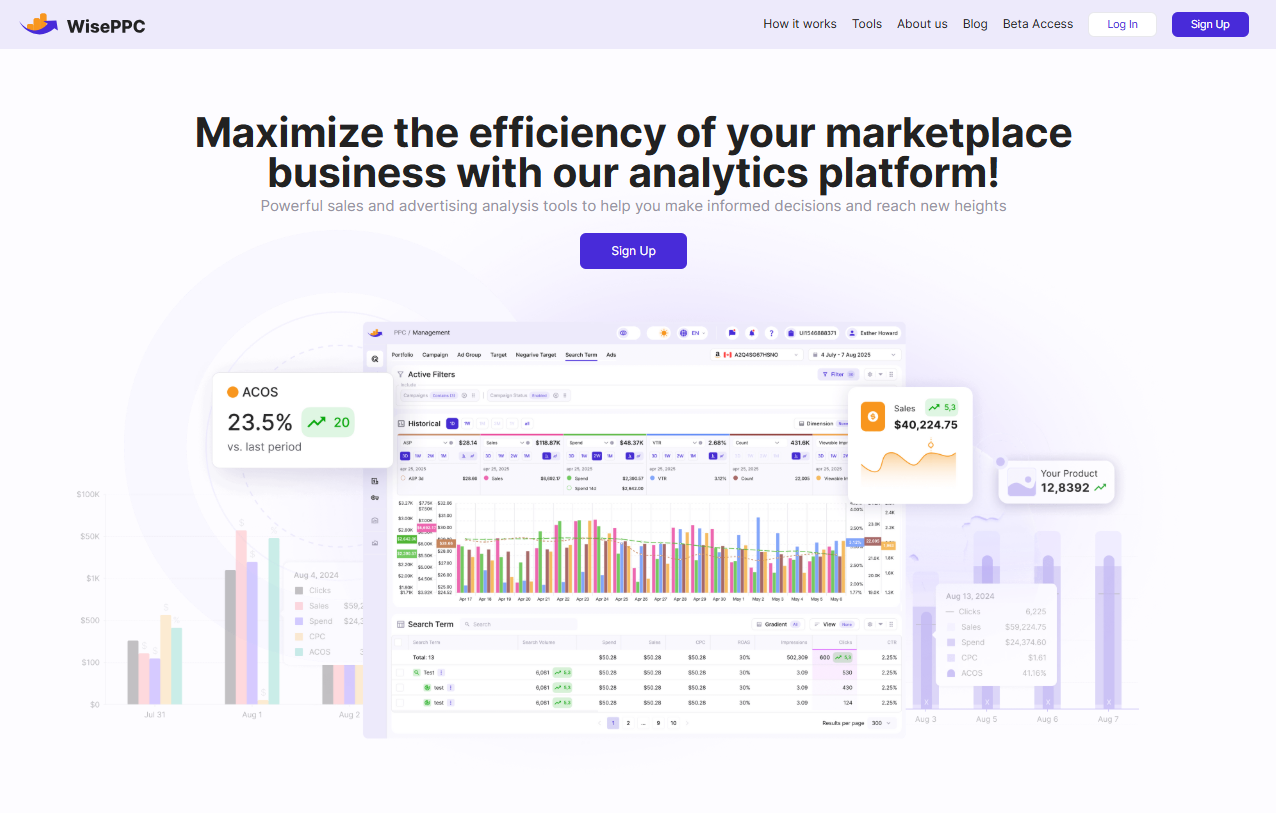
We’re not just another dashboard. As an Amazon Ads Verified Partner, we use official integrations and follow best practices to give you access to data Amazon doesn’t always make easy to find – from historical performance and ad impact on sales, to hourly trends and campaign-level optimizations. You can filter by any metric, compare placements, and even edit bids directly in the interface without switching screens or juggling exports.
And if you’re tired of short data retention windows, you’re not alone. That’s why we store your historical data for years, not months. This lets you analyze seasonality, test strategies over time, and avoid flying blind. Whether you’re a solo seller or managing thousands of SKUs across Amazon and Shopify, WisePPC is built to grow with you – one smart decision at a time.
Final Thoughts
There are plenty of Chrome extensions claiming to help you win on Amazon. Most just scrape basic data and call it a day. Helium 10 Xray actually helps you understand what you’re looking at.
It doesn’t promise you’ll find the next million-dollar product. But it does give you the data you need to stop guessing, and that’s what separates real sellers from hopeful dabblers.
If you’re serious about selling and want a tool that keeps up with how fast Amazon changes, Xray is worth learning. Not because it does everything for you, but because it helps you do the right things faster.
FAQ
1. Is Xray part of Helium 10’s Chrome Extension, or do I need to install something else?
Yep, it’s all built into the Helium 10 Chrome Extension. Once you’ve got it installed, just open an Amazon or Walmart product results page and launch Xray from the toolbar.
2. How accurate is the sales data in Xray?
It’s based on estimates pulled from real marketplace signals, so it’s pretty solid, but not flawless. Use it to spot trends, not to make exact financial projections. If you’re down to the penny, double-check with other sources.
3. Can I use Xray on Walmart too, or is it Amazon-only?
You can absolutely use it on Walmart, but only if you’re on a paid plan. The free version is limited to Amazon searches.
4. What’s the best way to use Xray without getting overwhelmed by all the numbers?
Start by applying filters that match your criteria, like review count, price range, or revenue. Then look at review velocity and the sales graph to see if it’s a steady product or a short-term trend.
5. Is the free version actually usable, or is it too limited?
Honestly, if you’re just starting out or doing early product research, the free plan is surprisingly useful. You only get 10 searches a month, but that’s enough to test the waters.
6. Does Xray show variation-level performance, like individual colors or sizes?
Not really. It usually rolls all variations into one data set, so if you care about how the red vs. blue version performs, you’ll need to dig a little deeper manually.
7. How does Xray compare to something like Jungle Scout or WisePPC?
Xray is great for quick product validation and trend spotting. Jungle Scout is a strong competitor in the same space. WisePPC, on the other hand, is more about ad performance and deep campaign analytics, so they can actually complement each other really well.
 No credit card required