
 EN
EN  ES
ES  FR
FR  DE
DE  IT
IT  KO
KO  JA
JA  ZH
ZH  AR
AR  PT
PT  TR
TR PL
PL
You’d think using a Visa gift card on Amazon would be as simple as plugging in a code and hitting checkout – but it’s not quite that straightforward. While Amazon doesn’t treat Visa gift cards like its own gift cards, there’s a perfectly workable way to use them. It just takes a slightly different approach.
Whether you got one as a gift or picked it up on sale, don’t let those prepaid funds go to waste. In this guide, we’ll walk through exactly how to add and use a Visa gift card on Amazon, plus a few smart tips for avoiding the usual hang-ups – like failed transactions or leftover balances you can’t spend.
Let’s make that card work for you.
Why Amazon Doesn’t Recognize Visa Gift Cards Like Their Own
Here’s the first thing to understand: Amazon treats its own gift cards (the kind you redeem with a code) differently from prepaid Visa gift cards. Even though both are technically “gift cards,” the systems behind them are totally different.
Amazon gift cards get added to your account as store credit. They’re tied directly to your profile and can be used across multiple purchases.
Visa gift cards? They act more like debit cards. They don’t live in your account balance and don’t work with Amazon’s gift card system. So if you try entering one into the “Redeem a Gift Card” page, it won’t work.
That’s why you have to treat your Visa gift card as a payment method, not a gift card.
Step-by-Step: How to Add a Visa Gift Card to Your Amazon Account
You’re basically going to “trick” Amazon into thinking your Visa gift card is just another debit card. Here’s how to do it the right way, so you don’t run into any hiccups at checkout.
On Desktop:
- Go to Amazon.com and log into your account.
- Hover over “Accounts & Lists” in the top-right corner.
- Click “Your Account” from the dropdown menu.
- Select “Your Payments.”
- Click “Add a payment method.”
- Choose “Add a credit or debit card.”
- Enter: the 16-digit number on your Visa gift card, the expiration date, the CVV code (3-digit number on the back), any name (you can use your own).
- Enter a billing address – even though the card isn’t tied to a specific one, Amazon requires it. Your personal address works just fine here.
- Save the card. You’ll now see it listed with your other payment methods.
On the Amazon App:
- Open the Amazon app and tap the profile icon at the bottom.
- Go to “Your Account.”
- Tap “Your Payments.”
- Select “+Add” under Cards & Accounts.
- Tap “Add a credit or debit card.”
- Enter the same info as above.
Note: Some mobile setups might skip the CVV field. If your card requires it (and many do), use the desktop site instead.

Common Mistakes That Trip People Up
Using a Visa gift card on Amazon isn’t complicated, but there are a few easy mistakes that can cause the payment to fail or leave you with an unusable leftover balance.
Watch out for these:
- Entering the card in the wrong place: The “Redeem Gift Card” page only works for Amazon-issued gift cards. Don’t try to use your Visa gift card here.
- Skipping activation: Some cards require manual activation before they work. Check the packaging or call the number on the back.
- Ignoring the balance: If your purchase total is even a few cents over the card’s balance, Amazon will reject the payment entirely.
- Missing CVV: If your card requires a CVV and you don’t enter it (common in mobile setups), the charge may fail.
- Not entering a billing address: Even though Visa gift cards aren’t tied to a real address, Amazon needs one to authorize the transaction. Use your own.
What Happens If the Gift Card Balance Isn’t Enough?
Here’s where things get frustrating: Amazon doesn’t let you split payments between two credit/debit cards. If your Visa gift card doesn’t cover the full total, you can’t just “top it off” with another card.
So, What Can You Do?
You have two options:
1. Make a Smaller Purchase that Fits the Balance
It’s not the most convenient, but you can chip away at the card balance by finding an item that costs less than what’s left on the card. Just make sure to account for taxes and shipping.
2. Convert Your Visa Gift Card into an Amazon Gift Card
This is hands down the best workaround. Here’s how:
- Use your Visa gift card to buy an Amazon eGift card (send it to yourself).
- Go to “Gift Cards” > “Reload Your Balance” on Amazon.
- Apply the eGift card to your account.
Now the balance sits in your Amazon wallet and can be split with other payment methods. It’s also easier to use exact amounts without getting stuck with a few cents left over.
How to Check the Balance on Your Visa Gift Card
Before you try to use the card, it’s smart to know exactly how much is on it – especially since Amazon doesn’t give you a warning before declining your payment.
Most Visa gift cards list a website or phone number on the back where you can:
- Check the current balance.
- See if the card is activated.
- Review any fees or expiration dates.
If the balance is low or if there are weird fees involved (some cards have inactivity charges after a few months), you’ll want to act fast.
Pro Tips to Get the Most Out of Your Visa Gift Card on Amazon
Once your card’s set up, it’s tempting to just spend it and move on. But a little strategy can help you stretch the full value and avoid annoying roadblocks. Here are a few smart ways to make sure none of that prepaid money gets lost in the shuffle.
1. Buy Amazon Credit in Exact Amounts
Got an awkward balance like $12.43 or $9.87? Don’t waste time hunting for an item that almost fits your budget. Instead, buy an Amazon eGift card for that exact amount and send it to yourself. It only takes a minute, and once it’s applied to your account, you can use it for anything.
This trick also lets you use multiple Visa gift cards more effectively. Just buy multiple eGift cards and apply them all to your Amazon balance. From there, you can spend freely and even split payments if needed.
2. Use the Desktop Site if the Mobile App Is Glitchy
Adding your Visa gift card through the app usually works, but it sometimes skips the CVV field – and certain cards need that to go through. If you run into errors or weird declines while adding your card or checking out, it’s worth switching to the desktop site.
The desktop version gives you more detailed control, lets you confirm every field (including CVV and billing address), and reduces the chance of the card getting rejected just because something wasn’t entered right.
3. Keep the Card after You Use It
Seriously, don’t toss it just yet. If you return something, Amazon will try to refund the original payment method. If that method is a Visa gift card that’s already in the trash or no longer accessible, things can get tricky.
Even if there’s only a few cents left, hang onto the card until you’re completely sure you won’t need it again. You might even want to write the remaining balance on it with a sharpie, just in case you plan to use it elsewhere.
4. Don’t Wait Too Long to Use It
Unlike store gift cards, Visa gift cards often have expiration dates – and some start charging maintenance fees after a few months of inactivity. If you let the card sit in a drawer too long, you might log in one day and find your balance has quietly shrunk or vanished altogether.
It’s a good idea to check the back of the card or the issuer’s website for specific expiration and fee info. Better yet, spend or transfer the funds sooner rather than later, especially if the card was part of a promo or rebate that came with a shorter time limit.

Can You Use Multiple Visa Gift Cards on Amazon?
Not in a single transaction, no.
Amazon doesn’t allow payment splitting between multiple debit/credit cards. However, you can add multiple Visa gift cards to your account and use them one at a time for separate purchases or convert each one into an Amazon gift card individually.
If you have three $10 Visa gift cards, here’s the best way to handle it:
- Buy three $10 Amazon eGift cards using each Visa card.
- Apply those to your account.
- Shop like normal using your Amazon balance.
No wasted cents. No rejected payments. Just a smoother checkout experience.
Can You Use a Visa Gift Card for Amazon Prime or Digital Items?
Not directly. Some Visa gift cards may not work for recurring payments like Prime memberships or digital services like Kindle Unlimited.
The workaround? Buy an Amazon gift card using the Visa gift card and apply it toward the subscription. It’s one extra step, but it works.
Want to Make the Most of Your Amazon Sales?
If you’re someone who’s thinking beyond just spending gift cards and looking to actually grow your Amazon presence, that’s where we come in. At WisePPC, we help sellers go from guessing to knowing with a platform built specifically for data-driven decision-making. Our tools give you full visibility into what’s really working across your Amazon ads, your sales performance, and even what’s dragging things down.
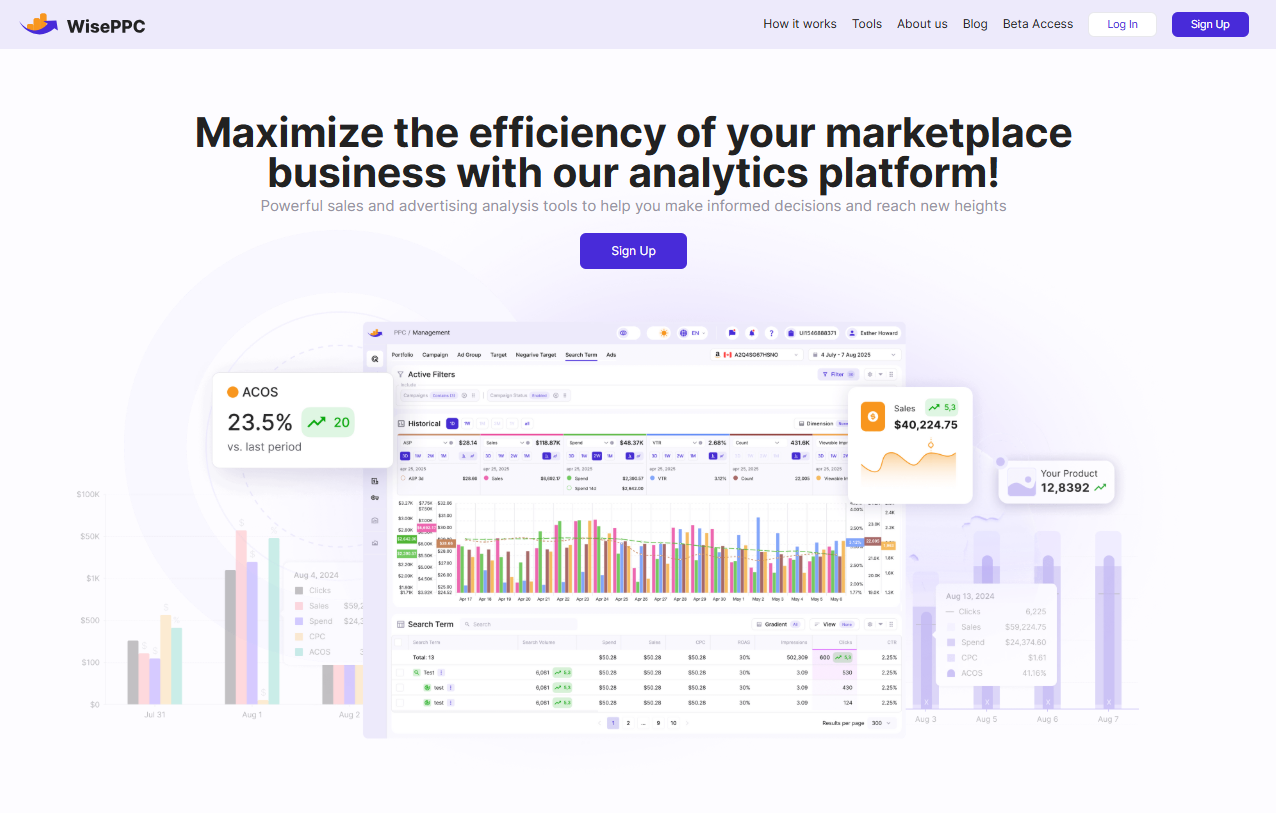
Whether you’re running one storefront or managing multiple brands, we make it easier to cut wasted ad spend, scale campaigns, and actually understand the impact of your marketing efforts. Real-time insights, automated optimizations, and long-term data tracking mean you’re not just reacting – you’re staying ahead.
Final Thoughts
Visa gift cards are great, but using them on Amazon comes with quirks. Once you understand that Amazon treats them like debit cards (not gift cards), the process gets a lot easier.
If you remember nothing else, remember to add the card as a debit/credit card, not a gift card, to convert to an Amazon gift card if you want more flexibility, and not to try to split payments.
Whether you’re working through holiday leftovers, cleaning out your wallet, or just trying to squeeze value from a promo card, there’s no reason to let those balances go to waste.
A few extra steps? Sure. But once you do it once, it’s a breeze.
FAQ
1. Can I just enter a Visa gift card like I would an Amazon gift card?
Nope, and that’s where most people get tripped up. Amazon has a separate system for its own gift cards that you redeem into your account balance. A Visa gift card isn’t compatible with that flow. Instead, you need to add it like a regular debit or credit card in your payment settings.
2. Why does Amazon reject my Visa gift card at checkout?
Usually, it comes down to one of three things: the balance on your card doesn’t cover the full order (including tax), the card wasn’t activated properly, or the CVV wasn’t entered (which can happen if you’re using the app). Always double-check the balance and try using the desktop site if the mobile one gives you trouble.
3. Can I combine a Visa gift card with another payment method?
Unfortunately, no. Amazon doesn’t let you split payments between two cards during checkout. If your Visa gift card doesn’t cover the entire purchase, the transaction will be declined. A good workaround is using the card to buy an Amazon eGift card in the exact amount, then applying that to your account.
4. What happens if I return something I paid for with a Visa gift card?
Amazon will usually refund the money back to the original card. That’s why it’s important not to toss the gift card right after using it. Even if the balance is at zero, hang onto it until you’re 100% sure there won’t be any returns or refunds involved.
5. Can I use a Visa gift card for an Amazon Prime membership?
Directly? Not always. Some Visa gift cards might work, but recurring charges like Prime subscriptions often require a traditional credit or debit card. If you really want to use your gift card for Prime, buy an Amazon gift card with it and apply that to your account instead.
6. Do Visa gift cards expire?
Yes, most of them do. Some also charge inactivity fees after a few months, which can eat away at the balance. It’s a good idea to use the card sooner rather than later, especially if it came from a rebate or promo offer.
7. Can I use multiple Visa gift cards in one Amazon order?
Not directly in a single transaction. But you can buy separate Amazon gift cards with each Visa card and load them into your Amazon balance. That way, the funds are combined and can be used all at once.
 No credit card required