
 EN
EN  ES
ES  FR
FR  DE
DE  IT
IT  KO
KO  JA
JA  ZH
ZH  AR
AR  PT
PT  TR
TR PL
PL
Quick Summary: Signing out of the Amazon app is simple: open the app, tap the menu icon (three horizontal lines), select Settings, then tap ‘Not [your name]?’ and choose Sign Out. For iPad devices, the process is slightly different—tap ‘Hello [name]’ at the top and select Sign Out directly from the dropdown menu.
Most people rarely sign out of their Amazon account. The app stays logged in by default, which makes shopping convenient. But there are plenty of good reasons to sign out—maybe someone else needs to use the device, or security concerns require logging out after each session.
The sign-out process isn’t exactly obvious in the Amazon shopping app. Unlike many apps with a clear logout button, Amazon tucks this option away in the settings menu. That’s where confusion starts.
Why Sign Out of the Amazon App?
Logging out matters more than most realize. Sharing devices with family members means purchase history, saved addresses, and payment methods remain visible to anyone who opens the app. That’s a privacy issue.
Security concerns also come into play. Logging out from shared or public devices helps prevent unauthorized purchases. Even on personal devices, signing out adds a layer of protection if the phone gets lost or stolen.
Some users need to switch between multiple Amazon accounts—personal and business, for example. Signing out becomes necessary to access a different account without mixing up orders or payment methods.
And here’s something interesting: logging out can sometimes fix app glitches. When the Amazon app acts buggy or won’t load properly, signing out and back in often resolves the issue.
How to Sign Out on Android and iPhone Devices
The process works identically on Android and iPhone devices. Amazon designed the mobile app interface to be consistent across operating systems, which makes things simpler.
Open the Amazon shopping app on the phone. Look for the menu icon—three horizontal lines stacked vertically, typically found at the bottom of the screen on newer app versions or at the top-left corner on older ones.
Tap that menu icon. A navigation panel slides out with various options including Your Orders, Your Account, and Settings. Scroll down until Settings appears. Tap Settings.
Inside Settings, account information displays at the top. The screen shows the current logged-in name with a curious phrase beneath it: ‘Not [name]?’ That’s Amazon’s way of asking if someone else wants to use the app.
Tap on ‘Not [name]?’ A small menu pops up with the Sign Out option. Tap Sign Out. The app confirms the action and returns to the main screen, now logged out.
iPad Sign Out Process Differs Slightly
iPad users get a slightly different interface. The larger screen real estate means Amazon redesigned the navigation layout.
Open the Amazon shopping app on the iPad. On iPad, tap the Menu icon (three horizontal lines), scroll to the bottom, and select ‘Sign Out’
This streamlined approach on iPad makes sense from a design perspective. The larger screen accommodates more prominent account controls.

Track Amazon Ads With WisePPC
WisePPC helps sellers on Amazon understand how their advertising performs and how it connects to product sales. It combines campaign data, keyword results, and product metrics in one place, making it easier to see what is happening without switching between reports. It also highlights trends and performance changes, helping you react faster instead of relying on delayed insights.
Need Better Visibility Into Your Ads?
Use WisePPC to:
- track campaign and keyword performance
- see how ads impact product sales
- spot trends and performance changes
👉 Explore WisePPC to understand your Amazon advertising data.
Switching Between Multiple Amazon Accounts
Some users manage more than one Amazon account. Business sellers often maintain separate personal and professional accounts. Families might share a device but want separate shopping profiles.
The Amazon app supports a ‘Switch Accounts’ feature that allows you to add and move between multiple accounts without signing out. You can manage this by going to Menu > Settings > Switch Accounts.
Here’s the thing though—this process gets tedious with frequent switching. Each sign-out and sign-in cycle requires entering email and password, plus potentially dealing with two-step verification.
| Account Type | Best Practice | Security Level |
|---|---|---|
| Personal Account | Keep logged in on personal devices | Medium |
| Business Account | Log out after each session | High |
| Shared Device | Always log out after use | Very High |
| Public Device | Never save login, always log out | Critical |
Amazon household accounts offer a partial solution. This feature lets family members share benefits like Prime without sharing login credentials. But it doesn’t eliminate the need to switch accounts for separate purchase histories.
Signing Out of Amazon on Desktop and Mobile Browser
The browser experience differs from the app. Whether using a laptop, desktop computer, or mobile browser, the sign-out process follows web interface conventions.
Visit Amazon.com in any browser. Look for ‘Account & Lists’ near the top-right corner of the page. Hover over or tap this option—no click required yet on desktop browsers.
A dropdown menu appears showing account options. At the bottom of this menu, the Sign Out link appears. Click or tap Sign Out. The website logs out and returns to the homepage.
Mobile browsers work the same way, though the interface compresses slightly for smaller screens. The ‘Account & Lists’ option still appears at the top of the page, and Sign Out remains in the dropdown menu.
Common Sign-Out Problems and Solutions
Sometimes the sign-out process doesn’t work as expected. The app might freeze, the option might not appear, or the account stays logged in despite following the steps.
First troubleshooting step: update the Amazon app. Outdated versions sometimes have bugs affecting account management. Check the device’s app store for available updates.
If the Settings menu doesn’t show the sign-out option, try force-closing the app completely and reopening it. On iPhones, swipe up from the bottom and flick the Amazon app away. On Android devices, open recent apps and close Amazon from there.
Still not working? Clear the app cache. Android users can do this through Settings > Apps > Amazon > Storage > Clear Cache. iPhone users need to delete and reinstall the app—iOS doesn’t allow manual cache clearing.
Community discussions reveal another issue: some users report being automatically signed out repeatedly. According to community discussions on Amazon Seller Central, automatic sign-outs may relate to security settings or two-step verification issues. Disabling VPNs sometimes resolves these automatic sign-outs.
Managing Devices Connected to Amazon Account
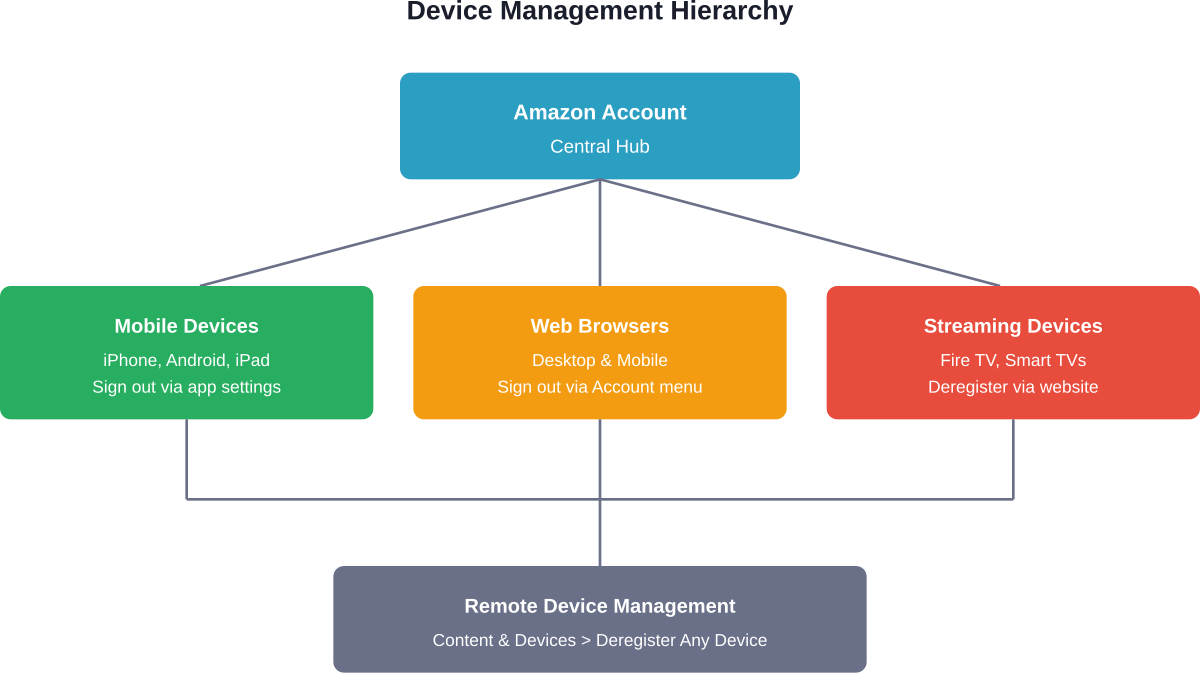
Signing out of the app on one device doesn’t affect other devices. Amazon accounts can stay logged in across multiple phones, tablets, computers, and streaming devices simultaneously.
Sometimes it’s necessary to remove a device entirely from the Amazon account—perhaps after selling an old phone or losing a device. Amazon provides a way to manage this remotely.
Log into the Amazon website on any device. Navigate to Account & Lists > Content and Devices > Devices tab. This section lists every device currently registered to the account.
Each device shows its name, type, and registration date. Click the device to deregister it. This action removes the device from the account and signs it out remotely—useful for lost or stolen devices.
Logging Out of Amazon Prime Video on TV
Smart TVs and streaming devices like Fire TV present a different logout scenario. These devices typically stay logged in indefinitely unless manually signed out.
The process varies by device type. Fire TV devices have a Settings menu with an account management section. Navigate to Settings > My Account > Amazon Account > Deregister.
For Amazon Prime Video apps on Samsung, LG, or other smart TV brands, look for account settings within the Prime Video app itself. Most include a Sign Out or Deregister option buried in the settings menu.
But wait. There’s an easier way for most streaming devices. Use the Content and Devices section on the Amazon website to deregister the device remotely. This approach works when navigating TV menus feels cumbersome.
Security Best Practices for Amazon Accounts
Signing out represents just one security measure. Amazon accounts contain sensitive information—payment methods, addresses, purchase history, and potentially subscription services worth hundreds annually.
Enable two-step verification through the Amazon account settings. This security feature requires a second form of authentication beyond the password. Even if someone obtains login credentials, they can’t access the account without the verification code.
Regularly review devices connected to the account. That list in Content and Devices might include forgotten devices from years ago. Remove anything unrecognized or no longer used.
Use strong, unique passwords. Password managers help generate and store complex passwords without the burden of memorization. Never reuse Amazon passwords on other websites—a breach elsewhere could compromise the Amazon account.
| Security Measure | Implementation Difficulty | Protection Level |
|---|---|---|
| Regular Sign-Out | Easy | Low-Medium |
| Two-Step Verification | Medium | High |
| Unique Strong Password | Easy with password manager | High |
| Device Management Review | Easy | Medium |
| Purchase Notifications | Easy | Medium |
Frequently Asked Questions
Does signing out of the Amazon app delete saved items or order history?
No, signing out only ends the session. All saved items, orders, and account data remain stored and accessible when you sign back in.
Can someone stay signed into Amazon on multiple devices at once?
Yes, Amazon allows simultaneous logins across multiple devices using the same account.
What happens to shopping cart items after signing out?
Cart items are saved to your account and will still be there when you sign back in, unless they become unavailable or change price.
Why does the Amazon app keep signing out automatically?
This can be caused by security settings, VPN usage, or app issues. Updating the app, clearing cache, or disabling VPN may help.
Is there a faster way to switch between Amazon accounts without signing out?
No, you must sign out and sign back in to switch accounts.
Does signing out of Amazon affect Prime Video or Kindle on the same device?
No, those apps have separate sessions and require independent sign-outs.
Can deregistering a device from the Amazon website sign it out remotely?
Yes, removing a device from your account will immediately sign it out and revoke access.
Final Thoughts on Amazon App Sign-Out
Signing out of the Amazon app takes just a few taps once the process is known. The Settings menu path for Android and iPhone, or the account name dropdown on iPad, provides quick access to sign-out functionality.
Security considerations make signing out worthwhile on shared devices. Privacy protection, account security, and preventing unauthorized purchases all benefit from regular sign-outs in appropriate contexts.
Personal devices used exclusively by one person don’t necessarily require frequent sign-outs. The convenience of staying logged in outweighs minimal security risks in those scenarios. But shared devices, public computers, and business accounts call for more cautious logout practices.
Managing device registrations through the Amazon website provides additional control over account security. Regular reviews of connected devices help maintain oversight of where the account remains active.
Ready to secure that Amazon account? Check device registrations, enable two-step verification, and establish sign-out routines for shared devices. These simple steps protect purchase history, payment information, and account integrity.
 No credit card required