
 EN
EN  ES
ES  FR
FR  DE
DE  IT
IT  KO
KO  JA
JA  ZH
ZH  AR
AR  PT
PT  TR
TR PL
PL
Quick Summary: Creating an Amazon Wish List is straightforward: navigate to Account & Lists, select ‘Create a List’, name your list, set privacy preferences, and start adding items by clicking ‘Add to List’ on product pages. You can share your list via a unique URL with friends and family, and Amazon allows multiple lists for different occasions.
Amazon Wish Lists have become an essential tool for online shopping organizations. Whether it’s tracking items for a birthday, wedding, holiday season, or simply keeping tabs on products to purchase later, these lists simplify the entire shopping experience.
But here’s the thing—many shoppers don’t realize the full potential of Amazon’s list features. Beyond basic wishlist functionality, Amazon offers privacy controls, sharing options, and the ability to manage multiple lists for different occasions.
This guide breaks down everything needed to create, customize, and share Amazon Wish Lists effectively.
Why Use Amazon Wish Lists
According to Amazon’s official resources, lists help users stay organized, save items and ideas in one convenient location, and check deals and price drops on saved products. The platform makes it easy for friends and family to find the perfect gift for any occasion.
Lists serve multiple purposes beyond gift registries. Many shoppers use them as personal save-for-later collections, price tracking tools, or shopping reminders. The versatility makes them valuable for budget-conscious shoppers and gift-givers alike.
Amazon’s Custom Gift List feature works for any milestone—birthdays, graduations, anniversaries, or seasonal celebrations. Unlike rigid registry systems, wish lists adapt to any situation.
Creating Your First Amazon Wish List
The process takes just a few clicks. Start by logging into an Amazon account—wish lists require authentication to save and sync across devices.
Step-by-Step Creation Process
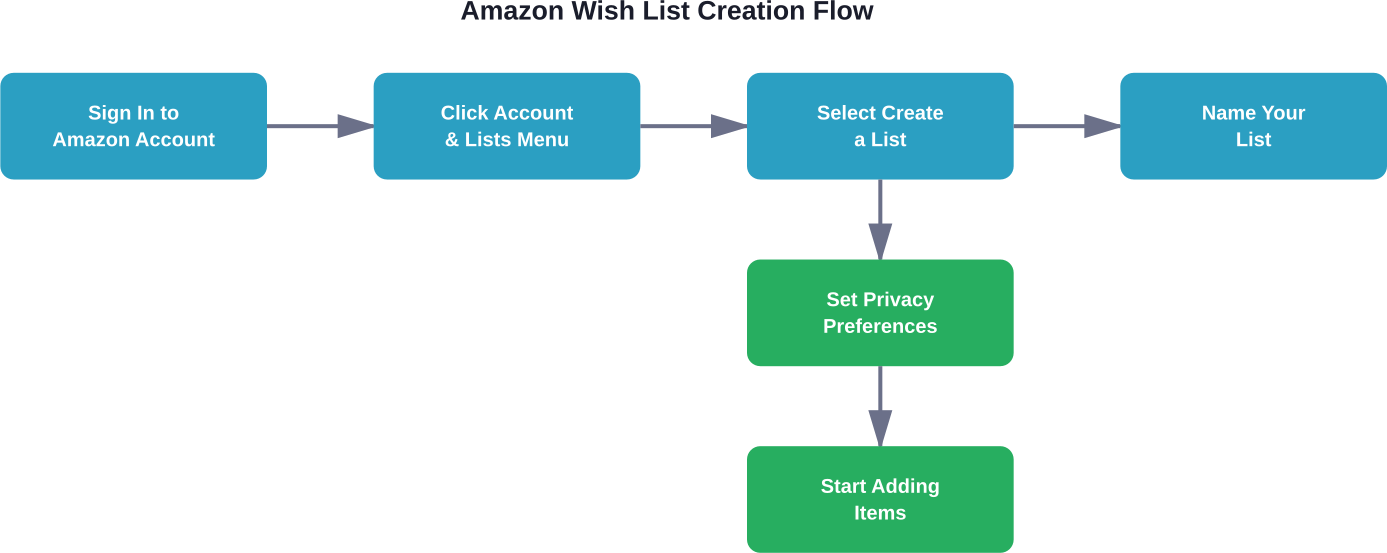
Navigate to the top-right corner of Amazon.com and hover over or click “Account & Lists.” A dropdown menu appears with various account options:
- Look for “Your Lists” or “Create a List” in that menu: Click it to access the list management dashboard.
- Select “Create a List” and a popup window appears: Here’s where customization begins.
- Choose a list name that reflects its purpose: “Birthday 2026,” “Home Office Upgrades,” or “Books to Read” work well. Descriptive names help when managing multiple lists.
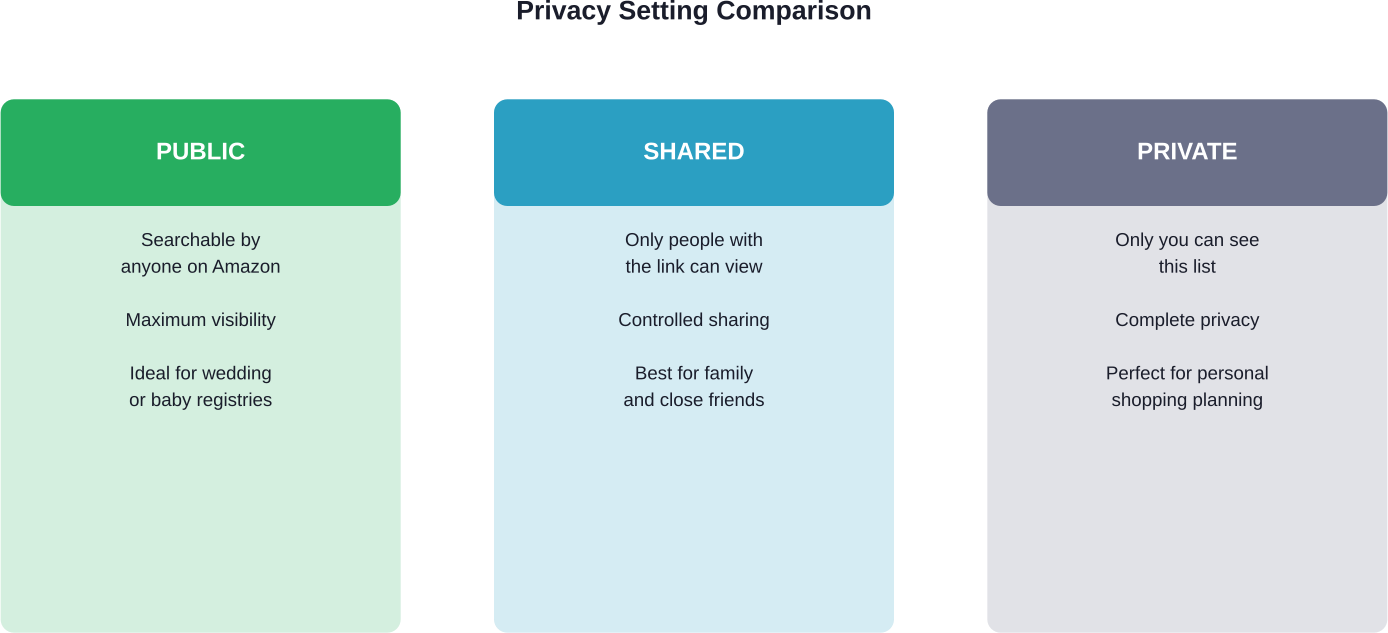
- Set privacy preferences: Amazon offers three options—Public (anyone can search and find), Shared (only people with the link can view), and Private (only visible to the list creator).
- Click “Create List” to finalize: The new list now appears in the account’s list collection.
Amazon Wish Lists do not have a dedicated ‘optional email address’ field for contact purposes within the list creation popup; instead, lists are tied to the account’s primary identity or a shipping address profile.
Adding Items to Your Wish List
Once a list exists, populating it with products is simple. Browse Amazon normally and look for the “Add to List” button on product pages.
This button typically appears near the “Add to Cart” option. Click it and a dropdown menu shows all available lists tied to the account.
Select the appropriate list from the dropdown. The item instantly saves to that collection. A confirmation message appears confirming the addition.
Managing List Items
Return to “Your Lists” to view, edit, or remove items. Each product displays with options to adjust quantity, priority level, or add personal notes.
Priority settings help gift-givers understand which items matter most. Mark items as “Highest,” “High,” “Medium,” or “Low” priority.
Comments or notes provide additional context—size preferences, color choices, or reasons why a particular item matters.
Privacy Settings and Sharing Options
List privacy determines who can view saved items. The three settings offer different levels of visibility control.
| Privacy Setting | Who Can View | Best For |
|---|---|---|
| Public | Anyone searching Amazon | Gift registries, wide sharing |
| Shared | People with direct link | Family and close friends |
| Private | Only list owner | Personal shopping lists |
Privacy settings can be changed anytime. Navigate to “More” or list settings within the list dashboard to adjust visibility.
How to Share Your List
Sharing makes gift-giving effortless. Click “Send List to Others” or “Share” within the list view.
Amazon generates a unique URL for the list. Copy this link and distribute it via email, text message, or social media.
Recipients click the link to view all items, see what’s already been purchased (if enabled), and buy gifts directly. The system updates in real-time to prevent duplicate purchases.
According to Amazon’s official resources, users can view and edit items in lists together with friends when permissions allow collaborative management.
Advanced List Features
Amazon offers functionality beyond basic item collection. Understanding these features maximizes list utility.
Multiple Lists for Different Occasions
Create separate lists for birthdays, holidays, home projects, or reading queues. There’s no limit to how many lists an account can maintain.
Organize lists by category, recipient, or time period. This prevents overwhelming single lists with unrelated items.
Price Tracking and Deals
One underutilized benefit: Amazon notifies users when list items go on sale. According to the official Amazon website, users can check deals and price drops on saved products.
Enable notifications in list settings to receive alerts when prices drop on saved items. This feature helps budget-conscious shoppers time purchases strategically.
Finding Someone Else’s Wish List
Looking for another person’s list?
Amazon allows you to search only for public Registries (such as Wedding, Baby, or Graduation registries). Regular Wish Lists cannot be found through search due to privacy settings, even if they are marked as public.
How to search for a Registry:
- Hover over Accounts & Lists in the top right corner
- Click Find a List or Registry
- Enter the person’s name or select a registry type
- Use the available filters (Wedding, Baby, etc.)
For a regular Wish List (including Birthday or Custom lists), you will need the owner to send you the direct share link.

Don’t Track What People Save, See What They Actually Buy
Wish Lists show interest, but they stop short of explaining outcomes. You see what people add, not what actually turns into orders or how long it takes to get there.
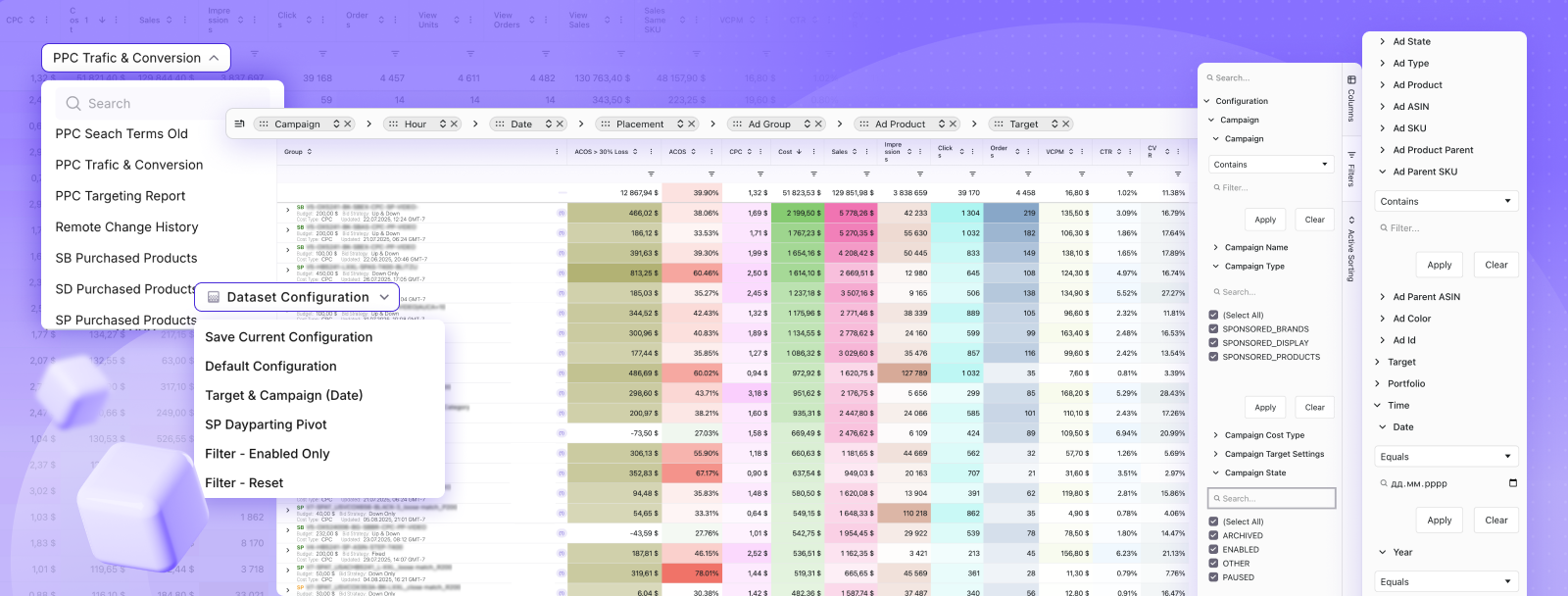
WisePPC fills that gap on the seller’s side. It pulls ads, sales, and product-level performance into one place, so you can follow the full path – from initial interest to purchase. You can review campaign impact next to real orders, track how products perform over time, and keep access to historical data instead of losing it after a short reporting window. It also lets you work with that data directly, without switching between multiple Amazon reports.
If you want to understand what’s really converting, not just what’s getting saved, it’s worth checking your data this way. Explore WisePPC, connect your account, and see how interest actually turns into sales.
Frequently Asked Questions
Can I create multiple Amazon Wish Lists?
Yes, Amazon allows unlimited wish lists for different occasions, categories, or purposes.
Do people know if I buy something from their wish list?
No, Amazon only marks items as purchased to avoid duplicates and does not immediately reveal the buyer.
How do I change my wish list privacy settings?
Open the list, select “Manage List,” and update the privacy settings there.
Can I print my Amazon Wish List?
Yes, you can use your browser’s print feature or copy the list into a document.
Do wish list items expire?
No, items stay on the list until removed or discontinued.
Making the Most of Your Amazon Lists
Amazon Wish Lists offer more than simple product bookmarking. They’re organizational tools that simplify shopping, enable effective gift-giving, and help track price changes on desired items.
The key lies in thoughtful list management—descriptive names, appropriate privacy settings, and regular updates keep lists functional and relevant.
Start creating lists for upcoming occasions today. Whether it’s a birthday months away or a long-term purchase plan, having items organized saves time and reduces decision fatigue when shopping moments arrive.
 No credit card required