
 EN
EN  ES
ES  FR
FR  DE
DE  IT
IT  KO
KO  JA
JA  ZH
ZH  AR
AR  PT
PT  TR
TR PL
PL
Quick Summary: Clearing Amazon search history involves navigating to Browsing History in account settings and removing individual items or using the ‘Manage history’ option to remove all at once. The process works similarly on desktop and mobile, and users can also pause or disable history tracking entirely to prevent future logging of searches and viewed products.
Amazon tracks every product search, every item clicked, and every page visited. According to Security.org, research shows that 56 percent of consumers start their product searches on Amazon. That’s a lot of data collection.
This tracking isn’t inherently malicious. Amazon uses browsing history to personalize recommendations, refine search results, and tailor the shopping experience. But there are plenty of legitimate reasons to clear this history—privacy concerns, shared devices, gift shopping, or simply wanting a fresh start with recommendations.
Here’s the thing though—Amazon doesn’t make the process immediately obvious. The settings are buried several clicks deep, and the company certainly doesn’t advertise how to disable tracking. This guide walks through the exact steps to clear search history, remove browsing data, and pause future tracking on both desktop and mobile devices.
Why Amazon Logs Search History
Amazon collects search and browsing data primarily to fuel its recommendation engine. Every search term, product view, and purchase feeds algorithms that suggest products across the site. These recommendations appear on the homepage, in email campaigns, and throughout the shopping experience.
According to Amazon’s Privacy Notice, the company collects content interaction information including downloads, streams, and playback details. For devices and browsing, this extends to device metrics, application usage, connectivity data, and network details. The data collection is comprehensive.
But personalization isn’t the only reason. Amazon’s data collection practices have faced scrutiny from privacy advocates. The Electronic Frontier Foundation has documented various privacy concerns related to Amazon’s ecosystem, from Ring doorbell surveillance issues to Kindle reading tracking. The EFF’s 2012 E-Reader Privacy Chart noted that Amazon logs data on products viewed and searched for on devices, associating this information with user accounts.
Understanding what gets tracked matters. Search terms, product pages viewed, items added to cart, purchase history, and even time spent on specific pages all contribute to the profile Amazon builds. This profile influences pricing displays, promotional offers, and which products surface in search results.
How to Clear Amazon Search History on Desktop
The desktop interface offers the most straightforward path to managing browsing history. The process takes less than five minutes once the correct settings page is located.
Start by logging into the Amazon account at amazon.com. Click on ‘Browsing History’ directly in the main navigation bar (usually located at the top of the page next to ‘Registry’ or ‘Gift Cards’) or go to ‘Account’ and find the ‘Browsing History’ link under the ‘Personalized Content’ or ‘Ordering and shopping preferences’ section. This navigates to a dedicated page showing recently viewed items in chronological order, with the most recent views displayed first.
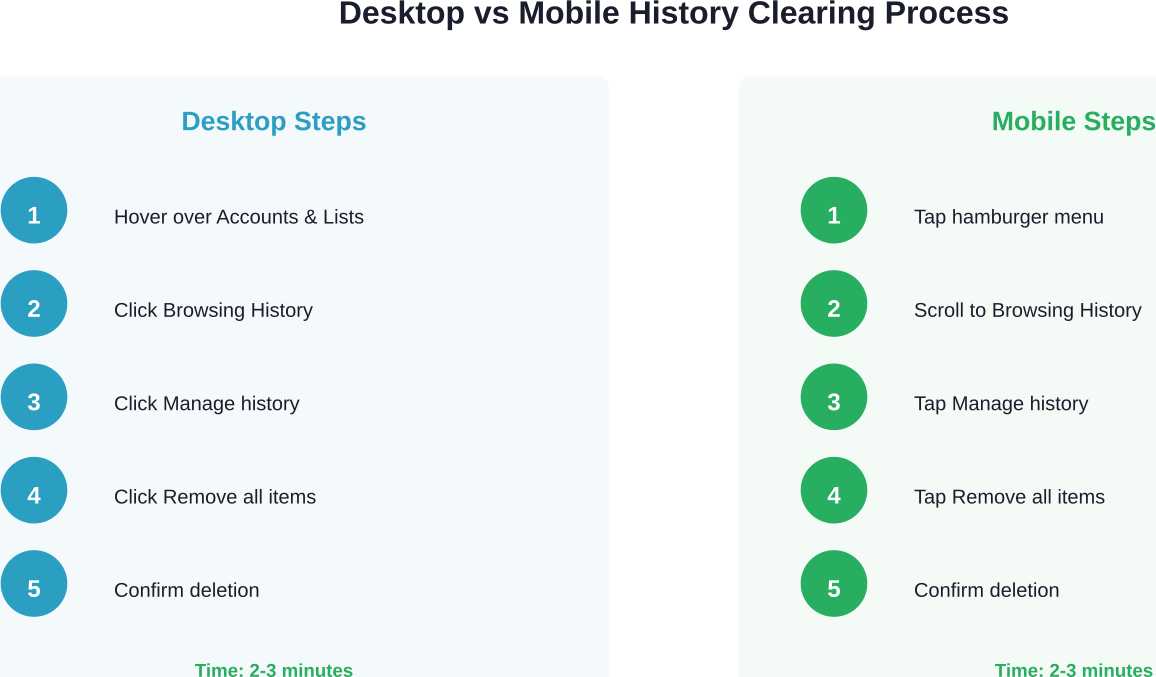
The page displays product thumbnails, titles, and the date each item was viewed. Above this grid, there’s a “Manage history” button. Click it.
A toggle switch appears labeled “Turn Browsing History on/off.” Below this toggle, there’s a “Remove all items from view” button. This is the key control for bulk deletion.
Click “Remove all items from view.” Amazon displays a confirmation dialog asking to verify the action. Confirm the deletion. The browsing history clears immediately—all items vanish from the history page.
For selective deletion instead of clearing everything, the process differs slightly. On the main Browsing History page, each product thumbnail has a small “Remove from view” link beneath it. Click this link under any specific item to delete just that entry. This approach works well for hiding specific searches without wiping the entire history.
Removing Individual Search Terms
Search terms typed into Amazon’s search bar create autocomplete suggestions based on past searches. These persist separately from browsing history and require different steps to remove.
Click into the main search bar at the top of any Amazon page. As soon as the search field activates, a dropdown appears showing recent search terms and suggested searches. Each past search term has a small “Remove” or “X” icon next to it.
Click the X icon next to any search term to remove it from the autocomplete suggestions. The term disappears immediately and won’t appear in future autocomplete dropdowns. Repeat this process for each search term to clear.
Unfortunately, Amazon doesn’t provide a single-click option to clear all search terms at once through the standard interface. Each term requires individual removal. Some users report this limitation persists, though Amazon’s interface may vary.
How to Clear Amazon Search History on Mobile
The mobile app follows similar logic to the desktop version but with a slightly different navigation path. Both iOS and Android apps use the same interface structure.
Open the Amazon mobile app.
Tap the ‘Profile’ icon (person-shaped icon) in the bottom navigation bar. Your recently viewed items are often visible there, or you can find ‘Browsing History’ by tapping ‘Your Account’ and scrolling to the ‘Personalized Content’ section.
The same toggle switch and “Remove all items from view” button appear as on desktop. Tap “Remove all items from view” to clear the entire browsing history. The app displays a confirmation prompt—tap to confirm the deletion.
For individual item removal on mobile, tap the three dots (overflow menu) on any product card in the browsing history list. A popup menu appears with the option “Remove from view.” Tap this to delete just that item.
Mobile Search Term Removal
Clearing search autocomplete suggestions on mobile follows the same pattern as desktop. Tap the search bar at the top of the app. Recent search terms appear in a dropdown list below the search field.
Each search term has an X icon on the right side. Tap the X to remove that specific term from autocomplete history. The term disappears and won’t appear in future suggestions.
Again, there’s no bulk clear option for search terms in the mobile app. Each term requires individual removal.

Once You Clean Up Search History, Look At The Data Behind It
Clearing your Amazon search history helps reset recommendations, but it doesn’t really explain how those results were shaped in the first place.
WisePPC works on the other side of that system – the data behind ads, clicks, and conversions that influence what gets shown. It brings your Amazon ads and sales performance into one place, so you can see how visibility turns into actual results. Instead of relying on scattered reports, you get a clearer view of spend, performance trends, and how campaigns connect to real outcomes over time. It gives you a more grounded way to read what’s happening, instead of trying to figure things out from surface-level signals.
Sign up for WisePPC to get a clearer view of your Amazon ads and sales performance.
How to Pause or Disable Amazon Browsing History
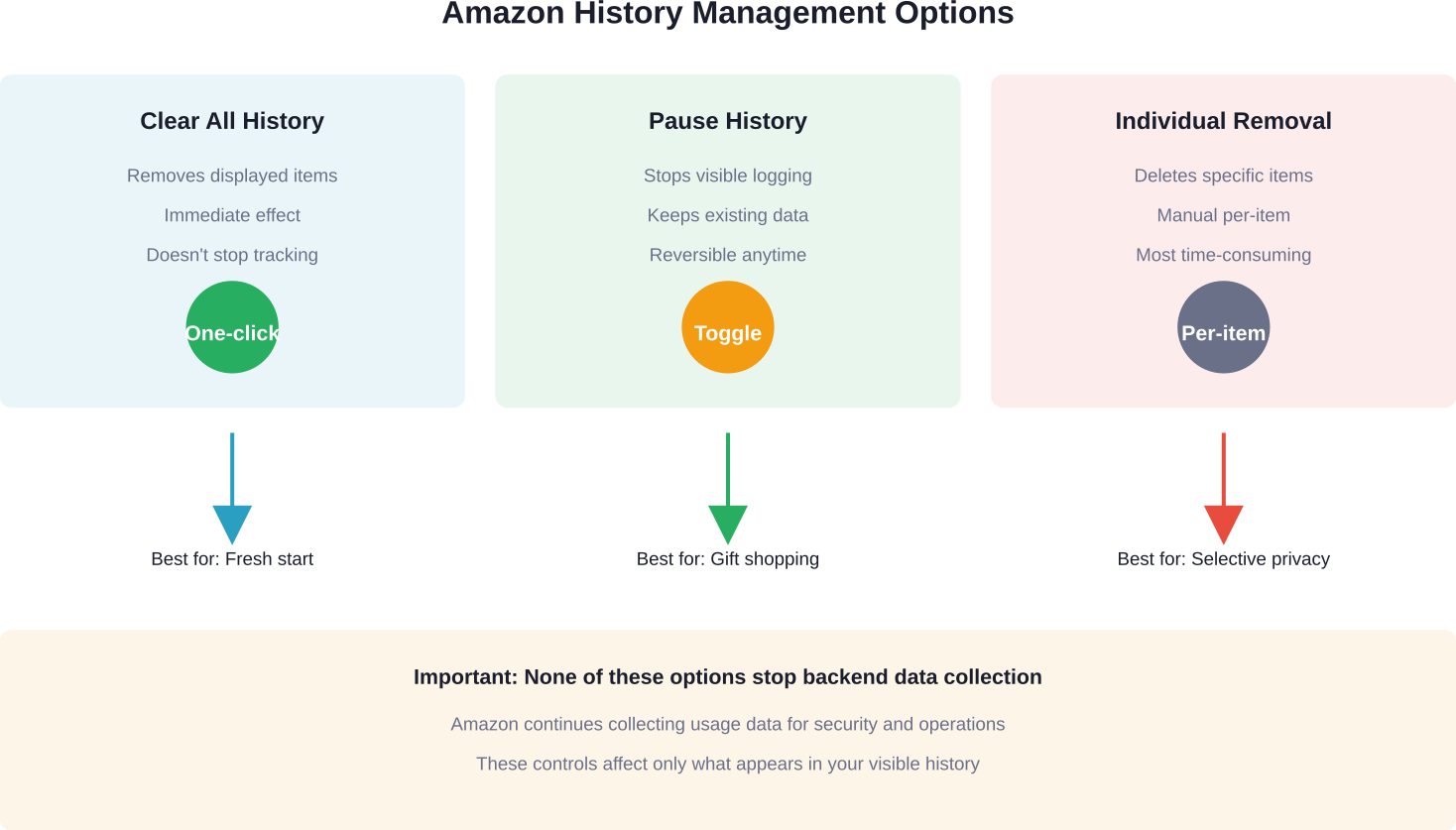
Clearing history is one thing. Preventing future tracking is another. Amazon offers a toggle to pause or completely disable browsing history logging.
Navigate to the Browsing History page using either the desktop or mobile method described above. Click or tap “Manage history” to access the control panel.
The toggle switch labeled “Turn Browsing History on/off” controls whether Amazon logs future activity. When turned off (the toggle slides to the left or grays out), Amazon stops recording browsing history and search activity.
But here’s what that actually means. Turning off browsing history prevents Amazon from displaying viewed items on the Browsing History page. It doesn’t stop Amazon from collecting data entirely. According to Amazon’s privacy documentation, the company continues collecting usage data for fraud prevention, security, and operational purposes even when browsing history is disabled.
What does stop? Personalized recommendations based on browsing behavior become less accurate. Product suggestions on the homepage rely more on purchase history and demographic data rather than recent browsing. Search autocomplete based on past searches also pauses, though general popular search suggestions still appear.
The toggle can be switched on and off at any time. Some users toggle it off before gift shopping to prevent ruining surprises with targeted recommendations, then turn it back on afterward. Others leave it permanently disabled for privacy reasons.
What Browsing History Controls Don’t Cover
It’s critical to understand what clearing browsing history doesn’t do. The Browsing History page shows only a subset of data Amazon collects. Deleting items from this page removes them from view but doesn’t erase them from Amazon’s backend systems.
Purchase history remains completely separate. Orders, returns, and transaction records don’t get affected by browsing history deletion. These records persist indefinitely and can be viewed in the “Returns & Orders” section of the account.
Amazon Web Services data, Kindle reading history, Alexa voice recordings, and Prime Video watch history all maintain separate logs with their own deletion processes. Clearing browsing history on the retail site doesn’t touch these other Amazon services.
According to Amazon’s Privacy Notice, the company retains data for fraud prevention, security purposes, and legal compliance even when users delete visible history. Backend logs used for operational purposes don’t get purged when browsing history is cleared.
Browser Incognito Mode and Amazon History
Many assume that using a browser’s incognito or private mode prevents Amazon from tracking activity. That’s only partially true.
Incognito mode prevents the browser from saving local history, cookies, and form data. Once the private window closes, local traces disappear from the device. But incognito mode doesn’t make browsing invisible to websites.
When logged into an Amazon account in incognito mode, Amazon still tracks and logs all activity associated with that account. The browsing appears on the account’s Browsing History page just like activity from a regular browser window. Incognito only affects local storage on the device—it doesn’t anonymize activity at the server level.
For truly untracked browsing on Amazon, incognito mode must be combined with staying logged out of the account. Browsing while logged out prevents Amazon from associating activity with a specific user profile. But this eliminates personalization, saved payment methods, and the ability to make purchases without logging in.
Some privacy-focused browser extensions and VPNs claim to limit tracking, but these tools primarily affect third-party trackers and ads. Amazon as the first-party site operator can still log activity from logged-in sessions regardless of browser extensions.
Amazon Search History vs. Google Search History
Searching for products on Amazon creates entries in Amazon’s search history. Searching for Amazon products through Google creates entries in Google’s search history. These are separate systems.
Clearing Amazon search history doesn’t affect Google search history and vice versa. Each platform maintains its own logs and requires its own deletion process.
Google search history gets managed through the Google account’s “My Activity” page at myactivity.google.com. From there, searches can be deleted individually or in bulk by date range or service type.
For users concerned about search privacy across platforms, both histories require separate attention. Clearing one doesn’t cascade to the other. Browser history adds a third layer—clearing local browser history removes the record from the device but doesn’t delete server-side logs from Amazon or Google.
Can ISPs See Amazon Search History?
Internet service providers can see domain names visited (like amazon.com) but not specific pages or search terms when HTTPS encryption is used. Modern browsers automatically use HTTPS for Amazon, encrypting the connection between browser and server.
ISPs can log that a device visited amazon.com at specific times and the amount of data transferred. But the encrypted connection prevents ISPs from seeing which products were searched, which pages were viewed, or what was purchased.
That said, ISP-level privacy concerns extend beyond Amazon. ISPs can log all domains visited, creating a profile of browsing habits across the internet. VPN services encrypt traffic between the device and the VPN server, hiding domain names from the ISP. But this shifts trust from the ISP to the VPN provider, who then has visibility into browsing patterns.
Clearing Amazon search history doesn’t affect ISP logs. The two systems are entirely separate. ISP logs persist according to the provider’s retention policies, which vary by jurisdiction and company.
Shared Devices and Family Account Considerations
Amazon doesn’t offer separate profiles within a single account for the main retail site. Everyone logged into an account sees the same browsing history and receives the same recommendations based on collective activity.
This creates privacy challenges for families sharing an account. One person’s searches influence recommendations for everyone. Gift shopping becomes difficult when recommendations telegraph surprises.
Amazon Household allows linking two adult accounts and up to four teen/child accounts to share Prime benefits. Each household member maintains a separate login with independent browsing history. This solves the privacy problem but requires everyone to have their own Amazon account.
For shared devices where multiple people use the same account, clearing browsing history before and after individual shopping sessions provides some privacy separation. Alternatively, using incognito mode while logged out prevents activity from being associated with the account, though this sacrifices convenience.
Many users report browsing history privacy concerns in shared households, with separate accounts frequently recommended as the preferred solution.
Alexa Voice Search History
Alexa-enabled devices create a separate voice history log that persists independently of Amazon retail search history. Voice commands to Alexa, including product searches, get recorded and stored in the Alexa app.
Deleting retail search history doesn’t remove Alexa voice recordings. These require separate deletion through the Alexa app or website.
To delete Alexa voice history, open the Alexa app and tap the “More” tab in the bottom-right corner. Select “Settings,” then “Alexa Privacy.” Under “Review Voice History,” choose “Review Voice History.” This displays all voice recordings by date.
Individual recordings can be deleted by selecting them and choosing “Delete.” For bulk deletion, use the filter dropdown to select a date range (today, yesterday, past week, past month, or all history), then tap “Delete Recordings.”
The Alexa app also offers automatic deletion settings. Under “Alexa Privacy,” select “Choose How Long to Save Recordings.” Options include retaining recordings until manually deleted, automatically deleting after 18 months, or automatically deleting after 3 months.
According to privacy advocates at the Electronic Frontier Foundation, voice recordings present distinct privacy concerns compared to browsing history. Voice data can contain ambient background conversations and unintended recordings triggered by wake word false positives.
Does Clearing History Improve Privacy?
Clearing visible search and browsing history improves privacy in limited contexts. It removes the display of past activity from the account interface, which matters for shared devices and over-the-shoulder visibility.
But it doesn’t erase data from Amazon’s servers. Backend logs used for analytics, fraud detection, and business operations persist regardless of user-initiated history deletion. Amazon’s Privacy Notice clarifies that data retention serves multiple operational purposes beyond user-facing personalization.
The practical privacy benefits come down to a few specific scenarios. Clearing history prevents other users of shared devices from seeing past searches and viewed products. It resets recommendation algorithms to stop displaying products related to previous browsing. It removes potential embarrassment from visible search history when showing someone something on an account.
What it doesn’t do is make past activity invisible to Amazon itself. For true privacy from the platform, browsing while logged out is the only option, though this significantly degrades the shopping experience.
Privacy researchers generally recommend a layered approach: clear visible history for device-level privacy, disable history logging for future activity, use separate accounts for family members, and combine these with browser privacy tools for broader tracking prevention.
Additional Privacy Settings Worth Reviewing
Beyond search and browsing history, Amazon accounts contain several other privacy settings worth periodic review:
- Two-Factor Authentication: Enabling two-factor authentication adds a security layer requiring a code from a phone or authentication app in addition to the password. This prevents unauthorized access even if the password gets compromised. According to privacy guidance from Mutual Assurance, two-factor authentication ranks as one of the most important security settings for Amazon accounts.
- Saved Addresses: Old shipping addresses remain stored indefinitely unless manually deleted. The “Your Addresses” page under account settings lists all saved addresses. Removing old addresses prevents them from appearing as options during checkout and reduces data exposure if the account gets compromised.
- Payment Methods: Similarly, expired or unused payment methods can be removed from the “Your Payments” section. Reducing stored payment options limits exposure in the event of account breach.
- Amazon Sidewalk: This feature shares a small portion of home internet bandwidth with nearby Amazon devices to extend network coverage. It’s enabled by default on compatible Echo and Ring devices. Disabling it prevents bandwidth sharing and limits participation in Amazon’s mesh network. The setting appears in the Alexa app under “Account Settings” and then “Amazon Sidewalk.”
- Public Profile Information: Amazon profiles can be set to public or private. Public profiles display purchase reviews, wish lists, and other activities to anyone. Reviewing these settings prevents unintended information disclosure. Access profile settings through “Account & Lists” and then “Your Public Profile.”
- Voice Purchasing: Alexa devices can be configured to allow or block voice purchasing. Disabling this prevents accidental or unauthorized orders through voice commands. The setting is found in the Alexa app under “Settings,” then “Voice Purchasing.”
Comparing Amazon Privacy Controls
| Privacy Control | What It Affects | What It Doesn’t Affect | Effort Level |
|---|---|---|---|
| Clear Browsing History | Visible history display, recommendations based on views | Backend logs, purchase history, other Amazon services | Low (one-click) |
| Pause History Tracking | Future browsing and search logging | Past history, backend analytics, other services | Low (toggle switch) |
| Delete Individual Items | Specific products from visible history | Backend logs, related recommendations may persist | High (per-item) |
| Clear Search Terms | Autocomplete suggestions in search bar | Browsing history, viewed products | Medium (per-term) |
| Incognito Mode | Local browser history and cookies | Server-side logging when logged in | Low (browser feature) |
| Delete Alexa Recordings | Voice command history, voice-based recommendations | Retail browsing history, text searches | Medium (app-based) |
When Clearing History Actually Matters
Not everyone needs to regularly clear Amazon search history. The effort only makes sense in specific situations.
Shared device users benefit most from history clearing. When multiple people use the same Amazon account on the same device, clearing history prevents others from seeing past searches and receiving influenced recommendations.
Gift shoppers represent another clear use case. Searching for gifts generates recommendations that can spoil surprises. Clearing history after gift shopping or using incognito mode while logged out prevents gift-related products from appearing in recommendations visible to other household members.
Privacy-conscious users who want to minimize data footprints may clear history regularly as part of broader digital hygiene practices. While this doesn’t eliminate Amazon’s backend data collection, it limits visible traces and resets recommendation algorithms.
Users experiencing poor recommendations might clear history to reset the algorithm. If past searches have led to irrelevant or unwanted product suggestions, clearing history forces Amazon’s recommendation system to start fresh with only purchase history and demographic data.
For most casual users who shop alone on personal devices, clearing history provides minimal benefit. The convenience of accurate recommendations often outweighs the limited privacy gain from clearing visible history.
What Happens After Clearing History
Immediate effects of clearing browsing history are straightforward. The Browsing History page displays no items. Recommendations on the homepage and in email campaigns shift away from products related to recent browsing.
But Amazon’s recommendation engine draws from multiple data sources. Purchase history, wish list items, cart contents, and demographic predictions continue influencing recommendations even after browsing history is cleared. Recommendations don’t disappear—they just become less precise without recent browsing data.
Search autocomplete suggestions disappear once search terms are individually removed. The search bar no longer suggests past searches, though popular general suggestions still appear based on what other users commonly search.
Account functionality remains unchanged. Clearing history doesn’t affect saved payment methods, addresses, order history, Prime membership status, or any other account features. It only removes the display of recently viewed items and resets the data feeding personalization algorithms.
The account doesn’t get logged out. Clearing history is a settings change, not a session termination. All active sessions remain logged in across devices.
Frequently Asked Questions
Does clearing Amazon search history delete my orders?
No, search and browsing history are separate from order history. Clearing history does not remove your past purchases.
Can other Amazon accounts in my Household see my search history?
No, each account has its own private browsing and search history.
Does Amazon keep search history even after I delete it?
Yes, deleted history is removed from view but may still be retained by Amazon for internal purposes.
Will clearing my history improve Amazon’s performance or speed?
No, clearing browsing history doesn’t affect performance. Device-level cache clearing may help, but it’s separate from Amazon account data.
How often should I clear my Amazon search history?
It depends on personal preference. Some users clear it for privacy or better recommendations, while others leave it unchanged.
Can I recover deleted Amazon browsing history?
No, once removed, browsing history cannot be restored through your account.
Does clearing history on one device clear it on all devices?
Yes, since history is tied to your account, clearing it removes it across all devices.
Conclusion
Managing Amazon search and browsing history involves navigating account settings that aren’t prominently featured. The process takes just a few minutes once the correct pages are located, whether on desktop or mobile.
Clearing visible history removes the display of past activity and resets recommendation algorithms. But it doesn’t erase data from Amazon’s backend systems. Understanding this distinction matters for setting realistic privacy expectations.
For shared devices and gift shopping scenarios, clearing history provides practical privacy benefits. For sole users on personal devices, the value is less clear. The decision to clear history depends on individual privacy priorities and device-sharing situations.
Beyond browsing history, Amazon accounts contain multiple privacy settings worth reviewing: two-factor authentication, saved addresses and payment methods, Amazon Sidewalk, public profile visibility, and Alexa-specific controls. Taking a comprehensive approach to privacy settings provides better protection than focusing solely on browsing history.
Ready to take control of Amazon account privacy? Start by clearing browsing history, then review the other privacy settings mentioned above. For ongoing privacy, consider pausing history tracking or using separate accounts for household members. Small adjustments to account settings can significantly improve privacy without sacrificing the convenience of Amazon shopping.
 No credit card required