
 EN
EN  ES
ES  FR
FR  DE
DE  IT
IT  KO
KO  JA
JA  ZH
ZH  AR
AR  PT
PT  TR
TR PL
PL
If you’re selling on Amazon, your inbox isn’t just another notification center, it’s where customers expect real answers, fast. Whether they’re asking about shipping, requesting a return, or just need a bit of reassurance, the way you handle Amazon messages can quietly shape your reputation. Amazon’s Buyer-Seller Messaging system might not be the flashiest tool in Seller Central, but it’s one of the most important. In this guide, we’ll walk through exactly how to check your messages, how the system works behind the scenes, and how to keep your responses fast, compliant, and actually helpful, even when you’re juggling a dozen other tasks. Let’s get into it.
Why Your Amazon Inbox Matters More Than You Think
For most Amazon sellers, communication with buyers is one of those things that only feels important when something goes wrong. But the reality is, how you handle your Amazon messages plays a direct role in customer satisfaction, your seller rating, and even your Buy Box eligibility. Ignore your inbox for too long, and it could quietly eat away at your performance metrics.
The Amazon Buyer-Seller Messaging Center might look simple on the surface, but it has its quirks. In this guide, we’ll walk through how to check your messages, how to respond the right way, and the small but critical habits that separate top-performing sellers from everyone else.
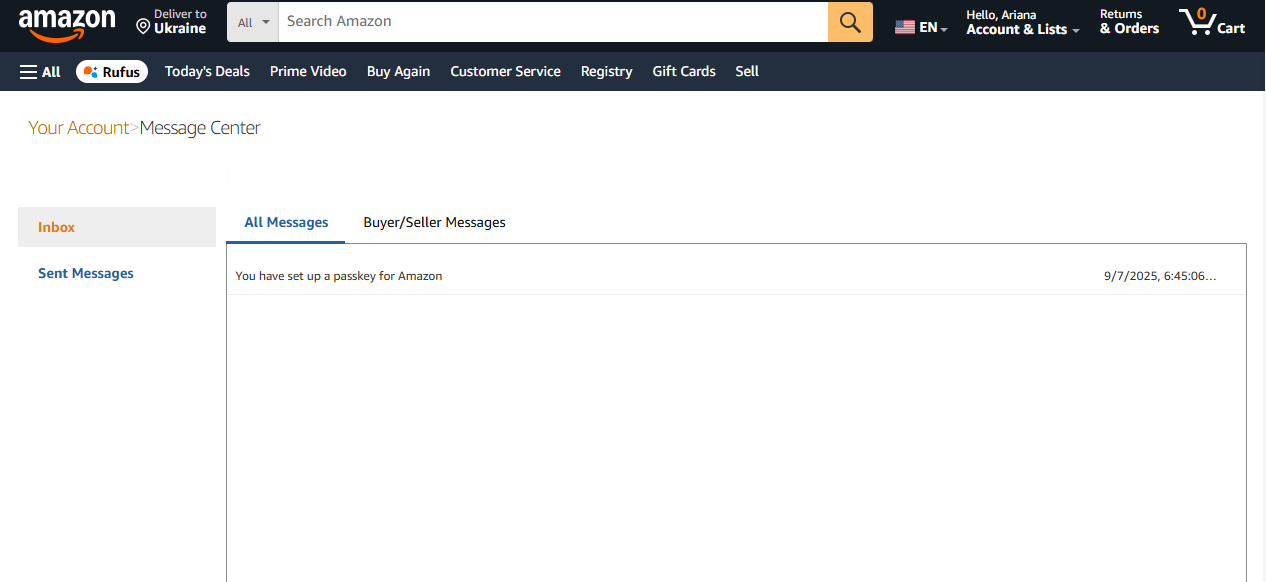
What Is the Buyer-Seller Messaging Center?
The Buyer-Seller Messaging Center is Amazon’s built-in tool for buyers and sellers to talk without revealing personal information. Every buyer gets a masked email address that looks something like adw4534ssdf@marketplace.amazon.com, and all messages go through Amazon’s system. This keeps communication secure and consistent.
You can access messages through Seller Central, your registered email, or with third-party help desk tools like eDesk. No matter how you respond, the messages are logged inside the Message Center.
What you can’t do is treat it like a marketing channel. Amazon has strict rules. Messages have to be relevant, timely, and focused on the order at hand. We’ll get into what that means in practice later.
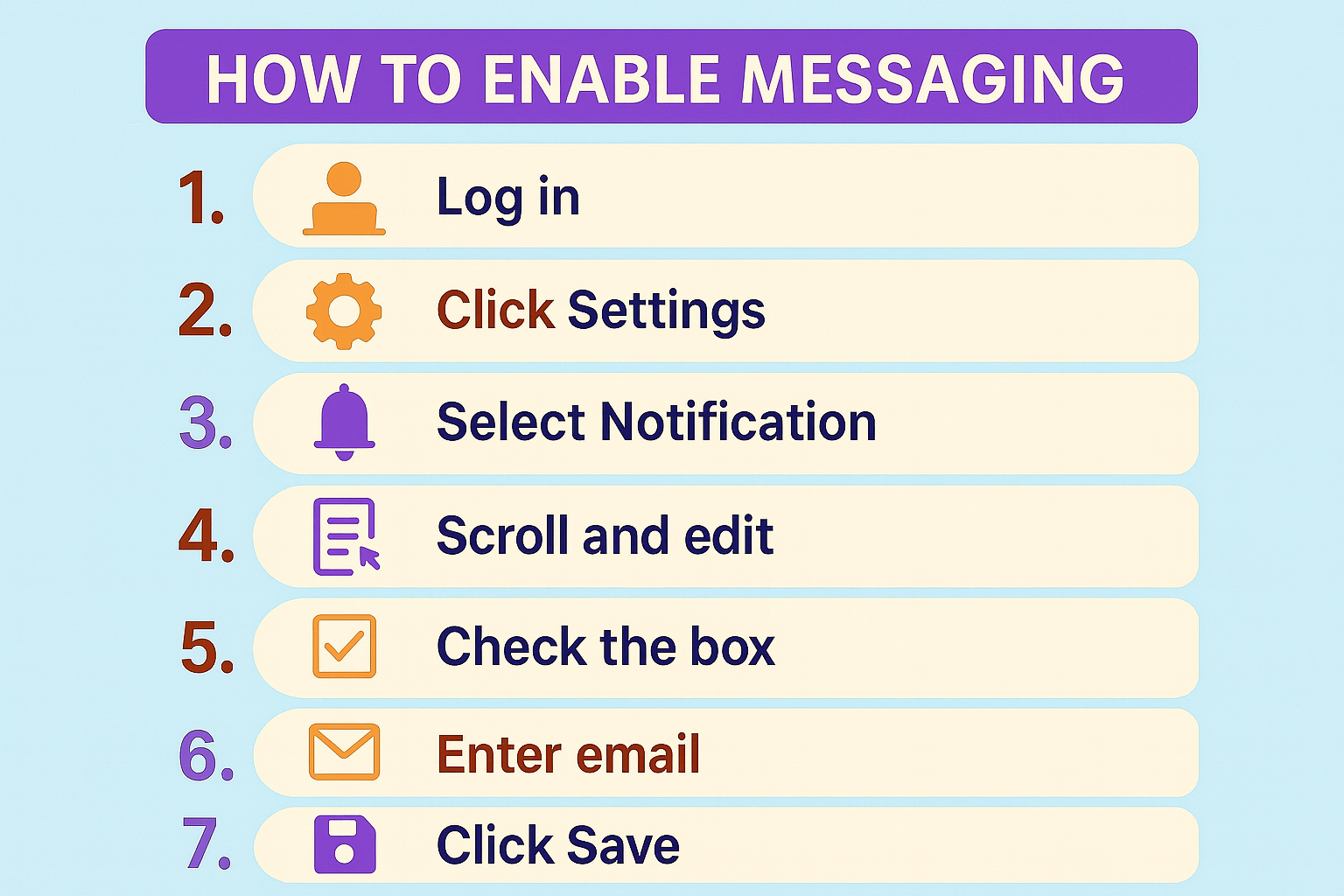
How to Enable Messaging in Your Seller Account
Before you can check anything, you need to make sure messaging is actually turned on. It’s usually enabled by default for FBM (Fulfilled by Merchant) sellers but not always for FBA (Fulfilled by Amazon) accounts.
Here’s how to check:
- Log in to Seller Central
- Click Settings in the top right corner
- Select Notification Preferences
- Scroll to Messaging and click Edit
- Check the box for Buyer Messages
- Enter your preferred contact email
- Click Save.
Now you’re officially set up to receive buyer messages in your inbox and inside Seller Central.
Where to Find Your Amazon Messages
Once messaging is enabled, accessing your messages is pretty simple. There are a few different routes depending on your workflow.
Option 1: From the Seller Central Dashboard
- Go to Seller Central
- Navigate to the Performance tab
- Click Customer Feedback
- Then go to Messages
Here you’ll see a split view:
- Inbox: includes everything, including system messages from Amazon
- Buyer/Seller Messages: filters out the noise so you only see messages from buyers
You can also use filters like:
- Needs Response
- Unread
- Date Range
Option 2: Via “Your Orders”
Sometimes it’s easier to find a message by looking up the order.
- Go to Orders > Manage Orders
- Find the specific order
- Click on the Buyer’s Name
- Use the “Contact Buyer” feature to reply from there
This method is great because you get full context: order details, timeline, shipping status, etc.
Option 3: From Your Email Client
If you’ve registered your email correctly, you can respond directly from your email inbox. Just make sure you don’t change the buyer’s anonymized email address. Replies will still go through Amazon’s system.

WisePPC and the Bigger Picture of Selling on Amazon
At WisePPC, we understand that checking Amazon messages is only one piece of managing a marketplace business. The bigger challenge is knowing how that communication ties back to sales performance, advertising spend, and long-term growth.
That’s why our platform goes far beyond message management. WisePPC is an Amazon Ads Verified Partner with a toolkit designed to simplify complexity. We give sellers visibility into the metrics that matter: from campaign performance and ad placement results to long-term historical trends that Amazon doesn’t store. By keeping years of data accessible, we make it easier to see what’s really driving results.

Here’s how WisePPC helps sellers stay connected across the board:
- Track 30+ metrics to understand sales and advertising trends in detail
- Use advanced filtering and segmentation to isolate problem areas quickly
- Apply bulk actions to edit thousands of campaigns or keywords in one go
- Access historical data going back years, not just Amazon’s 60–90 days
- Visualize performance with custom charts, comparing up to 6 metrics at once
- Manage multiple accounts with a centralized view and streamlined workflows
We built WisePPC to bring everything into one place, so sellers can stop switching tabs and start seeing the full picture.
Guidelines You Need to Follow (Or Else)
Amazon monitors all buyer-seller communication. Violating their policies can lead to suspended messaging privileges or even account deactivation.
Here’s What’s Allowed:
- Messages needed to complete an order
- Responses to customer questions
- Proactive messages (within 30 days of order completion) for:
- Custom product confirmations
- Scheduling deliveries
- Sending invoices or return instructions
- Requesting missing info
Here’s What’s Not Allowed:
- External links (unless required for order fulfillment)
- Emojis, GIFs, or marketing language
- Requests for 5-star reviews
- Contact details like personal email or phone numbers
- Tracking pixels or unrelated images
- Attachments that aren’t invoices, instructions, or warranties
Violating these rules even once can get your messaging access restricted. Amazon also allows buyers to report inappropriate messages, which gets reviewed manually.
Best Practices for Responding to Amazon Messages
Responding quickly and clearly is key to keeping your account healthy and your buyers happy. Amazon expects replies within 24 hours, weekends included.
Tips to Stay Compliant and Efficient:
- Use templates for common issues like shipping updates, returns, or damage reports
- Always stay neutral in tone. Avoid phrases like “please give us 5 stars”
- Keep all messages inside Amazon’s system. No personal contact details
- Mark irrelevant messages as “No Response Needed” so they don’t hurt your metrics
- Use filtering tools to stay focused on priority messages
Sample Scenarios and How to Respond:
- Shipping delay: “Hi [CustomerName], your order was shipped on [Date] via [Carrier]. You can track it here: [Tracking Link]. Let me know if you need anything else.”
- Return request: “Sorry the product didn’t meet your expectations. Please go to ‘Your Orders’ to start a return. A prepaid label will be provided automatically.”
- Damaged item: “Apologies for the issue with your order. We can either send a replacement or issue a full refund. Let us know what works best for you.”
Using templates like this keeps things fast and consistent, and reduces the chance of saying something that breaks the rules.
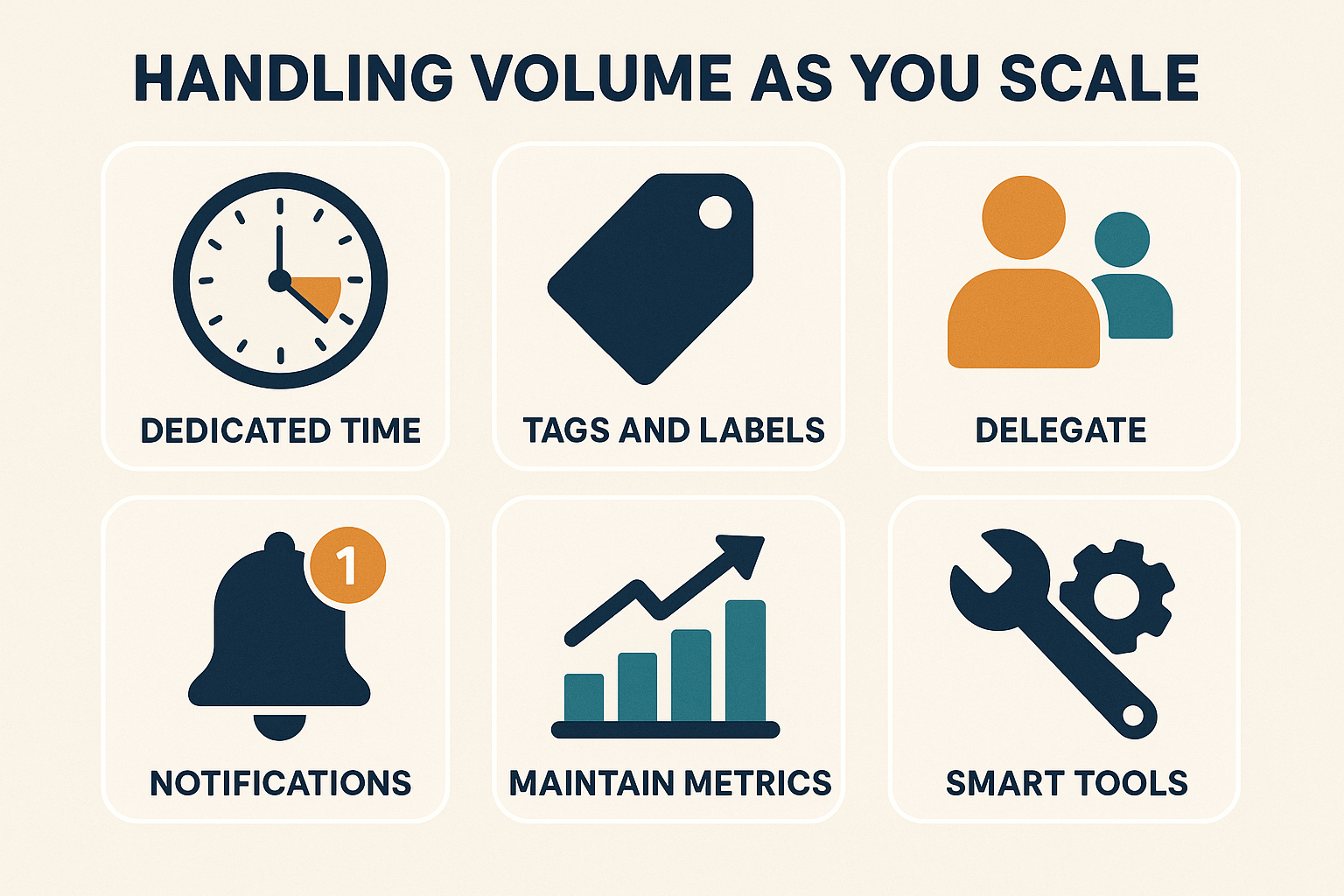
Handling Volume as You Scale
As your business grows, your inbox can go from a trickle to a flood. One day you’re replying to a few order questions, and the next you’re buried under return requests, shipping issues, and buyer concerns. Without a proper system in place, things get messy fast.
1. Set Aside Dedicated Inbox Time
One of the easiest ways to stay ahead is to treat message management like any other daily task. Block off 30 to 60 minutes each day to focus only on buyer communication. Don’t just squeeze it in between other work, protecting that time helps keep your response rates solid and your customers happy.
2. Organize with Tags and Labels
If you’re using tools like eDesk or Seller 365, take advantage of their tagging features. Assigning labels for things like returns, shipping delays, or product questions makes it easier to sort messages quickly. You’ll know at a glance what needs attention and what can wait.
3. Delegate with Sub-User Access
Handling messages doesn’t have to be a solo job. If you’re working with a team, set up sub-user accounts in Seller Central. That way, your support staff can manage communication without needing full access to your account.
4. Fine-Tune Notifications
Make sure your alerts are helping, not overwhelming. Configure your notifications to focus only on buyer messages, not system updates or shipping confirmations. That way, you’re not distracted by noise when you need to prioritize real conversations.
5. Maintain Your Metrics
When a message doesn’t need a reply, mark it as “No Response Needed.” This keeps your account metrics clean and ensures Amazon doesn’t penalize you for ignoring messages that didn’t require action in the first place.
6. Scale with Smart Tools
If your inbox constantly feels unmanageable, it might be time to bring in outside help. Third-party tools can handle basic inquiries, prioritize urgent messages, and route the rest to the right team member. As your order volume grows, these tools become essential for staying on top of support without losing your mind.
Final Thoughts: Make Messaging a Competitive Advantage
Most sellers treat the Amazon Message Center like a chore. But if you take it seriously, if you reply quickly, stay compliant, and use it to build trust, it becomes one of your strongest tools for retention.
Customers remember how you treated them when something went wrong. A quick, respectful, and helpful message at the right time can turn a refund into a repeat buyer.
Don’t wait for complaints to clean up your inbox. Build habits now that scale with your business later.
Frequently Asked Questions
Can I check Amazon messages from my regular email?
Yes, but only if you’ve enabled email forwarding in your Seller Central settings and registered that email address. Replies sent from that address will still route through Amazon’s system and show up in the Buyer-Seller Messaging Center.
Where exactly is the message center located in Seller Central?
You can find it by logging into Seller Central, then navigating to the Performance tab and selecting Customer Feedback or Messages. You can also access messages by going to Orders > Manage Orders and clicking on a specific buyer’s name.
What happens if I don’t reply to a message?
If you ignore a message that needs a response, it can hurt your response rate and negatively affect your Account Health. Amazon expects replies within 24 hours, including weekends. If a message doesn’t require a response, be sure to mark it as “No Response Needed” to avoid unnecessary penalties.
Is it okay to ask buyers for reviews through the messaging center?
Only if you’re using Amazon’s Request a Review button or following their strict guidelines. You can’t suggest a specific star rating, offer incentives, or use emotional or promotional language. It’s best to use Amazon’s native request system to stay compliant.
What if a buyer sends a message without an order number?
You’ll need to search your orders by the buyer’s name or email alias to match it to the correct transaction. This can be time-consuming, so it’s a good idea to encourage customers (via templates or auto-replies) to include order details when they reach out.
Can I use automation or templates to reply?
Absolutely, as long as the content stays within Amazon’s messaging guidelines. Pre-written templates are great for consistency and speed, especially when you’re dealing with common questions. Just avoid marketing language, external links, or anything that could be flagged as non-compliant.
Does Amazon monitor my messages with buyers?
Yes. Amazon actively monitors all buyer-seller communication. They review messages for policy violations, and buyers can also report messages directly. Staying within guidelines isn’t optional, it’s essential for protecting your account.
 No credit card required