
 EN
EN  ES
ES  FR
FR  DE
DE  IT
IT  KO
KO  JA
JA  ZH
ZH  AR
AR  PT
PT  TR
TR PL
PL
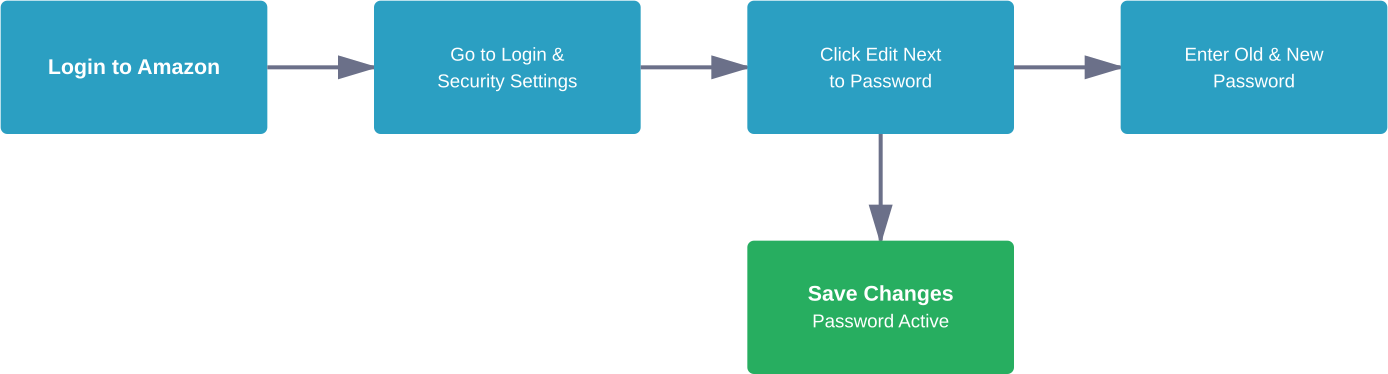
Quick Summary: Changing your Amazon password is straightforward: log in to your Amazon account, navigate to Login & Security settings, click Edit next to your password, enter your current password followed by your new one, and save changes. For forgotten passwords, use the ‘Forgot your password’ link on the login page to reset via email or phone verification.
Managing account security matters more than ever. With hundreds of millions of Amazon customers worldwide using the platform for shopping, Prime video streaming, and payment services, keeping login credentials secure isn’t optional.
Whether someone needs to update an old password, suspects unauthorized access, or simply can’t remember their current credentials, the process remains simple and takes just a few minutes.
Why Change Your Amazon Password?
Several scenarios make password changes necessary. Some are proactive security measures, others respond to specific concerns.
Regular password updates reduce risk from data breaches on other platforms. Many people reuse passwords across multiple sites—a practice that creates vulnerabilities when one service experiences a security incident.
According to the Cybersecurity and Infrastructure Security Agency (CISA), threat actors have several methods for guessing account credentials. Creating strong passwords that are long, unique, and random for all accounts helps keep information from falling into the wrong hands.
Other common reasons include:
- Sharing account access temporarily and wanting to revoke it
- Noticing suspicious activity or unfamiliar orders
- Switching from a simple password to a more secure one
- Following up after a security alert from Amazon
- Managing family member access to Prime benefits
How to Change Your Amazon Password (When Logged In)
For those who know their current password and simply want to update it, the process starts from within the account settings.
Step 1: Access Your Account Settings
Navigate to Amazon.com and ensure you’re logged in. Hover over the “Accounts & Lists” menu in the top right corner, then click “Account” from the dropdown menu.
Look for the “Login & Security” option—it’s typically near the top of the account management options. Click it to proceed.
Step 2: Edit Your Password
The Login & Security page displays current account information including name, email, mobile number, and password. Next to the password field (which shows dots or asterisks for security), there’s an “Edit” button.
Click “Edit” next to the password section. Amazon may ask to re-enter the current password at this point as a security measure.
Step 3: Enter New Password Details
When changing a password while logged in, you only need to enter the ‘New password’ and ‘Re-enter new password’. Amazon requires the ‘Current password’ or a fresh login/OTP before reaching the edit fields, but not within the change form itself in the current interface.
Step 4: Save Changes
After filling all fields correctly, click the “Save changes” button. As noted in Amazon KDP documentation, as soon as a new password is created, it becomes active immediately.
The account remains logged in on the current device, but other devices or browsers will require the new password on the next login attempt.
How to Reset Your Amazon Password (Forgot Password)
Forgetting passwords happens. Amazon provides a straightforward recovery process using email or phone verification.
Step 1: Navigate to the Login Page
Go to Amazon.com or the Prime login page. Instead of entering credentials, look for the “Forgot your password” link below the password field.
Click this link to begin the password reset process. This works for both Amazon shopping accounts and Prime memberships—they share the same login credentials.
Step 2: Enter Email or Phone Number
A recovery page appears asking for the email address or mobile phone number associated with the account. Enter whichever one was used during account creation or most recently updated.
The system sends a One-Time Password (OTP) to verify identity. According to Amazon’s documentation, if the email or phone number is outdated and inaccessible, contacting customer service becomes necessary for account recovery.
Step 3: Verify Identity with OTP
Check the email inbox or text messages for the verification code. Amazon typically sends these within seconds, though delivery can occasionally take a few minutes.
Enter the OTP in the verification field. Amazon KDP documentation notes that codes must be entered within 10 minutes of receipt. If the code expires or doesn’t arrive, click “Didn’t receive the OTP?” to request a new one via a different method.
Step 4: Create a New Password
After successful verification, a form appears to set a new password. Enter the desired password twice for confirmation.
Once submitted, the new password activates immediately. Use it to log back into the Amazon account across all devices.
Creating a Strong Amazon Password
Password strength determines how easily unauthorized users might gain access. Weak passwords put accounts at risk regardless of how often they’re changed.
CISA recommends making passwords long, random, and unique. Two effective approaches exist:
- Random character strings: Combine mixed-case letters, numbers, and symbols. For example: cXmnZK65rf*&DaaDYuc8$RikA34%ZoPPao98tAnother. These prove difficult for automated tools to crack but can be challenging to remember.
- Passphrases: String together four to seven unrelated words. CISA provides examples: “HorsePurpleHatRun” (Good), “HorsePurpleHatRunBay” (Great), or “HorsePurpleHatRunBayLifting” (Amazing). Passphrases offer both security and memorability.
What makes these approaches effective? Length matters more than complexity alone. According to NIST guidelines, longer passwords exponentially increase the effort required for brute-force attacks.
| Password Type | Example Format | Strength Level | Memory Difficulty |
|---|---|---|---|
| Simple | password123 | Very Weak | Easy |
| Common Info | BirthdayPetName | Weak | Easy |
| Random Characters | cX65rf*&Da8$Rik | Strong | Hard |
| Passphrase | HorsePurpleHatRun | Very Strong | Moderate |
Avoid reusing passwords across multiple sites. If one service experiences a breach, attackers often try those credentials on other popular platforms—including Amazon.
Additional Security: Two-Step Verification
Changing passwords provides one security layer. Adding two-step verification creates another barrier against unauthorized access.
Two-step verification requires both the password and a time-sensitive code when logging in from new devices. Even if someone obtains the password, they can’t access the account without the second factor.
Amazon supports multiple verification methods:
- Text message codes to mobile phones
- Authenticator apps like Google Authenticator or Microsoft Authenticator
- Backup verification codes for emergency access
According to Amazon’s official documentation, authenticator apps offer advantages over SMS. They work without cellular service and aren’t vulnerable to SIM-swapping attacks.
Setting up two-step verification requires visiting Login & Security settings and selecting the Two-Step Verification option. The setup wizard walks through choosing a method and testing it before activation.
Common Sign-In Issues and Solutions
Even after successfully changing passwords, login problems sometimes occur. Most have straightforward fixes:
- Email format errors: Email addresses must follow standard format (username@domain.com). Double-check spelling and ensure the correct domain extension.
- Multiple account confusion: Some users maintain separate Amazon accounts for personal and business use. Make sure the email and password combination matches the intended account.
- Mobile number issues: If using a phone number to log in, verify it’s entered with the correct country code and format. Some regions require specific formatting.
- Two-step verification problems: When verification codes don’t arrive, check mobile service provider restrictions on receiving automated messages. Switching to an authenticator app resolves most SMS delivery issues.
If login attempts consistently fail after changing passwords, clear browser cookies and cache. Sometimes outdated session data interferes with authentication.
Password Managers: A Practical Solution
Managing unique passwords for every online account creates a memory challenge. Password managers solve this by securely storing credentials and auto-filling login forms.
CISA explicitly recommends password managers as an easy way to protect accounts. These tools generate random, complex passwords and remember them automatically—eliminating the need to reuse simple passwords across sites.
Most password managers offer browser extensions that integrate with Amazon’s login page. After setting up the extension, it captures new passwords when they’re created and offers to fill them during subsequent logins.
Popular options include built-in browser password managers, dedicated apps like NordPass, and cross-platform solutions that sync across devices. The key benefit isn’t convenience alone—it’s the security that comes from using truly unique passwords everywhere.

Secure Your Account And Keep Control Of Your Amazon Data
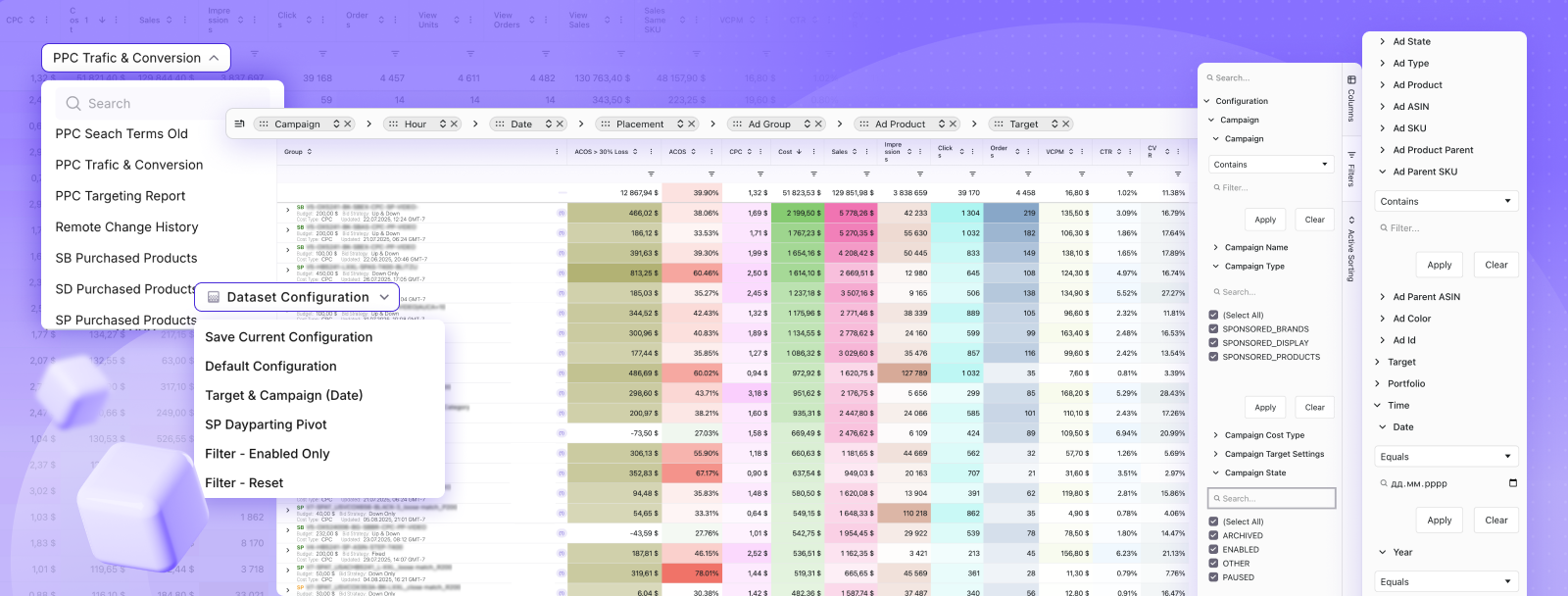
Changing a password is a quick fix. Understanding what’s happening in your account is not. Ads, sales, and listing performance don’t line up neatly inside Amazon, so even basic questions take time to answer.
WisePPC cuts through that. You open one view and see how campaigns connect to actual sales, what changed, and where things started to shift. No digging through separate tabs, no trying to match timelines manually.
If you don’t want to rely only on Amazon’s built-in reports, it’s worth checking how this looks outside of it. Explore WisePPC, connect your account, and see your data in a way that’s easier to work with.
Frequently Asked Questions
How often should Amazon passwords be changed?
There’s no need for routine password changes unless you suspect compromise or want to upgrade to a stronger password.
Does changing an Amazon password log out other devices?
Yes, changing your password signs out all other devices and browser sessions except the current one.
Can Amazon passwords be reset without email or phone access?
Yes, but recovery becomes more difficult. You may need to contact Amazon support and verify account ownership.
What makes a password strong enough for Amazon?
A strong password should be long, unique, and include a mix of letters, numbers, and symbols.
Is two-step verification required for Amazon accounts?
No, but it is strongly recommended for added security.
Will resetting a password affect Prime membership?
No, your Prime membership and other services remain active after a password reset.
What happens if the OTP code expires during password reset?
You can request a new code if the previous one expires before use.
Keeping Your Amazon Account Secure
Password management represents just one aspect of account security. Combined with two-step verification, unique credentials, and awareness of common threats, accounts remain protected against most unauthorized access attempts.
Take a moment today to review Amazon password strength. If it’s reused from another site, shared with others, or simpler than recommended guidelines suggest, update it now. The process takes minutes and significantly reduces risk.
For accounts handling payment information or Prime memberships, enabling two-step verification adds worthwhile protection. And for anyone managing multiple online accounts, a password manager transforms security from a memory burden into an automated safeguard.
Check Login & Security settings regularly—not just for passwords, but to verify contact information remains current and review recent account activity for anything unfamiliar.
 No credit card required