
 EN
EN  ES
ES  FR
FR  DE
DE  IT
IT  KO
KO  JA
JA  ZH
ZH  AR
AR  PT
PT  TR
TR PL
PL
Canceling Amazon Prime is a straightforward process, but it can feel overwhelming if you’re not sure where to start. Whether you’re looking to save on subscriptions or no longer need the service, this guide will walk you through every step. We’ll cover everything from how to cancel Amazon Prime through your desktop to managing your membership on mobile, ensuring you can make an informed decision and, if eligible, get a refund. Let’s dive in!
Can Users Cancel Amazon Prime Membership?
Yes, Amazon Prime members can cancel their membership at any time. Whether you signed up for a free trial or a paid subscription, canceling your membership is a straightforward process. Once canceled, your benefits will remain active until the end of your current billing cycle, so you can continue enjoying Prime perks until then. If you’ve signed up for the service but no longer wish to continue, following the right steps will ensure your cancellation is completed successfully.
Why You Might Want to Cancel Amazon Prime
There are several reasons why you might decide to cancel your Amazon Prime membership. Here are a few common ones:
- Cost Concerns: If you feel the annual or monthly fee isn’t worth the benefits, canceling may save you money.
- Underutilized Benefits: If you’re not using Amazon’s services like Prime Video, music, or faster shipping, continuing with the subscription may not make sense.
- Switching to Other Services: You may find alternative services that offer better value for your needs.
- Temporary Financial Constraints: In tough financial times, canceling your subscription could be one way to cut unnecessary expenses.
- No Longer Shopping Frequently on Amazon: If you’re no longer shopping on Amazon as much, you may not benefit from the free shipping and other perks.
Ultimately, canceling Amazon Prime can be a smart decision if the benefits no longer align with your needs, budget, or lifestyle. Whether it’s saving money, exploring alternative services, or simply reducing unused subscriptions, it’s important to assess whether Prime is still a valuable service for you.
How to Cancel Amazon Prime Membership
Canceling Amazon Prime is a straightforward process that can be done either on your desktop or mobile device. Below, we break down the steps for both methods, so you can choose the one that suits you best.
How to Cancel Amazon Prime on Desktop
Canceling your Amazon Prime membership on desktop is simple and can be completed in just a few steps.
Step 1: Sign in to Your Amazon Account
Begin by visiting the Amazon website and signing in with your account credentials. Make sure you are logged into the account associated with your Prime membership.
Step 2: Go to Prime Membership
Once logged in, hover over the “Accounts & Lists” section in the top-right corner of the screen. From the dropdown menu, select “Prime Membership.” This will take you to the page where you can manage your membership settings.
Step 3: Select “Update, Cancel, and More”
On the Prime Membership page, look for the section labeled “Manage Membership.” Click the “Update, Cancel, and More” link to reveal additional options for managing your membership.
Step 4: Click “End Membership”
You will now see the option to “End Membership.” Click this option, and Amazon will display the benefits you’ll lose upon cancellation, such as free shipping, streaming access, and more.
Step 5: Confirm Cancellation
Follow the on-screen prompts to confirm your cancellation. You’ll be asked to finalize the process by selecting “End On [date].” Your Prime benefits will remain active until the indicated date, allowing you to continue enjoying the perks until the end of your current billing cycle.
By following these simple steps, you’ll have successfully canceled your Amazon Prime membership on desktop.
How to Cancel Amazon Prime on Mobile (iOS and Android)
The process for canceling Amazon Prime on your mobile device is quite similar to the desktop method but includes a few mobile-specific steps.
Step 1: Open the Amazon App
Launch the Amazon app on your mobile device and sign in with your account details.
Step 2: Go to Your Account Settings
Tap the three horizontal lines (menu) in the bottom-right corner of the app. Then, select “Your Account” from the options.
Step 3: Select Prime Membership
Scroll down and tap on “Prime Membership” under the “Account Settings” section.
Step 4: Choose “Manage Membership”
On the Prime Membership page, click “Manage Membership” and then select “Update, Cancel, and More.”
Step 5: Click “End Membership”
Tap on “End Membership,” and Amazon will show you the benefits you will lose once canceled. Confirm your decision by selecting “Continue to Cancel.”
Step 6: Confirm Cancellation
Follow the on-screen prompts to finalize the cancellation. You’ll be asked to confirm by selecting “End on [date].”
By following these steps, you’ll have canceled your Amazon Prime membership via your mobile device, just as easily as on the desktop.
What Happens to Your Subscriptions After Canceling Amazon Prime
When you cancel your Amazon Prime membership, it affects the following services:
- Prime Video: You’ll lose access to all movies, TV shows, and exclusive content. However, any videos you’ve purchased or rented will still be available.
- Amazon Music: Access to Amazon’s music library through Prime Music will be restricted. If you’ve been using Amazon Music Unlimited, you’ll need to switch to a separate subscription plan.
- Prime Reading: You’ll no longer have access to the selection of free books, magazines, and comics.
- Prime Delivery: Your free shipping benefits, including same-day or two-day delivery, will end after cancellation.
Your other Amazon services, like purchased or rented content, are not affected by the cancellation of Prime.
Refund Eligibility When Cancelling Amazon Prime
Depending on how much you’ve used your Amazon Prime benefits, you may be eligible for a refund. Here’s what you need to know:
- Full Refund: If you’ve paid for Prime but haven’t used any of the benefits (shipping, video, music, etc.), you’re eligible for a full refund.
- Partial Refund: If you’ve only used Amazon’s shipping benefits but haven’t streamed content or used other perks, you may receive a partial refund.
- No Refund: If you’ve accessed any other Prime benefits, such as streaming Prime Video or music, a refund will not be issued.
Remember that the refund will be processed within 3-5 business days.
How to Cancel Amazon Prime via Third-Party Services
If you signed up for Amazon Prime through a third-party service, the cancellation process can differ from the standard methods. Below, we explain the steps for canceling through popular third-party services such as Google Play and mobile carriers.
Google Play
If you subscribed to Amazon Prime through the Google Play Store, you’ll need to manage and cancel your subscription directly through Google Subscription Services. Here’s how you can do it:
Step 1: Open Google Play Store
Open the Google Play Store app on your Android device and sign in to the account associated with your Amazon Prime subscription.
Step 2: Go to “Subscriptions”
Tap on the menu icon (three horizontal lines) in the top-left corner. Then, select “Subscriptions” from the list.
Step 3: Find Amazon Prime
Scroll through your active subscriptions and find Amazon Prime.
Step 4: Cancel Subscription
Tap on Amazon Prime, then select the “Cancel Subscription” option. Follow the prompts to complete the cancellation.
This will stop any future charges, and your subscription will continue until the end of the current billing period.
Other Providers (Mobile Carriers)
If you subscribed to Amazon Prime through a mobile carrier, like Verizon or SFR, the cancellation process requires you to contact your service provider directly. The steps will vary depending on the provider, but typically:
Step 1: Check Your Account or Bill
Review your billing details to ensure that the subscription is through your carrier. Look for the service provider’s name on your payment method or bill.
Step 2: Contact Customer Service
Reach out to your mobile carrier’s customer support. You can usually do this via their website, mobile app, or by calling their support number.
Step 3: Request to Cancel Amazon Prime
Request that they cancel your Amazon Prime subscription. They will guide you through the necessary steps, which may include verifying your identity and confirming cancellation details.
If you are unsure whether you signed up for Amazon Prime through Google Play or a mobile carrier, check your app store or payment method for more details. Your subscription history should show the service provider associated with the subscription.

How WisePPC Can Help Your Business
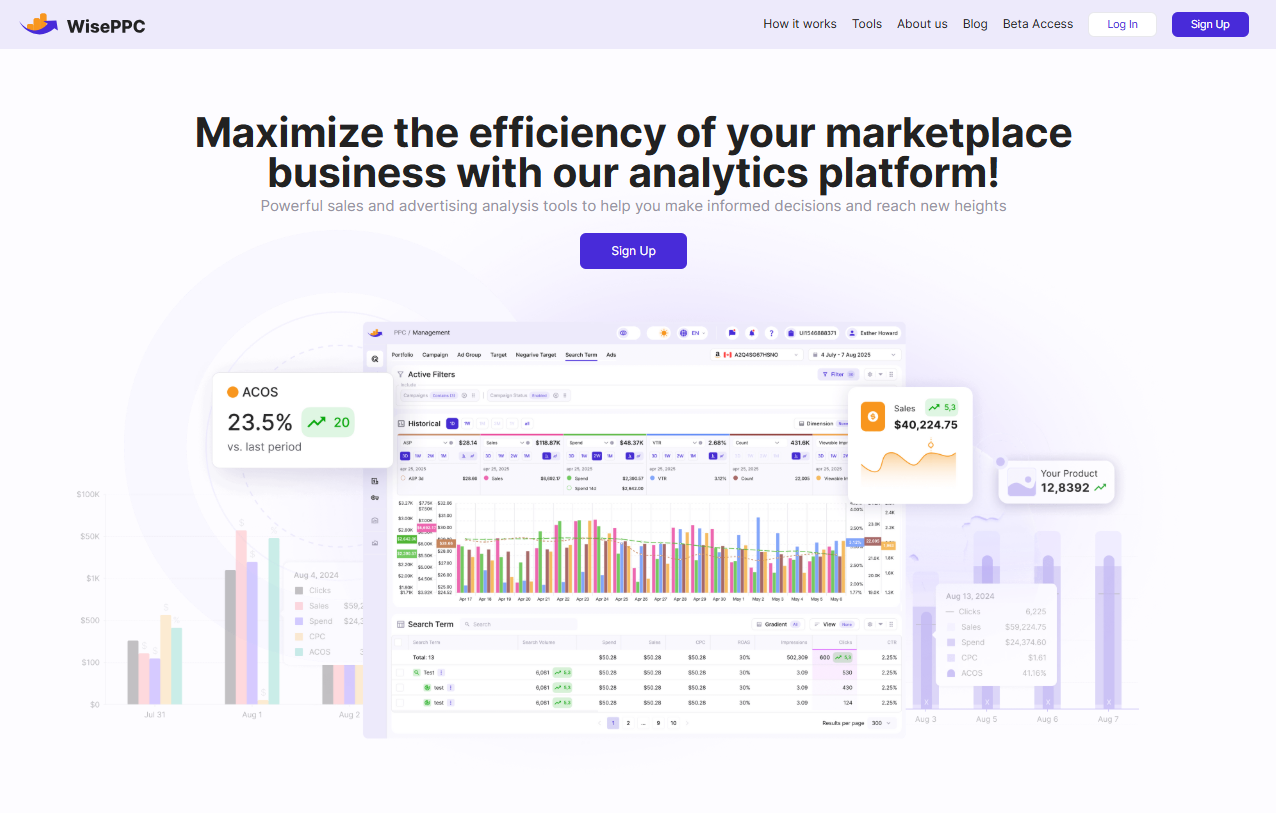
At WisePPC, we are dedicated to helping businesses optimize their sales and advertising efforts across multiple marketplaces, including Amazon. Our platform provides powerful analytics and automation tools that empower us to make data-driven decisions, maximize ad spend, and grow businesses efficiently. Whether we’re working with solo sellers, scaling brands, or large agencies, we offer the tools needed to simplify complex tasks and improve performance.
We seamlessly integrate with marketplaces, giving us deep insights into advertising and sales performance. Our solution helps us manage campaigns, track inventory, and forecast demand – all within a single, user-friendly dashboard. By automating routine tasks and providing actionable insights, we save time and money while improving profitability.
WisePPC Services to Take Advantage of
We offer a wide range of services designed to optimize business processes and enhance advertising efficiency:
Advanced Analytics
With access to multiple metrics, we dive deep into data to identify trends, spot opportunities, and optimize campaigns.
Bulk Actions
Our Bulk Actions feature lets us make changes to multiple entities at once – such as campaigns, ad groups, or targets.
Automated Campaign Optimization
Our system highlights underperforming campaigns or keywords, providing us with actionable suggestions to reduce wasted ad spend and improve ROI.
Inventory & Sales Forecasting
With dynamic inventory tracking and sales forecasting, we ensure that businesses maintain optimal stock levels and reduce the risk of overstocking or stockouts.
Cross-Platform Integration
We integrate effortlessly with multiple sales channels, such as Amazon, to compare results and optimize strategies.
Real-Time Reporting
We track key performance indicators (KPIs) such as TACOS, ACOS, CTR, and sales in real time to make quick, informed decisions and adjust strategies based on current market demands.
By leveraging these services, we empower businesses to scale operations effectively, enhance marketing strategies, and increase profitability through smart, data-driven decisions.
Conclusion
Canceling your Amazon Prime membership can be done easily whether you’re using a desktop, mobile app, or through a third-party service. With a clear understanding of the steps involved, you can manage your subscription on your own terms. Whether you’re looking to save money, reduce unnecessary subscriptions, or simply no longer need the service, following the correct process will ensure a smooth cancellation. Remember, you can still enjoy your Prime benefits until the end of your current billing cycle, and if you’re eligible, a refund may be available.
FAQ
1. How do I know if I’m eligible for a refund after canceling Amazon Prime?
Eligibility for a refund depends on how much you’ve used your Amazon Prime benefits. If you haven’t used any services like shipping, video streaming, or music, you may receive a full refund. If you’ve accessed any of the benefits, a partial refund might be available, but refunds are not given if you’ve used Prime Video, music, or gaming.
2. Can I cancel Amazon Prime at any time?
Yes, you can cancel your Amazon Prime membership at any time. Once canceled, you will retain access to Prime benefits until the end of your current billing period.
3. What happens to my Prime Video and other subscriptions if I cancel Amazon Prime?
Third-party subscriptions, such as Paramount+ through Prime Video Channels, will be canceled automatically when you end your Amazon Prime membership, as access to these channels requires an active Prime subscription. You may need to resubscribe directly through the third-party service to continue access.
4. Can I pause my Amazon Prime membership instead of canceling it?
Amazon does not currently offer a universal option to pause your Prime membership. However, in some regions or for specific programs like Prime Student, limited pause options may be available. Check your account or contact Amazon support for details.
5. How do I cancel Amazon Prime if I signed up through a third-party service like Google Play?
If you subscribed to Amazon Prime through a third-party service, such as Google Play, you will need to cancel the subscription through that service. For Google Play, you can manage your subscription through the Google Play Store under your subscription settings.
6. Will I still be able to access my purchased items after canceling Amazon Prime?
Yes, canceling Amazon Prime won’t affect any of your past purchases, including videos, books, or any content you’ve bought. You will retain access to that content, even after your Prime membership ends.
7. How can I cancel my Amazon Prime membership on my mobile device?
To cancel Amazon Prime on your mobile device, open the Amazon app, go to your account settings, select “Prime Membership,” and follow the steps to cancel. You’ll need to confirm the cancellation by selecting “End Membership.”
 No credit card required