
 EN
EN  ES
ES  FR
FR  DE
DE  IT
IT  KO
KO  JA
JA  ZH
ZH  AR
AR  PT
PT  TR
TR PL
PL
If you sell on Amazon, your dashboards are more than reporting screens. They’re decision tools.
Inside Seller Central, every tab exists for a reason. Performance alerts signal risk. Business Reports reveal trends. Inventory pages quietly show you where cash is stuck. Most sellers log in to check sales and move on. The smarter approach is different. You use the dashboards to spot patterns, fix small issues early, and adjust before problems grow.
When you understand how each tool fits into the bigger picture, Seller Central stops feeling overwhelming. It starts feeling organized. And once that happens, running your Amazon business becomes far more intentional and far less reactive.
What Seller Central Really Is
Technically, Seller Central is not one dashboard. It’s a collection of dashboards, tools, and shortcuts tied together in one interface.
From the homepage, you can access:
- Account Health
- Business Reports
- Inventory management
- Orders and returns
- Brand tools
- Advertising performance
- FBA insights
You can customize what you see, adjust settings, create user permissions for your team, and shape the workspace around how you operate.
If you’re on a Professional selling plan and enrolled in Brand Registry, you unlock more advanced tools like Brand Analytics and A+ Content.
Think of Seller Central as your operations hub. Once you treat it that way, it becomes much easier to navigate.
How to Use Seller Central as a Real Operating System
Seller Central is not just a backend panel. It’s where your business health, growth signals, and risks all show up first. If you learn where to look and what to check consistently, you stop reacting late and start managing proactively.
Let’s break it down in a practical way.
1. Start With Account Health. Always.
Before you focus on scaling, ads, or launching new products, make sure your foundation is stable.
Under the Performance tab, the Account Health dashboard shows whether you’re meeting Amazon’s standards. It’s not exciting, but it’s critical.
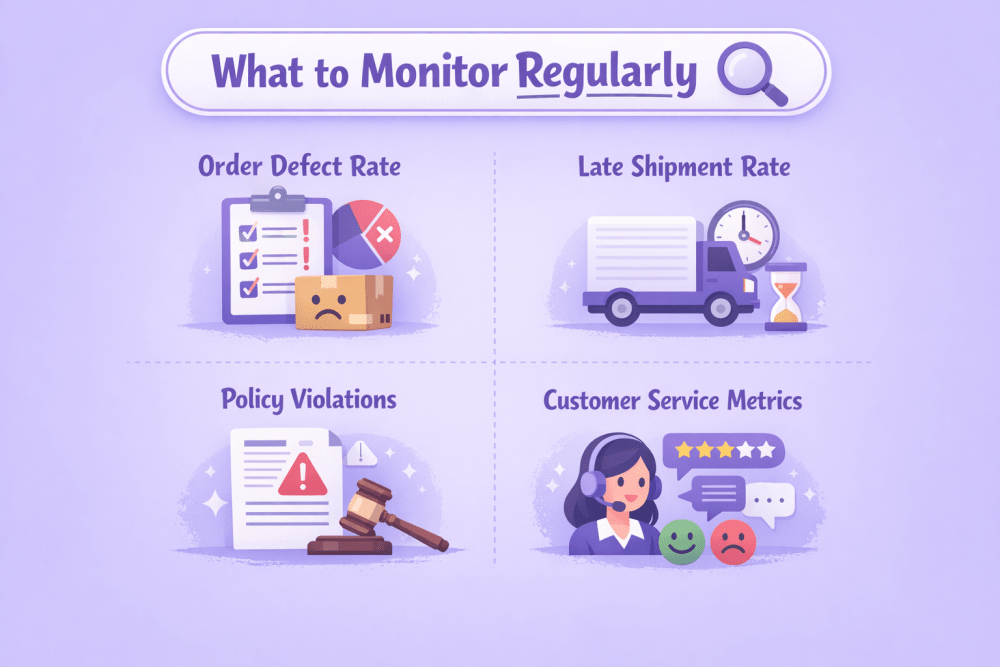
What to Monitor Regularly
- Order defect rate
- Late shipment rate
- Policy violations
- Customer service metrics
- Product compliance issues
If something slips, this is where you’ll see it first.
A listing suspension or account warning costs far more than a temporary dip in sales. Check this dashboard weekly. It takes a few minutes. Ignoring it can cost you months.
2. Go Deeper Than the Homepage Sales Summary
The homepage shows revenue and units sold. Helpful, yes. Complete, not even close.
For real insight, open Business Reports under the Reports tab.
Here You Can Analyze
- Sales by ASIN
- Traffic and conversion rates
- Buy Box percentage
- Session data
- Category performance
If you’re enrolled in Brand Registry, Brand Analytics adds another layer. You can review customer search terms, repeat purchases, demographic trends, and product comparison behavior.
This is where patterns start to appear.
- Which keywords drive traffic but fail to convert?
- Which products are frequently bought together?
- Where are competitors quietly outperforming you?
Raw data does nothing on its own. But interpreted properly, it tells you exactly where to adjust.
3. Improve Listings With Evidence, Not Assumptions
Many sellers tweak listings based on instinct. A better approach is using the Listing Quality dashboard under the Catalog tab.
It Highlights
- Missing attributes
- Weak content areas
- Conversion-related gaps
- Opportunities to improve detail pages
If you have Brand Registry, A+ Content gives you more control over presentation. You can add comparison charts, enhanced visuals, lifestyle images, and structured brand storytelling.
A strong listing is not about decoration. It improves conversion rate, lowers returns, and builds trust.
Sometimes tightening bullet points or adding a comparison module makes more impact than increasing ad spend.
4. Manage Inventory Before It Turns Into a Cash Flow Issue
Inventory problems rarely explode overnight. They quietly drain margin.
Under the Inventory tab, Manage Inventory allows you to:
- Edit pricing
- Adjust stock levels
- Perform bulk updates
- Filter SKUs
- Track stranded listings
If you use Fulfillment by Amazon, the FBA dashboard gives you deeper visibility into inbound shipments, stock levels, and overall inventory health.
Professional sellers also receive an Inventory Performance Index (IPI) score.
What IPI Reflects
- How well you balance stock
- Excess or aged inventory levels
- Sell-through performance
A low score can limit your storage capacity. A healthy score gives you flexibility, especially during peak seasons.
Inventory management is not just about avoiding stockouts. It’s about protecting working capital.
5. Stay on Top of Orders and Customer Experience
Under the Orders tab, the Manage Orders dashboard shows everything currently in motion.
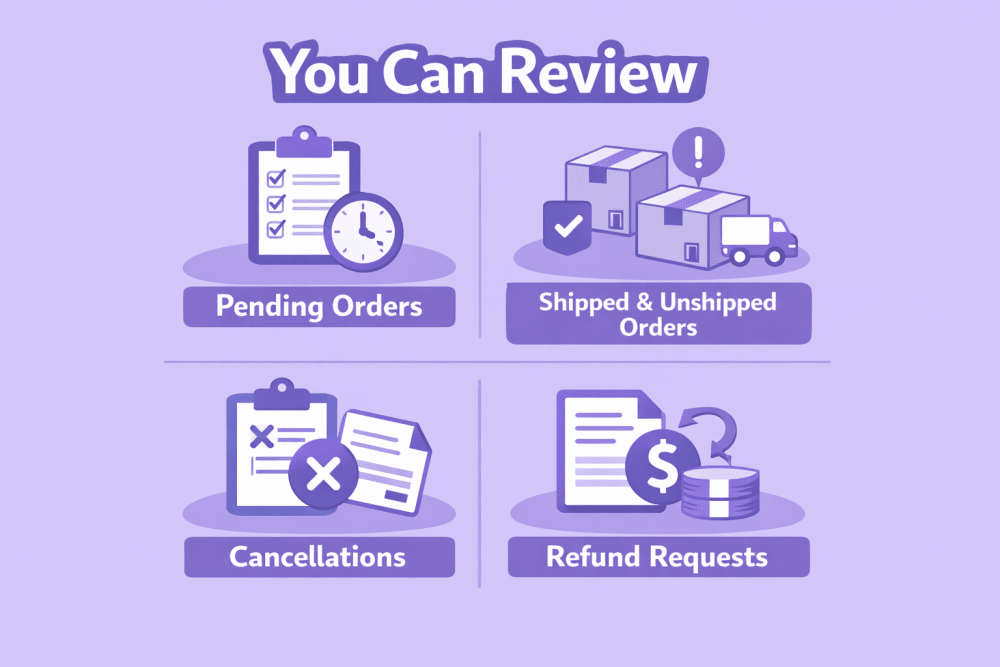
You Can Review
- Pending orders
- Shipped and unshipped orders
- Cancellations
- Refund requests
- Buyer messages
Fast responses matter. Clean fulfillment matters more.
Customer experience directly affects your reviews, your performance metrics, and your Account Health score. Small delays or missed messages add up faster than most sellers expect.
6. Use Product Opportunity Explorer to Validate Ideas
If you’re planning to expand your catalog, avoid guessing.
Product Opportunity Explorer helps you spot high-demand niches, uncover lower competition segments, track emerging trends, and analyze search volume patterns. Instead of launching products based on assumptions or copying competitors, you can validate demand using Amazon’s own marketplace data.
Timing on Amazon matters more than most sellers realize. Entering a growing niche early feels completely different from fighting for visibility in a crowded category where ten established brands already dominate the first page.
7. Treat Reviews as Research, Not Just Social Proof
The Customer Reviews tool inside Seller Central lets you monitor feedback and ratings in one place.
Reviews are not just public validation. They’re free product research. Common complaints reveal weaknesses. Repeated praise shows what customers truly value.
If you sell to business customers, Amazon B2B Central provides additional insight. You can compare B2B and consumer sales and analyze which industries are buying from you.
That kind of context can influence packaging, pricing structure, and messaging in ways most sellers overlook.
8. Keep Control Even When You’re Away
The Amazon Seller app makes daily management easier when you’re not sitting in front of your dashboard. And realistically, you won’t always be.
From Your Phone, You Can
- Track real-time sales performance
- Respond to buyer messages
- Adjust pricing on the go
- Scan barcodes to check listings
- Create new product listings
- Monitor inventory levels
- Receive performance notifications
It’s not meant to replace full reporting or deep analysis. You’re not going to run strategic reviews from a five-inch screen. But it keeps you connected to what’s happening in your account.
Quick responses reduce negative feedback. Fast price adjustments protect margins. Catching an issue early can prevent a policy warning or delayed shipment metric.
On Amazon, small delays add up. Staying responsive, even when you’re away from your desk, often protects your performance metrics more than people realize.

Smarter Advertising Insights With WisePPC
We created WisePPC because serious sellers need more than surface-level reports. Seller Central gives you data, but not always the depth or flexibility to act fast and confidently.
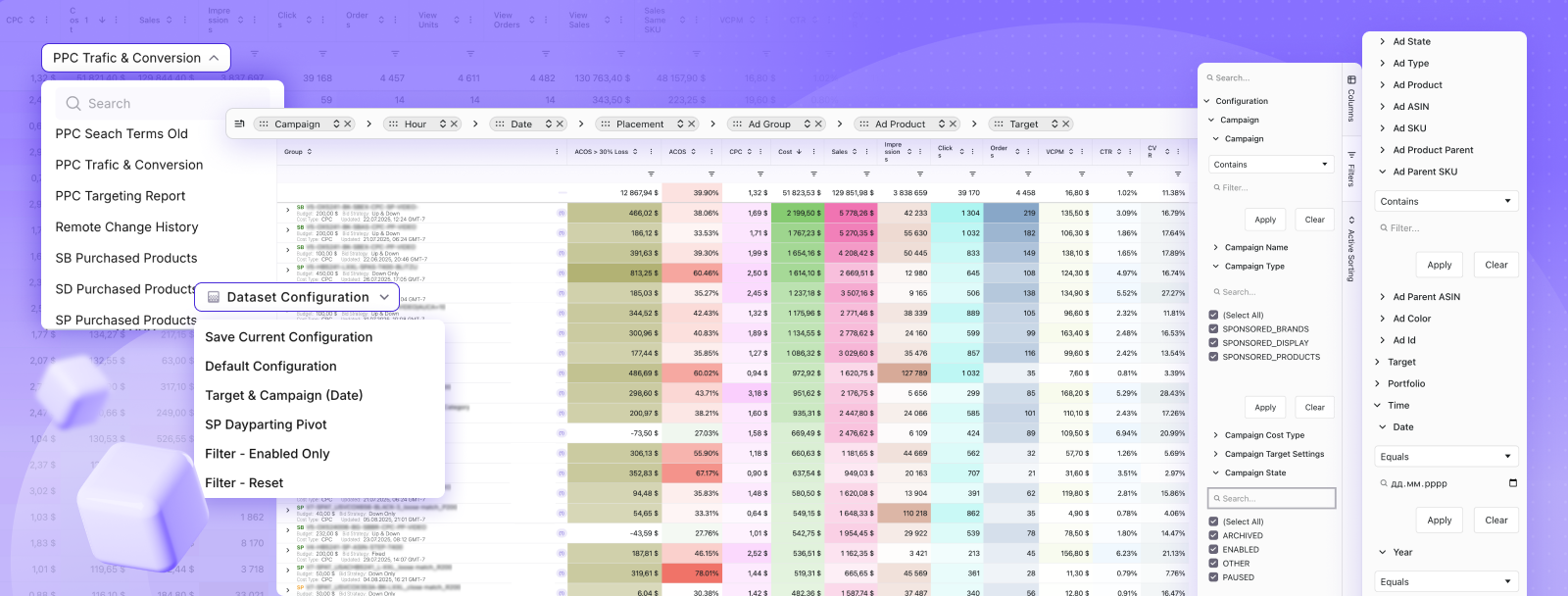
As an Amazon Ads Verified Partner, WisePPC connects through official integrations and tracks over 30 advanced performance metrics with long-term historical storage. Instead of losing insights after 60 to 90 days, sellers can analyze trends across months or even years and clearly see what is actually driving revenue.
With bulk actions, advanced filtering, placement-level analysis, and real-time visibility into ACOS, TACOS, CTR, and profit, the platform shows how advertising influences both paid and organic sales. Campaigns can be edited instantly, wasted spend becomes easier to identify, and strategy adjustments can be made without exporting files or switching between tools.
The focus is not just more data, but better clarity. Faster decisions. Smarter reactions. And controlled growth as a catalog expands.
How to Make Seller Central Work for You
The biggest mistake sellers make is treating Seller Central like a help desk. They log in when something goes wrong, fix the issue, and disappear again.
That approach keeps you reactive. And reactive sellers are always one step behind.
Instead, treat Seller Central like your operating system. Build simple habits around it.
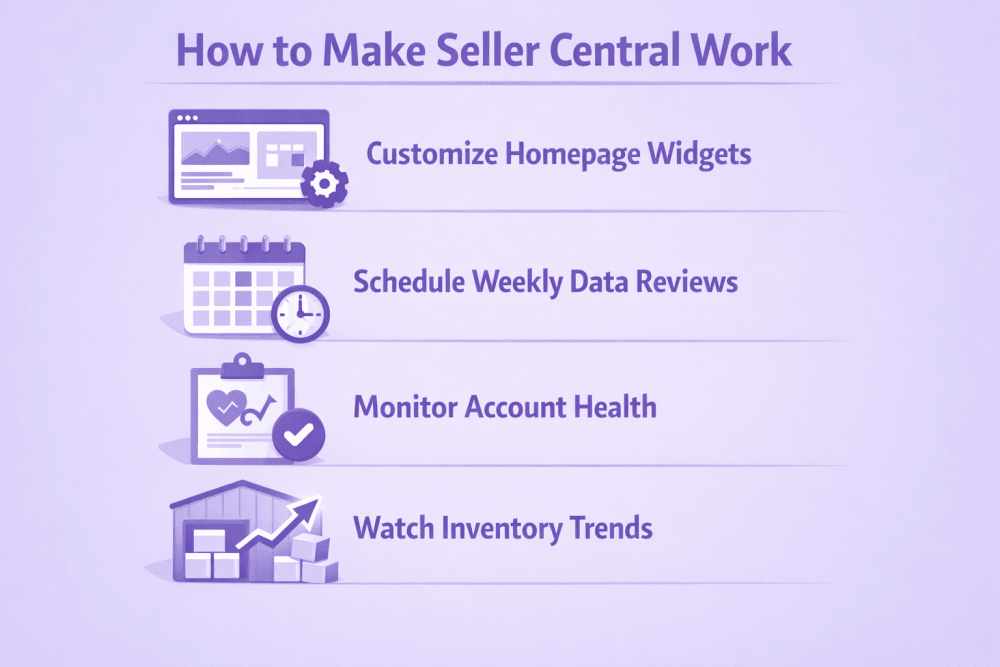
- Customize your homepage widgets so the metrics that matter most are visible immediately
- Schedule weekly data reviews instead of checking numbers randomly
- Monitor Account Health consistently, even when everything looks fine
- Watch inventory trends before stock becomes aged or overstocked
- Study conversion rates regularly, not just total revenue
None of this requires hours a day. It requires consistency.
Amazon gives you more visibility than most marketplaces ever will. Traffic data, behavioral insights, fulfillment metrics, performance benchmarks. It’s all there. But it only helps if you actually look at it and act on it.
The sellers who grow are not guessing. They’re reviewing, adjusting, refining. Small corrections compound over time.
Final Thoughts
Seller Central can feel complex at first. That’s normal.
But once you understand where everything lives and what each dashboard actually tells you, it becomes less overwhelming and more strategic.
Start with stability. Move to data. Optimize listings. Protect inventory. Listen to customers.
Do those consistently, and Seller Central stops being just a backend system. It becomes your operating advantage.
FAQ
Is Seller Central free to use?
Access to Seller Central comes with your Amazon selling plan. Individual and Professional plans both include access, but some advanced tools, like Brand Analytics and A+ Content, require a Professional plan and Brand Registry enrollment.
How often should I check Seller Central?
At minimum, you should log in several times a week. Account Health and performance alerts should be monitored consistently. Sales data, inventory levels, and conversion rates should be reviewed weekly to catch trends early.
What is the Account Health dashboard and why does it matter?
The Account Health dashboard shows whether your account meets Amazon’s performance standards. It tracks metrics like order defect rate, late shipments, and policy violations. Ignoring it can lead to listing restrictions or account suspension.
Where can I see detailed sales reports?
You can access deeper performance insights under Reports, then Business Reports. This section allows you to analyze traffic, conversion rates, sales by ASIN, session data, and category performance.
How can I improve my product listings inside Seller Central?
Use the Listing Quality dashboard under the Catalog tab to identify missing attributes and content gaps. If you’re brand registered, A+ Content allows you to add enhanced visuals and structured brand content to improve conversions.
What is the Inventory Performance Index (IPI)?
IPI is a score that measures how efficiently you manage inventory stored in Amazon fulfillment centers. A healthy score helps you maintain storage capacity, while a low score may limit how much inventory you can send to FBA.
 No credit card required