EN
EN  ES
ES  FR
FR  DE
DE  IT
IT  KO
KO  JA
JA  ZH
ZH  AR
AR  PT
PT Search Term Report Optimization Guide (2026)

Quick Summary: The Amazon Search Term Report reveals which customer search queries triggered your ads and generated clicks, sales, or wasted spend. By analyzing this data from Sponsored Products campaigns, sellers can identify high-converting keywords to add to campaigns, negative keywords to exclude, and backend search terms to optimize for organic visibility—ultimately improving both PPC efficiency and organic ranking performance.
Running Sponsored Products campaigns without checking your Search Term Report is like driving blindfolded. You’re spending money, sure. But you have no idea whether you’re heading toward profitability or straight into a wall of wasted budget.
The Amazon Search Term Report shows exactly which customer searches triggered your ads, how much you spent on each term, and whether those clicks converted into sales. This data feeds two critical optimization loops: improving your paid campaigns and strengthening your organic search visibility.
Here’s the thing though—most sellers download the report once, get overwhelmed by the spreadsheet, and never touch it again. That’s leaving money on the table.
What the Search Term Report Actually Shows (And Why It Matters for Both PPC and Organic)
The Search Term Report lives inside your Amazon Advertising console. It captures actual customer search queries that triggered your Sponsored Products ads during a specific date range.
Each row shows a search term along with performance metrics: impressions, clicks, click-through rate (CTR), cost-per-click (CPC), spend, sales, advertising cost of sales (ACoS), return on ad spend (ROAS), and conversion rate.
But wait. This isn’t just an advertising tool.
Search terms that convert well in your ads are strong signals for what belongs in your backend keyword fields and even your product title or bullet points. When customers use a specific phrase to find and buy your product through ads, that same phrase will likely drive organic sales if your listing ranks for it naturally.
According to best practices shared on Amazon Seller Central, search terms entered in the Generic Keyword field (backend keywords) help Amazon’s algorithm match your ASIN to customer queries. The Search Term Report tells you which phrases are worth adding there.
How to Access and Download Your Search Term Report
Accessing the report is straightforward. Log into your Amazon Advertising console, navigate to the campaign manager, and look for the reports section. Select “Search term report” under Sponsored Products.
Choose your date range—most sellers pull 30 or 60 days to capture meaningful patterns. Download the file as a CSV or Excel document.
Real talk: don’t just glance at it in the browser interface. Download the raw data so you can sort, filter, and run calculations. The in-console view is too limited for serious analysis.
Key Metrics You Need to Understand
Not all columns in the Search Term Report carry equal weight. Here’s what matters most:
| Metric | What It Tells You | Optimization Action |
|---|---|---|
| ACoS | Ad spend as percentage of sales | Low ACoS = profitable terms to scale; high ACoS = reduce bids or add negatives |
| ROAS | Revenue per dollar spent | High ROAS terms deserve more budget |
| Conversion Rate | Orders divided by clicks | Low CVR with high spend = poor keyword-product match |
| Impressions | How often your ad showed | High impressions, low clicks = weak relevance or creative |
| CPC | Average cost per click | Unusually high CPC can signal fierce competition or bid mismanagement |
Amazon cares about conversion signals for organic ranking. If a search term shows strong conversion in your ads, Amazon’s algorithm interprets that as relevance—which can boost your organic position for that term over time.
Analysis Strategy: Sorting Winners from Wasters
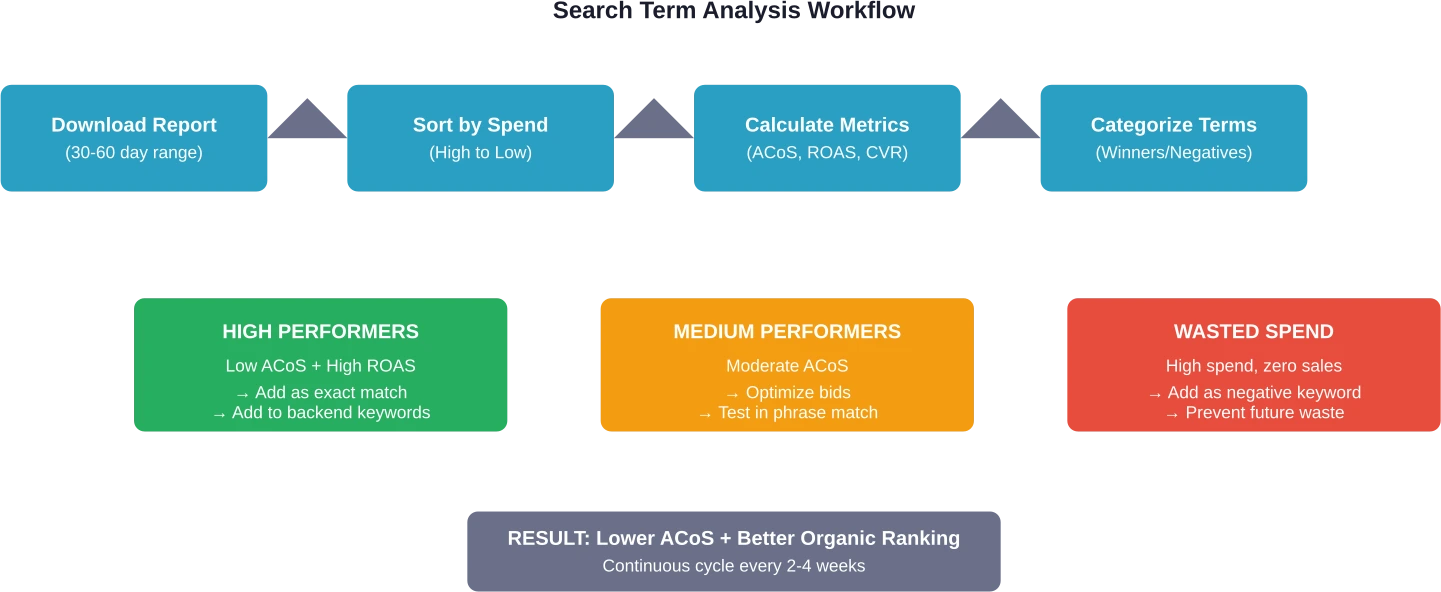
Open your downloaded report in Excel or Google Sheets. Start by creating a summary table using formulas to calculate totals: total spend, total sales, total clicks, total orders. Then compute overall ACoS, ROAS, CVR, and average CPC from those aggregated numbers.
Now sort the data by spend (highest to lowest). The top 20% of search terms by spend usually account for 80% of your budget. Focus there first.
Identifying High-Value Terms to Scale
Look for search terms with ACoS below your target threshold (typically 20-30% for most sellers) and at least 3-5 orders. These are proven converters. Add them to your campaigns as exact match keywords with competitive bids.
Don’t stop at your ad account. Copy these high-performers into your backend keyword fields. According to Amazon’s official guidance, backend search terms help the algorithm index your product for organic search—even if those terms don’t appear in your visible listing copy.
Spotting Wasteful Terms and Adding Negatives
Sort by spend again, but filter for terms with zero orders or ACoS above 100%. If you’ve spent $20+ on a term with no sales, it’s almost certainly a mismatch. Add it as a negative keyword (exact or phrase, depending on specificity).
Community discussions on Amazon seller forums highlight the value of negative keywords for reducing wasted spend. It’s low-effort, high-impact.
Optimization Actions: From Data to Results
Analysis means nothing without execution. Here’s what to do with your findings:
- Create exact match campaigns for winners: High-converting terms deserve dedicated exact match keywords with higher bids. This gives you tighter control and prevents budget bleed.
- Update backend keywords: Add profitable search terms to your Generic Keyword field (max 250 bytes). Use lowercase, separate with spaces, skip punctuation. Seller Central documentation emphasizes avoiding repetition and filler words like “a,” “an,” “the.”
- Refine broad and phrase match campaigns: Use negatives aggressively to trim irrelevant traffic. Broad match is useful for discovery, but only if you prune bad terms weekly.
- Test new product targeting: If you see ASIN codes in your Search Term Report (not words), customers clicked your ad from a competitor’s product page. High-converting ASINs are candidates for dedicated product targeting campaigns.
Backend Keyword Optimization Using Search Term Insights
Backend keywords don’t show to customers, but they tell Amazon’s algorithm what your product is. They’re especially valuable for synonyms, alternate spellings, and abbreviations that don’t fit naturally in your title or bullets.
Best practices from Amazon Seller Central include:
- Keep total character count under the limit (typically 250 bytes, but check your category in Seller Central)
- Use synonyms and common variations
- Include abbreviations (“BPA” if you sell “BPA-free” items)
- Avoid punctuation, repetition, and stop words
- Use singular OR plural, not both (Amazon handles stemming automatically)
The Search Term Report shows which variations actually drive conversions. If “stainless steel water bottle” converts but “stainless bottle” doesn’t, prioritize the full phrase in your backend.
Long-Tail Terms and Emerging Trends
Sort your Search Term Report by impressions (low to high). Long-tail terms—specific, lower-volume phrases—often hide in the bottom rows. They typically have lower competition and higher intent.
A term with 15 impressions, 3 clicks, and 2 orders at $0.40 CPC might seem insignificant. But that’s a 67% conversion rate. Scale it, and you’ve found a pocket of profit.
Seasonality and trends shift fast. Running this analysis monthly helps catch emerging search behavior before competitors notice.

Common Mistakes That Kill ROI
Even experienced sellers trip over these pitfalls:
- Ignoring high-spend, low-conversion terms: If a broad match keyword is bleeding $50/day with zero sales, cut it. Immediately.
- Not updating backend keywords: Your Search Term Report changes monthly. Your backend keywords should too.
- Treating all match types the same: Broad match for discovery, phrase for scaling, exact for profit. Each has a role. Mixing them carelessly wastes the budget.
- Analyzing too infrequently: Weekly checks catch problems before they cost hundreds. Monthly is bare minimum.
Tying PPC Data Back to Organic Strategy
Here’s where it gets interesting. Amazon’s A9 algorithm uses conversion signals to determine organic ranking. When a search term consistently leads to sales (whether through ads or organic clicks), Amazon interprets that as relevance.
By adding high-converting ad terms to your backend keywords and optimizing your listing content around them, you’re teaching Amazon’s algorithm that your product is the right match for those queries. Over time, this can lift your organic rank—reducing reliance on paid ads.
It’s a flywheel: better PPC data → smarter keyword choices → stronger organic visibility → lower overall advertising cost.

Turn Search Term Data Into Decisions, Not Guesswork
Search term reports only help if you can actually connect keywords to real outcomes. Most sellers end up exporting data, filtering it manually, and still missing the bigger picture – which terms drive sales, which just burn budget, and how performance changes over time.
WisePPC solves that by pulling search term, ad, and sales data into one place. You can track keyword performance alongside actual revenue, analyze trends across longer time periods, and make changes directly without jumping between tools. Instead of working with limited Amazon data windows, you get a clearer view of what’s worth scaling and what needs to be cut.
If you want search term optimization to be more than routine cleanup, you need that level of visibility. Start using WisePPC and base your keyword decisions on real performance, not partial data.
Start Mining Your Search Term Data Today
The Amazon Search Term Report isn’t just a spreadsheet. It’s a roadmap showing exactly where your customers are, what they’re searching for, and which paths lead to profit versus waste.
Download your report right now. Sort by spend. Find one term draining budget with zero sales, and add it as a negative. Find one term with strong ROAS, and add it as an exact match keyword plus a backend term. That’s two actions, maybe 10 minutes of work, and they’ll pay dividends for months.
Optimization isn’t a one-time event. Set a weekly reminder, build a simple tracking template, and watch your ACoS drop while your organic visibility climbs. The sellers who win on Amazon aren’t the ones with the biggest budgets—they’re the ones who use data to make smarter bets every single week.
Frequently Asked Questions
How often should I download and analyze my Search Term Report?
Weekly analysis is ideal for active campaigns with significant spend. Monthly works for lower-budget accounts. The key is consistency—set a recurring calendar reminder so it becomes routine rather than something you remember only when performance tanks.
What’s the difference between the Search Term Report and the Search Query Performance report?
The Search Term Report shows terms that triggered your ads (PPC data only). The Search Query Performance report (available in Brand Analytics for brand-registered sellers) shows organic search behavior across the category, including top clicked ASINs and conversion rates—even for searches where you didn’t run ads. Both are valuable, but they serve different purposes.
Can I see search terms for Sponsored Brands or Sponsored Display campaigns?
The Search Term Report is primarily designed for Sponsored Products. Sponsored Brands and Sponsored Display both provide search term reports. Sponsored Display search term reports are available for campaigns using ‘Contextual targeting’.
Why do some search terms show as ASIN codes instead of words?
ASIN codes in your Search Term Report indicate that a customer clicked your ad from a product detail page rather than from search results. This happens with product targeting campaigns or when customers browse related items. High-converting ASINs are worth targeting directly with dedicated product targeting campaigns.
How do I add negative keywords based on the Search Term Report?
In your campaign manager, navigate to the campaign or ad group where the wasteful term appeared. Go to the Negative Keywords tab and add the term as either negative exact (blocks only that precise phrase) or negative phrase (blocks any query containing that phrase). Negative exact is safer for testing; negative phrase is more aggressive.
What ACoS should I target when analyzing search terms?
It depends on your profit margin and business goals. Generally, 20-30% ACoS is healthy for most products. Calculate your break-even ACoS based on your profit margins and use that as your ceiling. Terms below break-even are profitable; terms above it lose money unless you’re bidding for market share or launching a new product.
Should I add every high-converting search term to my backend keywords?
Not necessarily. Prioritize terms that don’t already appear in your title, bullets, or description. Backend keywords are for synonyms, abbreviations, and alternate phrasings that didn’t fit in visible content. If “wireless headphones” is already in your title, adding it to the backend is redundant—Amazon already indexes it. Use backend space for hidden gems like “cordless earbuds” or “bluetooth headset.”
Join the WisePPC Beta and Get Exclusive Access Benefits
WisePPC is now in beta — and we’re inviting a limited number of early users to join. As a beta tester, you'll get free access, lifetime perks, and a chance to help shape the product — from an Amazon Ads Verified Partner you can trust.
 No credit card required
Free in beta and free extra month free after release
25% off for life — limited beta offer
Access metrics Amazon Ads won’t show you
Be part of shaping the product with your feedback
No credit card required
Free in beta and free extra month free after release
25% off for life — limited beta offer
Access metrics Amazon Ads won’t show you
Be part of shaping the product with your feedback