EN
EN  ES
ES  FR
FR  DE
DE  IT
IT  KO
KO  JA
JA  ZH
ZH  AR
AR  PT
PT  TR
TR  PL
PL FBA Shipment Tracking: How to Stay Ahead of Inventory Delays and Delivery Issues

If you’re sending inventory into Amazon’s fulfillment network, tracking those shipments isn’t optional – it’s what keeps everything else in sync. Whether you’re running a lean operation or managing dozens of SKUs, knowing where your stock is (and what’s actually been received) makes all the difference. Timelines shift, boxes go missing, and sometimes checked-in doesn’t mean sellable. The sooner you understand what’s happening behind those shipping statuses, the better you can plan, react, and protect your margins.
Where FBA Shipments Start: What They Are and Why They Matter
An FBA shipment is exactly what it sounds like – the inventory you send into Amazon’s fulfillment network so they can take care of storage, packing, and delivery for you. It’s how products get into Amazon warehouses in the first place. You prep your boxes, create a shipping plan in Seller Central, print the labels, and hand it off to a carrier. From that point on, the inventory is officially on its way to being available for Prime delivery. Sounds simple. But the process has more moving parts than it lets on.
Each shipment kicks off a chain of events: scanning, transport, check-in, receiving, and – eventually – inventory becoming sellable. And not all stages move at the same speed. One box might get processed in a day, another might sit at the dock for a week. That’s why understanding how FBA shipments actually work isn’t just helpful – it’s essential if you care about performance, timing, or staying in stock during high-traffic weeks. You don’t need to micromanage the system, but you do need to read it right.
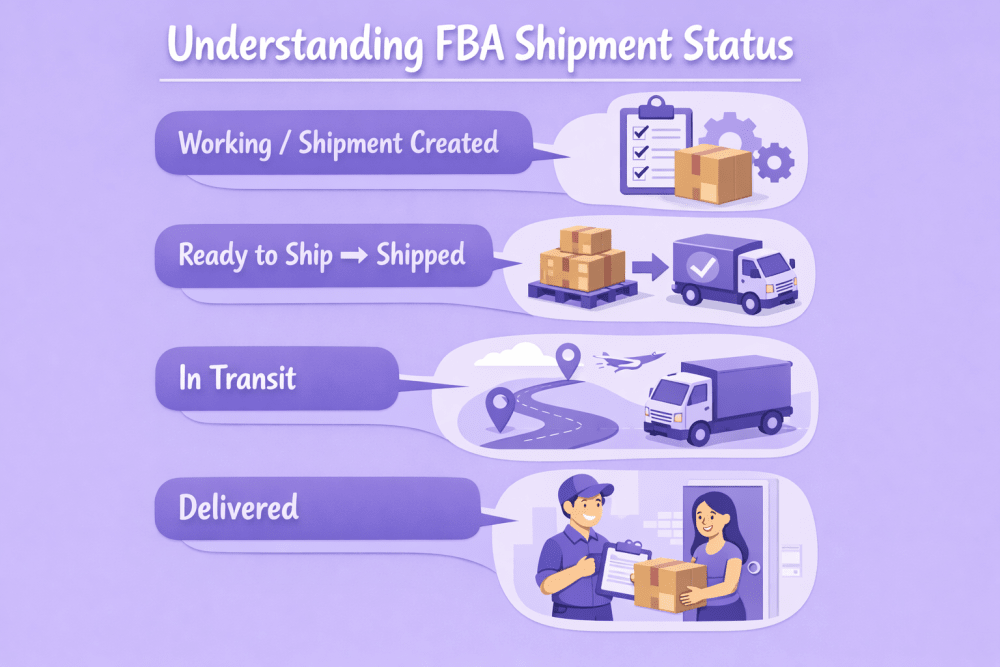
Understanding FBA Shipment Status: What Each Stage Actually Tells You
When you’re tracking an FBA shipment, the status you see in Seller Central isn’t just a label – it’s a signal. Each one reflects a specific step in how Amazon processes your inventory behind the scenes. But not all statuses are equally clear, and some can hang there longer than expected. Here’s what each one really means, and when you should pay attention.
1. Working / Shipment Created
This is the starting point – you’re building or editing the shipping plan. No inventory has moved yet, but Amazon now knows what to expect. Once box contents are confirmed and labels are printed, the shipment progresses to the next stage.
2. Ready to Ship → Shipped
Ready to Ship appears when you provide the carrier’s name and tracking information or confirm the shipment through the Amazon Partnered Carrier program. It means your part is done – now it’s on the carrier. The status changes to Shipped once the carrier scans the boxes or you confirm drop-off. If that scan never happens, the shipment stays stuck. Always double-check that pickup or drop-off was properly recorded.
3. In Transit
At this stage, Amazon knows the shipment is on the move. This doesn’t mean it’s close – just that tracking data from your carrier confirms movement. It could still be crossing the country. If it stalls here too long, check with the carrier directly, not Amazon.
4. Delivered
Your shipment made it to the fulfillment center… in theory. “Delivered” means it arrived at the building – not that anyone’s touched it. Sometimes it sits in the yard for days before check-in starts, especially during peak volume weeks.
5. Checked In
This means your boxes have been scanned at the dock. It’s a signal that warehouse staff is starting to process them. Still doesn’t mean units are ready for sale – it’s more like being next in line at the DMV. Progress, but not done.
6. Receiving
Here’s where Amazon begins scanning individual items into inventory. Some SKUs go live right away. Others might get rerouted to different warehouses before becoming available. You’ll often see partial receiving at this stage – not a glitch, just how FBA works.
7. Closed
The shipment’s lifecycle is done. Either all items were received, or Amazon automatically closed the shipment after 90 days for domestic shipments or 90 days for international shipments since the shipment creation date. If the numbers don’t match what you sent, this is when you start reconciling.
Each status is a breadcrumb, not a full picture. But when you learn to read them right, you’ll catch delays early, flag receiving issues faster, and stop guessing where your inventory’s stuck. It’s not about micromanaging Amazon’s process – it’s about knowing when to dig in and when to wait.

From Inventory Delays to Budget Adjustments with WisePPC
When shipments don’t move as expected, the impact isn’t limited to logistics – it shows up in your sales, ad performance, and margins. That’s why WisePPC connects the dots between what’s happening in your FBA pipeline and what you’re seeing in your marketplace dashboards. We give sellers the visibility to catch delays early, adjust campaigns in real time, and stop spending on products that aren’t actually available to ship.
Our platform separates organic from paid sales, tracks real-time metrics like TACOS and profit, and highlights inventory-related ad waste – so you know exactly when fulfillment issues start to drag down performance. Whether you’re running Sponsored Products, managing multiple accounts, or juggling ad pacing with restock schedules, we help you stay ahead instead of reacting late.
You’ll find us on Facebook, Instagram, and LinkedIn, where we post insights, small fixes, and product updates to help sellers run tighter, smarter systems. At the end of the day, the goal isn’t to flood you with data – it’s to surface what matters and make it easier to act on it.
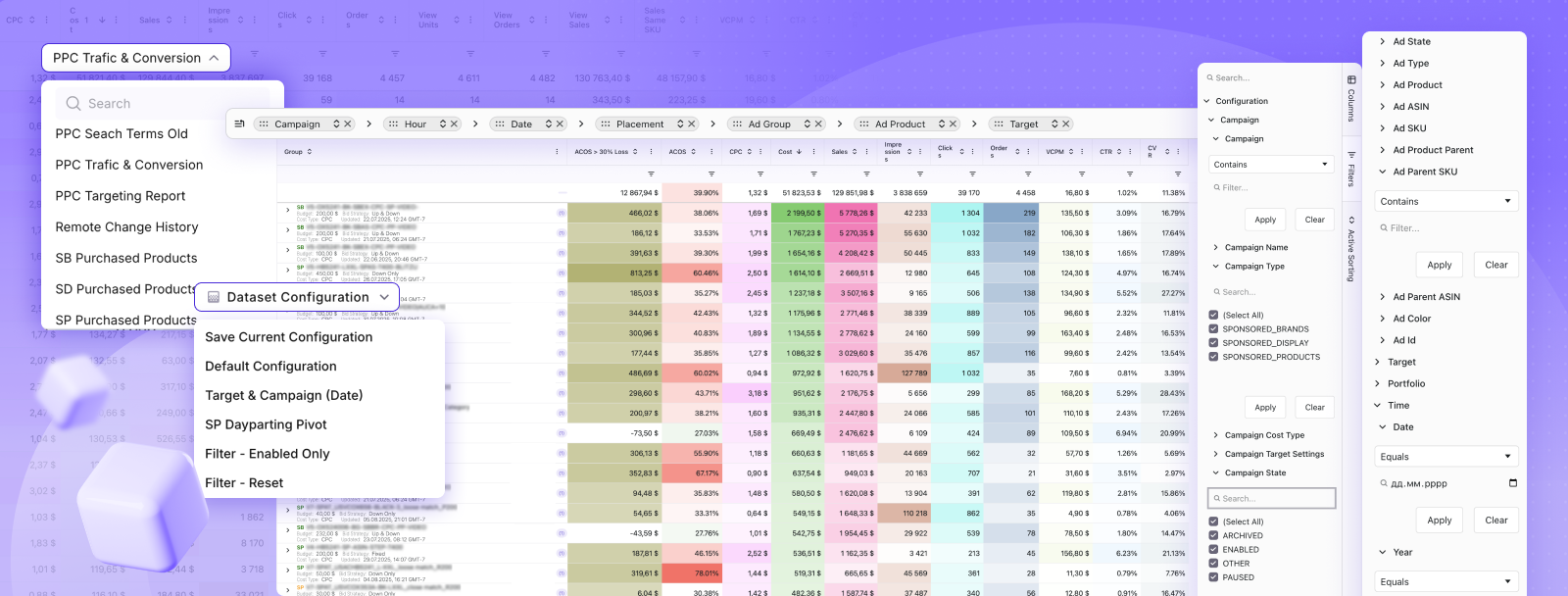
How to Actually Track an FBA Shipment (Without Guessing)
Tracking an FBA shipment shouldn’t feel like chasing a moving target – but sometimes it does. The good news is, Amazon gives you multiple ways to monitor where your inventory is and what’s happening to it. The trick is knowing where to look and what each view is actually telling you. Here’s how to get answers without digging through five tabs or waiting for something to go wrong first.
Start in Seller Central: Your Shipping Queue
This is your launchpad.
- Go to Inventory in the top nav.
- Click Manage FBA Shipments.
- You’ll land in the Shipping Queue, where all your inbound shipments live.
For each one, you’ll see a status (like “In Transit” or “Receiving”) and a button labeled Track Shipment. That’s your way in.
Use “Track Shipment” to See the Full Trail
Clicking that button takes you to a Shipment Summary – which has two key tabs:
- Shipment events: This is your event log, with timestamps for every scan and transition.
- Contents: Shows what Amazon thinks it received – useful later if the numbers don’t match.
Watch for gaps in the timeline. If you see “Delivered” but nothing after, your shipment might still be waiting to be checked in – normal, but worth watching if it drags past a few days.
Cross-Check with the Carrier
If the shipment is still in transit, Amazon’s view can lag. That’s when you go straight to the source.
Grab the tracking number (it’s listed in the summary) and plug it into UPS, FedEx, or whichever carrier you used. You’ll get location updates, expected delivery time, and sometimes delay flags.
- Quick tip: Amazon’s Partnered Carrier Program usually syncs well, but third-party freight can be slower or missing scans altogether.
For High-Volume Sellers: Automate the Watchtower
If you’re sending frequent shipments or managing multiple accounts, manual tracking breaks down fast. You need a system that not only shows where inventory is but also connects delays to performance drops and missed revenue. You’ll still check shipment statuses in Seller Central, but now you can also:
- Spot stockouts before they tank your ACOS
- See if poor delivery timing is messing with your best-performing SKUs
- Correlate slow receiving times with missed sales targets
Inventory doesn’t move in isolation – and tracking shouldn’t either.
Staying on top of shipment movement is part of the job now. But it doesn’t have to be a guessing game. The more you check early, the less you chase problems later.
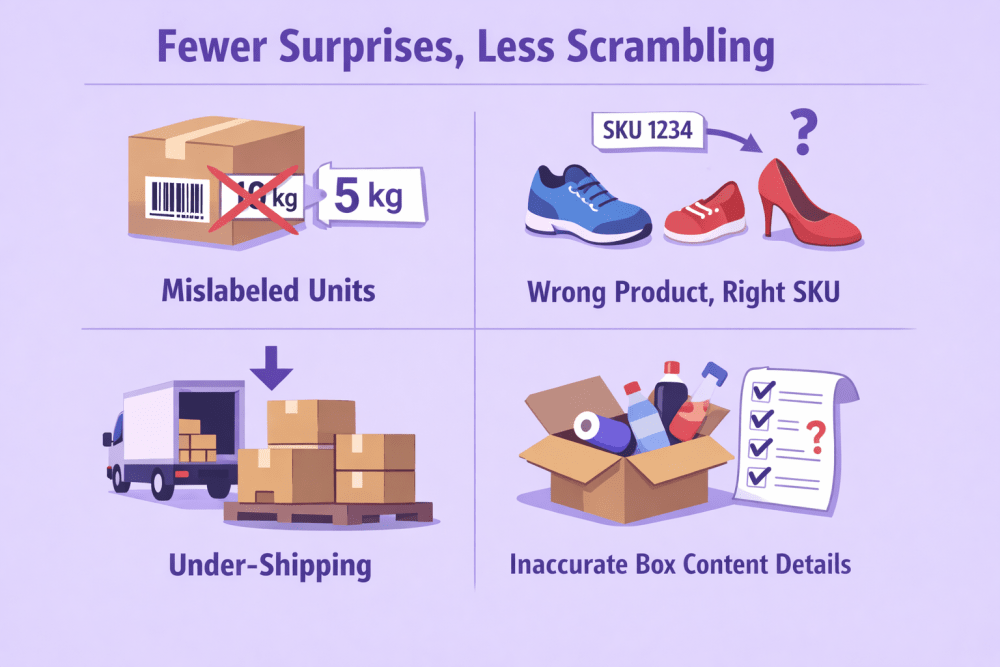
Fewer Surprises, Less Scrambling: How to Avoid FBA Inventory Headaches
The quickest way to mess with a strong ad campaign? Inventory issues that should’ve been caught before shipping. You print the labels, send the boxes, and hope for the best – but small prep errors can spiral into delays, stockouts, and wasted spend. Most of it starts early. Here’s what to watch for:
- Mislabeled units or missing barcodes: Amazon needs clean, scannable barcodes. If even one unit shows up with the wrong label (or none at all), the whole box might get flagged. Use Amazon-approved labeling or have Amazon do it for you.
- Wrong product, right SKU: You entered the correct SKU in the shipping plan – but the actual item doesn’t match. Double check every variation before you seal the box. Sizes, colors, and bundles get mixed up more than you’d think.
- Under-shipping or over-shipping: If you say you’re sending 50 units and only send 48 (or 52), the receiving process stalls. Stick to exact counts. If you’re using a distributor, make sure they’re aligned on quantity and cutoff dates.
- Inaccurate box content details: Box-level information isn’t optional – it’s how Amazon knows what’s in each box before opening it. Skip this step, and your shipment will get slowed down at the dock.
- Damaged packaging or unapproved materials: Avoid shrink wrap confusion, fragile items without bubble wrap, or loose units in oversized boxes. Amazon expects specific prep depending on product type. Cut corners here and you’ll pay with delays – or worse, removals.
- Wrong fulfillment center: If you manually change the ship-to address or override Amazon’s suggested locations, expect pushback. It can lead to refusals or split shipments that delay check-in.
Fixing these things after the fact is slow, expensive, and usually comes with a support case. Catching them early is a workflow issue – and a visibility issue. If your system doesn’t track this stuff clearly, you’re just hoping for the best. That’s not a strategy.
When the Numbers Don’t Match: How to Handle FBA Shipment Discrepancies
Sometimes Amazon says they received fewer units than you sent. Or they log an item you never packed. It’s frustrating – especially when your inventory, rankings, or ad campaigns are tied to those missing products. But it’s fixable. The key is knowing where to look, what to click, and when to step in.
Start by opening the shipment in Seller Central and heading to the Contents tab. You’ll see expected vs. received units side by side. Hover over the numbers to check details. If the shipment is marked “Closed” and there’s still a mismatch, look for the Action Required dropdown – that’s where you start a reconciliation.
Amazon might ask for proof of shipment, invoices, or tracking docs. Upload what you’ve got and submit the case. After that, watch for updates under Case Submitted – and follow up if it stalls. This part isn’t fun, but if your margins depend on it, don’t wait it out. Track it like you track your campaigns.
Pro Tips to Make Your FBA Tracking Actually Work for You
If you’re treating shipment tracking like a background task, you’re already behind. The most effective sellers use it as an early warning system – a way to flag risks before they impact revenue. These aren’t hacks. They’re small habits that shift you from reactive to proactive. Here’s how to sharpen your tracking process:
- Check the Shipping Queue daily – even if nothing’s “wrong”: Stalls usually show up in status changes. Catching a shipment stuck in “Delivered” before it turns into a support case saves time and inventory headaches.
- Set internal deadlines earlier than Amazon’s window: Don’t rely on Amazon’s check-in timeframe. Build buffer time into your ops calendar so campaigns don’t go live before stock is actually sellable.
- Tag shipments tied to high-performing SKUs: If an inbound box contains your top sellers, track it like a campaign. These shipments deserve more attention than your slow-moving units.
- Pair shipment tracking with ad pacing: If stock is running late, slow down spend. Otherwise, you risk pushing traffic to products that aren’t even available – and burning budget with nothing to show for it.
- Keep your prep routine locked in: Labeling errors and missing box content info are still the top reasons shipments get delayed. Standardize your packing process – or outsource it if needed.
- Document everything – even when it’s boring: Save tracking numbers, shipment plans, and prep invoices. When discrepancies happen (and they will), the fastest resolution comes from being organized, not right.
Smart tracking isn’t about watching every box. It’s about setting up enough visibility so you only have to step in when it matters.
Conclusion
FBA tracking isn’t about obsessing over where every box is at all times. It’s about having enough visibility to spot delays before they become stockouts, to fix small prep issues before they become expensive support cases, and to understand how fulfillment speed affects everything else – including your ad performance.
You don’t have to be perfect. But the sellers who grow the fastest usually aren’t the ones guessing. They’re the ones watching signals early, tying operations to results, and making quiet adjustments before problems hit the surface. Shipments are part of your system. Track them like they matter – because they do.
FAQ
1. How often should I check my Shipping Queue in Seller Central?
If you’re shipping regularly, once a day is enough. It only takes a minute to spot a stalled status or a delayed check-in – and catching it early means fewer problems later.
2. Why does my shipment say “Delivered” but nothing is being received?
“Delivered” just means it reached the fulfillment center, not that anyone’s touched it yet. It can sit there for a few days (or longer during peak weeks) before it’s checked in.
3. Can I start a reconciliation if the shipment isn’t marked “Closed”?
Nope. You’ll have to wait until Amazon officially closes the shipment. That’s when the “Action Required” dropdown becomes available, and that’s your signal to start the process.
4. What if I accidentally sent the wrong number of units?
Be honest during reconciliation. If you over- or under-shipped, select the matching option and upload whatever proof you have. Trying to fake it rarely works out.
Join the WisePPC Beta and Get Exclusive Access Benefits
WisePPC is now in beta — and we’re inviting a limited number of early users to join. As a beta tester, you'll get free access, lifetime perks, and a chance to help shape the product — from an Amazon Ads Verified Partner you can trust.
 No credit card required
Free in beta and free extra month free after release
25% off for life — limited beta offer
Access metrics Amazon Ads won’t show you
Be part of shaping the product with your feedback
No credit card required
Free in beta and free extra month free after release
25% off for life — limited beta offer
Access metrics Amazon Ads won’t show you
Be part of shaping the product with your feedback