EN
EN  ES
ES  FR
FR  DE
DE  IT
IT  KO
KO  JA
JA  ZH
ZH  AR
AR  PT
PT  TR
TR  PL
PL Mastering Amazon Automate Pricing Rules: A Practical Guide

Amazon Automate Pricing serves as a built-in tool in Seller Central for Professional sellers. It handles automatic price adjustments for listed products based on defined rules. The system responds to changes in the marketplace, such as shifts in the Featured Offer price or other reference points. This approach reduces the need for constant manual updates across a catalog.
The core function revolves around pricing rules. These rules dictate the conditions under which prices change. Sellers define parameters, apply rules to specific SKUs, and set boundaries to control outcomes. Without rules assigned to products, no adjustments occur.
The tool operates in near real-time for most triggers. It applies only to designated SKUs rather than the full inventory automatically. Sellers retain control through minimum prices, which remain required, and optional maximum prices.
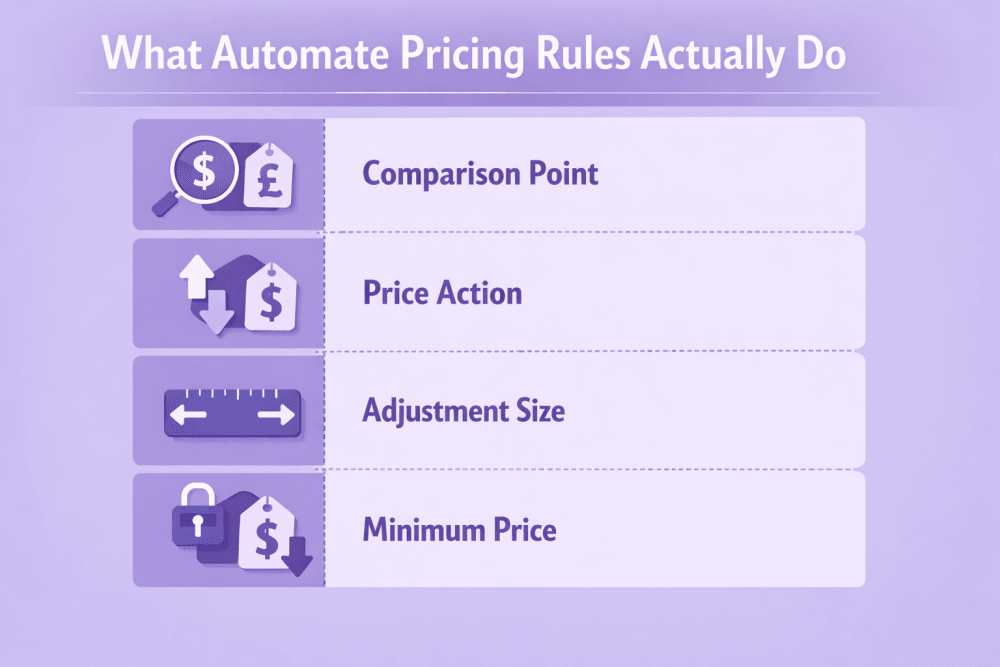
What Automate Pricing Rules Actually Do
Pricing rules define the logic that controls when and how your product prices change automatically. The system watches for specific events (such as updates to the Featured Offer price or the lowest offer price) and adjusts your price according to the parameters you set – but only if the result stays within your defined limits.
Each rule controls these main elements:
- Comparison point: the price the rule monitors (Featured Offer price, Lowest price, Lowest external price on Amazon, or External reference price)
- Price action: what to do relative to that price (Match exactly, Beat by a set amount/percentage, or Stay above)
- Adjustment size: the exact difference to apply (fixed amount like $0.10 or percentage, usually with minimum 1% / $0.10 and maximum up to 90%)
- Minimum price: mandatory floor that prevents prices from going unprofitably low
- Maximum price: optional ceiling to limit how high the price can go
- Built-in safeguards: even without a maximum, the system avoids extreme jumps far above recent historical prices to protect Featured Offer eligibility and customer perception
This structure lets sellers automate repricing with clear boundaries while still responding to real-time market changes.
Main Types of Pricing Rules
Amazon Automate Pricing offers several categories of rules, each designed for different pricing goals and market conditions.
Here are the main types:
- Competitive Rules: the largest group, adjust price based on direct comparison with other live offers in the marketplace
- Competitive Featured Offer Rules: track current Featured Offer (Buy Box) price and let you match exactly, go below by amount/percentage, or stay slightly higher
- Competitive Lowest Price Rules: compare against the lowest offer for the ASIN (often filtered by FBA/FBM); match, beat, or stay just above the lowest price
- Competitive External Price Rules: factor in prices of the same/similar products on other websites to stay competitive outside Amazon
- Sales-Based Rules: ignore competitors and lower price automatically if sales fall below a set number of units in a chosen time period
- Business-Oriented Rules: for Amazon Business sellers; auto-update business prices based on consumer price changes and manage quantity discounts/tiered pricing
- Predefined Rules: ready-made Amazon templates with recommended defaults for quick setup (basic Featured Offer match, lowest-price competition, global selling, etc.)
- Custom Rules: maximum flexibility; select type from dropdown then manually set comparison point, action, adjustment size, filters, min/max prices
Choose the type that best fits your current priorities and product behavior.
Why Use Amazon Automate Pricing?
Amazon Automate Pricing solves several everyday problems that come with manual price management. It runs continuously and reacts to market changes without requiring constant attention from the seller.
Saves Time on Routine Tasks
The tool adjusts prices automatically around the clock according to the rules you define. Sellers no longer need to check competitor prices multiple times a day or update hundreds of listings manually.
Maintains Competitiveness Automatically
It responds to shifts in the Featured Offer or lowest price in near real-time. This helps keep your offers visible and relevant even when you are focused on other parts of the business.
Improves Chances of Winning the Featured Offer
Specific competitive rules can be tuned to position your price exactly where it needs to be to increase Buy Box eligibility. Targeted adjustments often lead to more consistent visibility and higher sales potential.
Protects Profit Margins Effectively
Every rule requires a minimum price setting, which acts as a hard floor. An optional maximum price adds extra control, preventing prices from dropping too low or rising unexpectedly during volatile periods.
Reduces Risk of Lost Sales from Missed Changes
Manual monitoring can miss sudden competitor price drops, leading to days of lower rankings and fewer orders. Automation catches these shifts quickly and applies your predefined response.
Supports Different Strategies Across Products
You can run varied rules at the same time. Some products might use aggressive competitive settings while others focus on margin protection or sales velocity adjustments.
Handles Large Catalogs Efficiently
Rules apply to individual SKUs or entire groups through bulk assignment. This makes the tool practical for sellers managing thousands of products without overwhelming manual work.
Helps Preserve Customer Trust
Built-in safeguards stop extreme upward price jumps even without a maximum limit set. Prices stay reasonable compared to recent history, avoiding complaints about sudden increases.

WisePPC: Empowering Smarter Pricing Decisions on Amazon
At WisePPC, we provide an advanced analytics and PPC optimization platform tailored for Amazon sellers (with support for Shopify and multi-channel operations). Our real-time dashboards, years of historical data storage, and unified views of advertising, sales, organic performance, and conversions give you the clarity needed to make informed choices.
We excel in supporting pricing strategy through robust Average Selling Price (ASP) tracking: we automatically calculate ASP from all sales data, allowing analysis as a total value or with moving averages (3, 7, 14, or 30 days) to uncover trends, profitability shifts, and differences between advertised and purchased product prices. By clearly separating ad-driven revenue from organic reach, we help you evaluate how price adjustments truly impact performance – such as driving more organic sales alongside strong ad clicks or failing to lift conversions – ensuring you avoid wasting budget on underperforming items.
Our tools deliver actionable insights for manual pricing decisions aligned with ad efficiency, margins, and long-term trends. While we do not yet offer automated pricing rules or live dynamic repricing, our planned “Dynamic Repricing Based on Market Trends” feature will automatically adjust pricing strategies based on competitor activity once released.
In beta, we focus on delivering precise, data-backed visibility today to help you optimize pricing smarter – join us for free access, lifetime perks, and a chance to shape upcoming features.
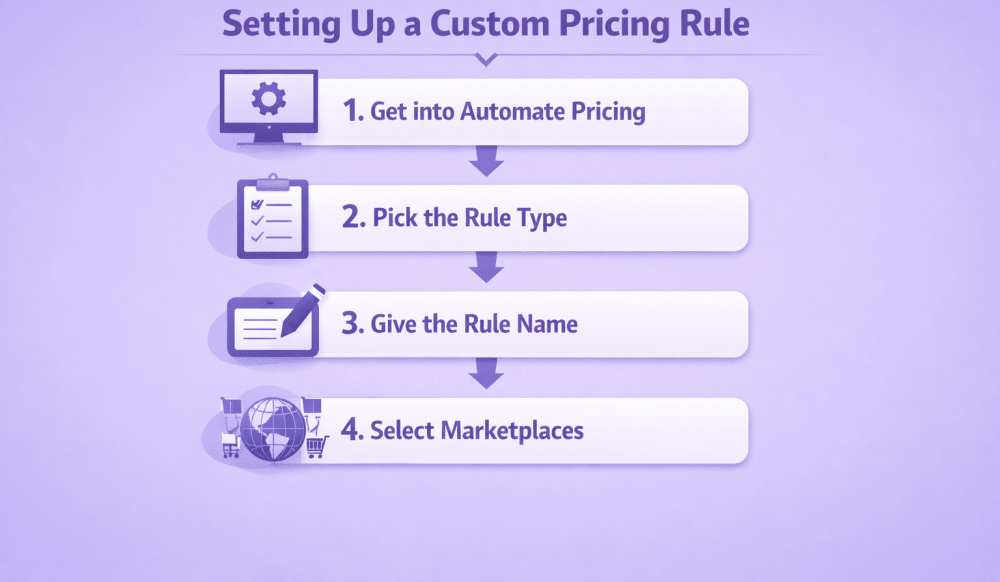
Setting Up a Custom Pricing Rule Step by Step
Setting up a custom pricing rule in Amazon Automate Pricing is straightforward once you are in Seller Central. The process lets you define exactly how your prices should adjust automatically. Follow these steps carefully to get it right the first time.
Step 1: Get into Automate Pricing
Log in to Seller Central and navigate to Pricing in the main menu, then select Automate Pricing.
If this is your first time, you will see a Get Started button. Click it to begin.
If you have used the tool before, look for the Create a new pricing rule option on the main Automate Pricing page and click that.
Step 2: Pick the Rule Type
A dropdown menu appears right away. Choose the type of rule that fits your goal.
The main options include:
- Competitive Featured Offer
- Competitive Lowest Price
- Competitive External Price
- Based on sales units
- Business Competitive Featured Offer
- Business Price and Quantity Discounts
Competitive types respond to other sellers’ prices. Sales-based ones react to your own sales speed. Business types handle B2B-specific pricing.
Step 3: Give the Rule a Name
Enter a short but clear name in the Name your rule field.
Something like “Featured Offer – $0.10 below” or “Sales slow drop 5 units” makes it easy to find later when you have many rules running.
Step 4: Select Marketplaces
Check the boxes for the Amazon stores (marketplaces) where this rule should run.
You can pick one or several at once, like US, UK, or Germany.
Important note: you have to set the details separately for each marketplace you select, so plan accordingly.
Step 5: Choose the Reference Price
Decide what price your rule will watch and compare against.
The usual choices are:
- Featured Offer price (the Buy Box price)
- Lowest price (the cheapest offer on the page, often with filters)
This is the anchor point that triggers any changes.
Step 6: Decide the Price Action
Tell the system how to position your price relative to the reference.
Options are typically:
- Match (exactly the same)
- Beat (go lower by the amount you set)
- Be above (stay higher by the amount you set)
Pick one from the dropdown next to the reference price field.
Step 7: Set the Adjustment Amount
Specify how much difference you want.
You can use a fixed dollar amount (minimum usually $0.10) or a percentage (minimum often 1%, maximum up to 90% depending on the rule).
Enter the value in the box provided.
Step 8: Add Filters (If Needed)
Filters let you narrow down which competing offers the rule considers.
Common ones include:
- Fulfillment method (only FBA, only FBM, etc.)
- Seller rating (e.g., 90%+ feedback)
- Condition (New only)
- Shipping options
Check the boxes for the filters you want. This makes the rule more precise and avoids bad matches.
Step 9: Check the Rule Summary
At the bottom, a plain-text summary appears showing exactly what the rule will do.
Read it carefully – something like “Your price will be $0.15 below the Featured Offer for FBA offers from sellers with 4+ stars.”
This is your last chance to catch mistakes before saving.
Step 10: Save and Move to SKUs
Click Save and select SKUs (or the similar button).
The rule saves even if you do not add products right away.
The system takes you to the SKU assignment screen where you can start adding individual items or use bulk upload for many at once.
Once SKUs are assigned and repricing is started, the rule begins working automatically. Test on a few products first if you are new to this – small changes can reveal a lot.
Assigning SKUs and Managing Rules in Bulk
After creating a pricing rule, it remains inactive until you assign SKUs to it. You can add products one by one directly from the inventory list or the SKU management screen inside Automate Pricing. For large catalogs the fastest way is bulk upload: download the template file for the chosen marketplace from the Manage SKUs via file upload section, fill in the SKUs and any required fields, then upload it through the interface. After the upload, check the processing status in the Monitor Automate Pricing file upload area and refresh the page if necessary to confirm which SKUs were successfully added. A rule only reprices the products that are actively assigned to it – any SKU without an assigned rule continues to use its manually set price and is not affected by automation. From the list of rules in Automate Pricing you can pause an active rule, edit its settings (comparison point, action, adjustment size, min/max prices, filters) or completely delete it. Custom rules allow full editing, while predefined rules usually permit only limited changes, such as adding or removing SKUs. When a listing is set to Inactive, every pricing rule linked to its SKU is automatically paused and stays paused until the listing is reactivated.
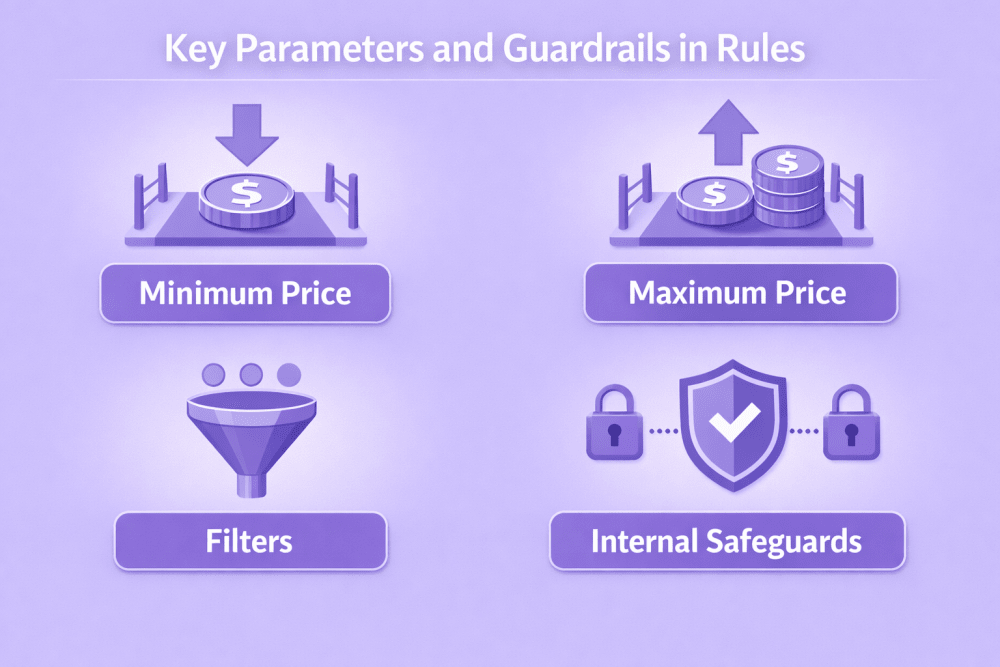
Key Parameters and Guardrails in Rules
These parameters and built-in protections are what give you real control over how aggressive or safe your automated repricing will be. Without them, rules could run wild and cause problems like lost profits or customer backlash. Setting them thoughtfully is one of the most important parts of using Automate Pricing effectively.
Minimum Price
The minimum price is a required field in every pricing rule.
It sets a hard floor that the system will never go below, regardless of how aggressive the repricing logic becomes.
This parameter protects against unprofitable sales during strong downward pressure from competitors.
Maximum Price
The maximum price is an optional setting.
When defined, it limits how high the system can push your offer price.
It provides additional protection against extreme upward adjustments in unusual market situations.
Filters
Filters let sellers narrow down which competing offers the rule takes into account.
Most commonly used filters include fulfillment method (FBA or FBM only), seller performance rating, product condition, and shipping speed.
Applying filters makes the comparison more targeted and prevents matching against irrelevant or low-quality listings.
Internal Safeguards
The tool includes built-in logic that operates beyond the user-defined parameters.
Even when no maximum price is set, the system avoids raising prices dramatically above recent historical levels on or off Amazon.
This behavior helps preserve Featured Offer eligibility and prevents customer complaints about sudden large increases.
Marketplace-Specific Configuration
When a rule is applied to multiple marketplaces at once, all parameters are configured separately for each one.
This means minimum prices, maximum prices, filters and other settings can differ across regions.
Business Rules Specifics
Business pricing rules often work differently from standard consumer rules.
In many configurations they automatically sync business-only prices or quantity discounts with changes made to the corresponding consumer prices.
This creates a direct relationship between the two pricing tiers.
Practical Considerations When Using Rules
| Aspect | Recommendation / Key Point | Why it matters / Risk if ignored |
| Product & Rule Alignment | Match rule type to product behavior (competitive rules for high-competition items, sales-based for slow movers) | Wrong rule type → poor results or unnecessary price drops |
| Performance Monitoring | Regularly check history views: Buy Box win %, sales velocity, price change impact (e.g. last 30 days) | You won’t notice if the rule is losing money or not working |
| Starting Approach | Begin with simple, conservative rules on small number of SKUs (10–50 items) | Aggressive rules on full catalog → fast margin damage |
| Minimum Price Setting | Set carefully above real landed cost (fees + shipping + returns) | Too low minimum → profitable sales become losses |
| Price Fluctuations | Expect volatility from competitor actions, stock changes, rule interactions | Sudden drops or spikes can hurt brand, margins or ranking |
| Listing Inactivity Behavior | Rules automatically pause when listing is Inactive, resume when Active | Prevents unwanted repricing during stock-outs or vacations |
| Large Catalog Management | Use bulk upload for assigning / changing / pausing rules across hundreds/thousands SKUs | Manual management of large inventory is slow and error-prone |
Common Challenges with Automate Pricing Rules
Automate Pricing is a powerful tool, but like any automated repricing system, it comes with several practical limitations and potential pitfalls that sellers frequently encounter.
Here are the most common challenges:
- Adjustments can behave unexpectedly when reference prices (Featured Offer or lowest price) change very rapidly – the system may lag slightly or react in ways that feel inconsistent
- Without a maximum price set, built-in safeguards prevent extreme upward spikes, but these protections depend on recent historical data and can still allow higher prices than some sellers expect
- Overly narrow filters may exclude important competing offers, causing the rule to ignore the actual main competitors and produce suboptimal pricing decisions
- Sales-based rules can trigger unnecessary price drops if the sales threshold and time period are not carefully chosen – too aggressive settings often lead to premature discounts
- Business pricing rules apply to assigned SKUs – always double-check the assigned products to avoid unintentionally changing prices across unrelated items
- Effective troubleshooting almost always requires comparing the current rule parameters directly against real-time market data (current Featured Offer, lowest prices, active filters, etc.) – guessing usually wastes time
Most of these issues can be minimized with careful initial setup, conservative testing, frequent performance checks, and keeping minimum prices realistic.
Conclusion
Amazon Automate Pricing rules provide a structured way to handle dynamic price adjustments. The system relies on defined comparisons, actions, and boundaries to respond to marketplace events. Competitive, sales-based, and business types cover main scenarios. Setup involves creating rules, assigning SKUs, and applying limits. Effective use requires attention to parameters and ongoing monitoring. The tool suits sellers seeking automation without third-party solutions, though results depend on proper configuration and market conditions.
FAQ
What is required to use Amazon Automate Pricing rules?
A Professional selling plan and an active product catalog in Seller Central are necessary. Products must meet eligibility criteria for pricing adjustments.
Can I apply multiple rules to the same SKU?
No, each SKU can have only one active pricing rule at a time. Assigning a new rule replaces the previous one.
What happens if the calculated price hits the minimum limit?
The price stops at the minimum. No further downward adjustment occurs until market conditions change or the rule updates.
Do rules work across different Amazon marketplaces?
Yes, but parameters must be set separately for each selected marketplace during creation.
How do sales-based rules determine price changes?
They monitor units sold over a defined period. If sales drop below the threshold, the price decreases according to the rule settings.
Is there a way to stop a rule temporarily?
Rules can be paused through the actions menu. They also pause automatically if associated listings become inactive.
Join the WisePPC Beta and Get Exclusive Access Benefits
WisePPC is now in beta — and we’re inviting a limited number of early users to join. As a beta tester, you'll get free access, lifetime perks, and a chance to help shape the product — from an Amazon Ads Verified Partner you can trust.
 No credit card required
Free in beta and free extra month free after release
25% off for life — limited beta offer
Access metrics Amazon Ads won’t show you
Be part of shaping the product with your feedback
No credit card required
Free in beta and free extra month free after release
25% off for life — limited beta offer
Access metrics Amazon Ads won’t show you
Be part of shaping the product with your feedback